Yealink BH76 with Charging Stand Teams Black USB-A – 1208625

Frequently Asked Questions

Ensure the USB-A adapter is firmly seated in a port on the computer itself, not an external hub, and that its LED is blinking slowly. Confirm the headset is powered on and within range; if it doesn’t show up, try moving the adapter to a different USB port. Restarting the computer can also resolve temporary driver issues. If the headset still isn’t detected, updating the Yealink USB Connect software or checking Windows/Teams audio device settings often clears the problem.
First, make sure the retractable microphone arm is fully extended—it only activates when pulled down. In your softphone or Teams, verify the BH76 is selected as the default recording device and that the call isn’t muted. If others still can’t hear you, try gently cleaning the microphone port with a dry cloth and check that no audio-enhancing apps are blocking access. A quick power cycle of the headset often restores mic function.
Cycle through the ANC levels by pressing the dedicated ANC button on the headset—higher levels may be more effective in loud environments. Make sure the ear cushions form a good seal around your ears, as gaps let external noise in. Also confirm you’re using the latest firmware via Yealink USB Connect, since updates can refine ANC performance. In particularly noisy open-plan offices, positioning yourself away from direct noise sources helps the microphone array do its job.
Start by checking that no physical obstacles or electronic devices like cordless phone bases are between the headset and the USB adapter. Try moving the adapter to a front USB port for a clearer line of sight. Ensure the headset battery is above 20%, as low power can destabilize the connection. If disconnects persist, verify your computer’s Bluetooth isn’t simultaneously connected to the headset alongside the adapter, which can cause conflicts.
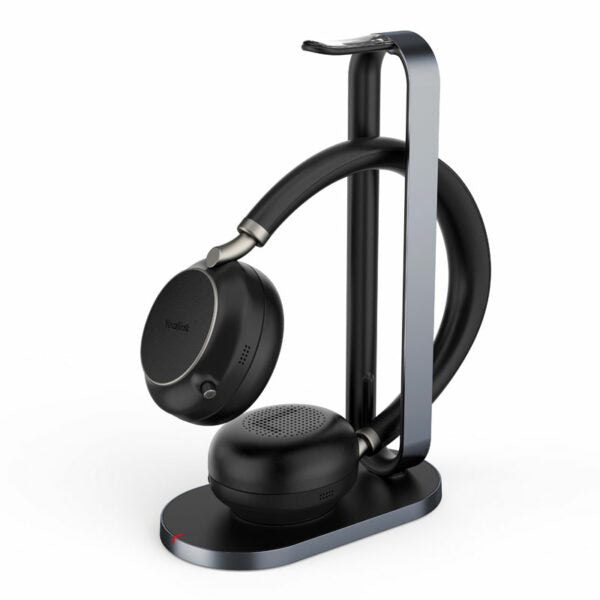
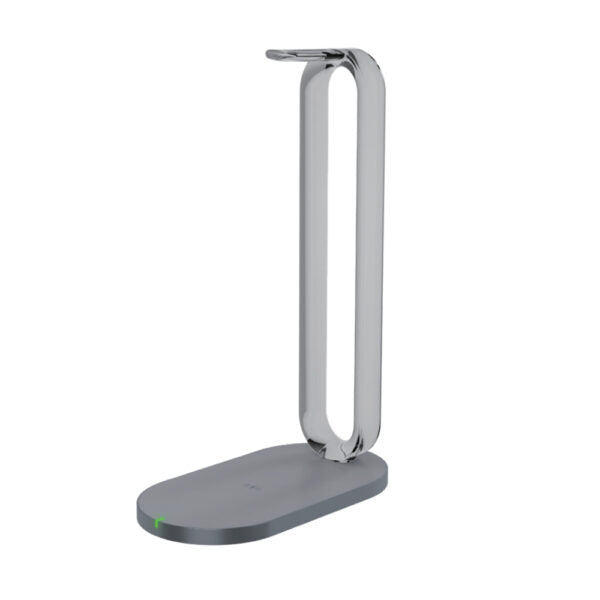
Place the headset on the stand so the charging contacts align properly; the stand’s LED should illuminate to indicate charging. Check that the stand’s USB cable is plugged into a working power source—try a different wall adapter or computer port. Clean both the headset’s charging base and the stand’s surface with a soft, dry cloth. If the LED remains off, test with the included USB cable to charge the headset directly, which isolates whether the issue is with the stand or the headset itself.
First, open Yealink USB Connect and confirm the busy light feature is enabled—it may be toggled off in the settings. Make sure your softphone (e.g., Teams) is properly integrated and recognized by the USB Connect app. If the light still doesn’t activate, restart both the headset and the software. In most cases, a missing busy light is a software-configuration issue that a support specialist can help diagnose without affecting your headset’s call functions.
Confirm you’re in music mode rather than speak mode; the headset may have separate audio profiles you can switch via the Yealink USB Connect application. Ensure the ear cushions are seated correctly and free of debris, as a poor fit can degrade bass response. Check the media player’s equalizer settings and disable any spatial audio or enhancements that could conflict. If the issue remains, update the firmware and codec support through USB Connect, since Qualcomm aptX HD requires proper driver activation.
Pair the headset with both devices via Bluetooth—first with the computer using the USB adapter (or its built-in Bluetooth), then with your mobile phone through the phone’s Bluetooth settings. The BH76 supports two simultaneous connections, so you’ll hear notifications from both. You can manage active connections and audio preferences through the Yealink USB Connect app or, on the mobile phone, by using the phone’s Bluetooth menu to switch audio sources during a call.
Hold the power button for approximately 10 seconds to force a power cycle; this doesn’t erase any settings. If that doesn’t work, connect the headset to a charger and try again, as a deeply drained battery can cause unresponsiveness. Should the headset remain frozen after these steps, avoid performing a factory reset on your own—this can wipe pairing and customization data. Instead, reach out to your IT department or a specialist who can guide you through safe recovery options.
Yes, sidetone levels are adjustable through the Yealink USB Connect desktop application. Install the software, connect the headset, and look for the hearing or sidetone volume slider. Increase it if you find yourself speaking too loudly, or reduce it if the self-monitoring becomes distracting. These settings apply to all connected devices and will persist after power cycling, so they don’t need to be reconfigured each day.
VoIP Headsets

Yealink BH76 with Charging Stand Teams Black USB-A – 1208625
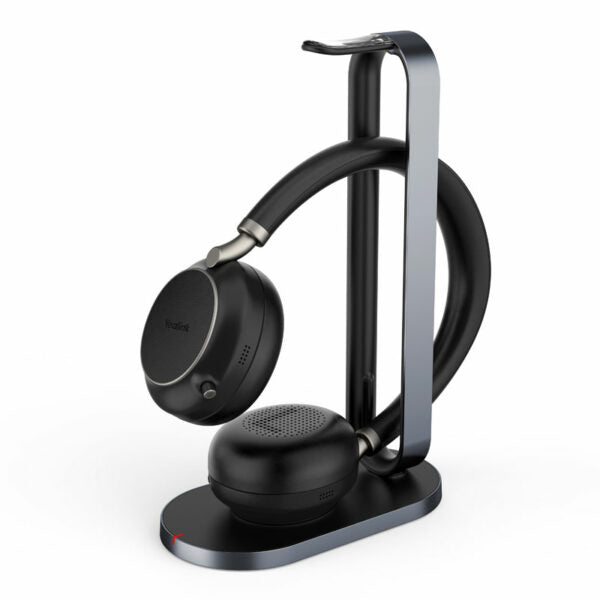
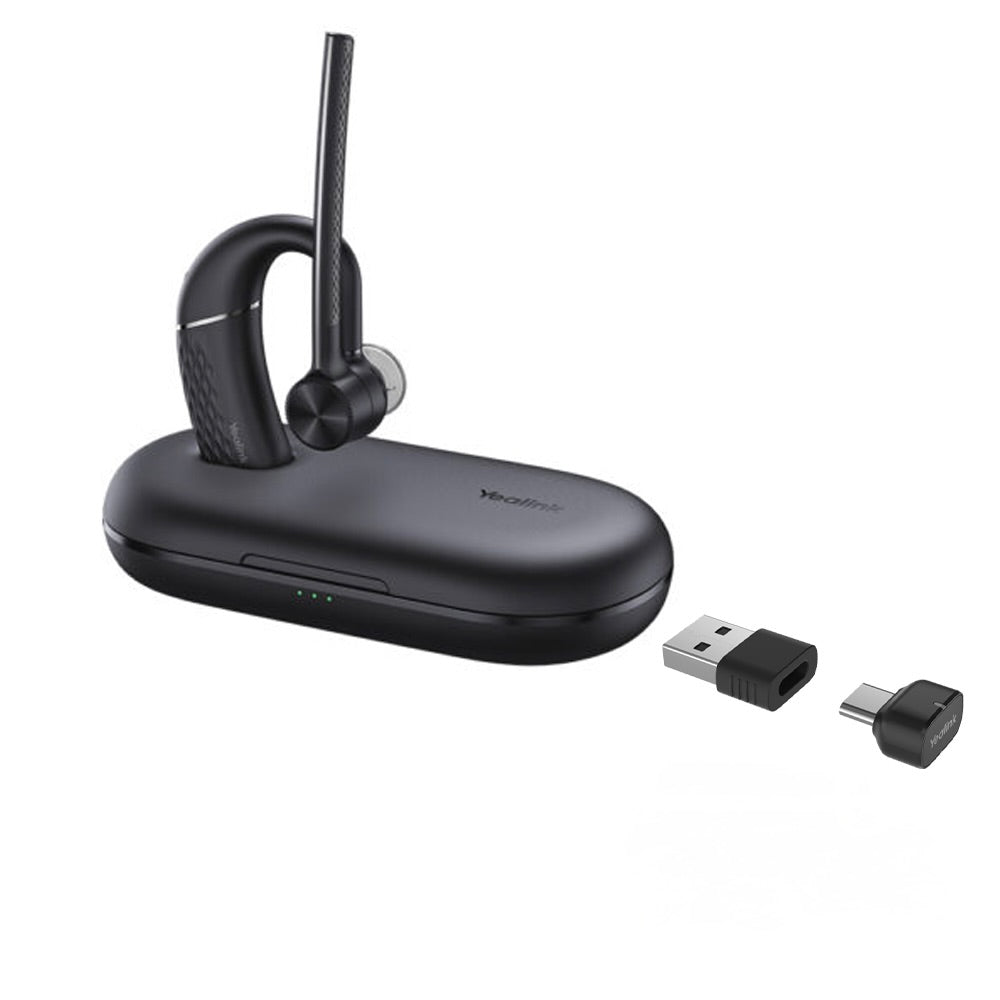
• Stylish appearance with ultimate audio quality playback experience • Retractable hidden microphone arm technology for discreet use • 4 levels of active noise cancellation (ANC) and Yealink Acoustic Shield Technology supported by multiple microphones • Qualcomm aptX digital audio algorithm for high-definition professional audio and optimized music playback • Up to 40 hours wireless battery life • Qi wireless charging stand for convenient charging • Dual-side busylight for full visible angles • Excellent audio experience and all-day wearing comfort • UC Certified and available in black • Connectivity: USB-A • Charging Stand Included Key Features: • Retractable hidden microphone arm • Multiple microphones Acoustic Shield Technology • 4 levels of ANC • Qualcomm aptX HD • Up to 40 hours wireless battery life • Qi wireless charging stand • Dual-side busylight for full visible angles • Excellent audio experience and all-day wearing comfort • UC Certified Additional Information: Weight: 1.59 lbs Dimensions: 10.79 × 10.28 × 3.78 in Headset Type: Bluetooth, DECT, Teams Certified, USB Technical Specifications: Battery: Talking time: up to 35 hours Music time: up to 40 hours Standby time: 112 hours Charging Time (cable): within 2 hours Charging Time (wireless charging): within 3 hours Audio: Active Noise Cancellation: YES Speaker size: 35 mm Ø Speaker sensitivity: 117 dB @1 mW-1k Hz Speaker max input power: 50 mW Speaker frequency range: 20 Hz-20k Hz Speaker bandwidth – Music mode: 20 Hz-20k Hz Speaker bandwidth – Speak mode: 100 Hz-8k Hz Microphone type: 1 directional analog ECM and 4 analog MEMS Microphone sensitivity: -15.66 dBFS/Pa Microphone frequency range 100 Hz-8k Hz: SBC Audio codecs: Aptx-HD Connectivity: Connection (computer and mobile devices): USB-A Bluetooth adapter, Bluetooth Bluetooth device: Yes Bluetooth version: Bluetooth 5.2 Bluetooth profiles: HSP v1.2 , HFP v1.7, A2DP v1.3, AVRCP v1.6, PBAP v1.1, SPP v1.2 Operating range: Up to 30m/Up to 100ft Bluetooth pairing list: Up to 8 devices Simultaneous Bluetooth connections: 2

About This Product

The Yealink BH76 is a wireless headset tailored for professionals who rely on Microsoft Teams calls throughout the day in dynamic office environments. Its retractable microphone arm and active noise cancellation make it especially suitable for open-plan workplaces, hot-desking arrangements, or busy home offices where a clean appearance and acoustic privacy are valued. The included Qi charging stand adds desk-side convenience, while the 40-hour music playback battery life means most users can go a full workweek between charges.

This model connects via the supplied USB-A Bluetooth adapter, which streamlines pairing with laptops and desktops that may have older or inconsistent built-in Bluetooth. It pairs logically with softphone-centric setups and complements modern unified communications deployments. Still, the Bluetooth link introduces slight audio latency compared to DECT headsets, and in wireless-congested areas occasional signal drops can happen. The retractable microphone, though discreet, is inherently more delicate than fixed-boom designs, so it may not survive the bumps of a manufacturing shop floor or a 24/7 call center.

For knowledge workers who move between focused desk sessions and collaborative stand-ups, the BH76’s ANC and long battery life are genuine assets. However, high-intensity contact center agents who need guaranteed, zero-latency audio for densely packed shifts might find a corded or DECT headset more reliable. Conversely, if your daily call volume is low and you rarely need noise cancellation, the feature set here exceeds what a simpler on-ear headset would provide.

From a Canadian business perspective, the headset’s Teams certification fits smoothly into the collaboration tools widely used across the Greater Toronto Area. In open-plan Toronto offices where ambient noise can be intense, the four ANC levels and Yealink Acoustic Shield technology help keep conversations intelligible. The dual-side busy light is a practical touch for signaling availability in shared spaces, making the BH76 a sensible choice for mid-market companies seeking a professional, comfortable, and visually tidy communications tool.
Services We Provide
  • Professional Installation & Configuration
  • Ongoing Maintenance & Support
  • Troubleshooting & Repairs
  • System Upgrades & Updates