Yealink BT41 Bluetooth USB Dongle-1300001

Frequently Asked Questions

First, ensure the headset is in pairing mode (refer to the headset manual). Then, on your Yealink phone, navigate to the Bluetooth settings menu and scan for devices. If the headset does not appear, try resetting the dongle by unplugging it for 10 seconds and plugging it back in. If the issue persists, a Toronto-based VoIP support provider can usually resolve this remotely.
Choppy audio is often caused by distance or interference. Move closer to the phone (within 3 metres) and ensure there are no large metal objects or other wireless devices (like Wi-Fi routers) between the headset and the dongle. If the problem continues, power cycle the phone and headset.
Yes, Bluetooth is backward compatible. The BT41 supports V4.1, so a Bluetooth 5.0 headset will pair and work, but it will operate at V4.1 speeds and range. You may not get the full range or features of the headset's newer version.
First, make sure the USB port on your phone is functional by testing with another USB device if possible. Then, confirm your phone model is on the compatibility list (e.g., T4 series, T5 series with version 82 or later). If it is, unplug the dongle, reboot the phone, and plug it back in.
Volume control depends on the headset. Most Bluetooth headsets have built-in volume buttons that work directly with the BT41. If the headset volume does not change, try adjusting the volume from the phone's handset or speakerphone first, then use the headset controls. Some headsets require the phone's volume to be set to a mid-range before the headset controls become effective.
The BT41 requires your phone to be running a compatible firmware version. Check the phone's current firmware and compare it to the minimum version listed in the product specifications (for example, T53 requires version 82 or later). If the firmware is older, update the phone's firmware through the web interface before using the dongle.
This can happen if the headset's power-saving feature puts it to sleep or if the phone's Bluetooth stack has a timeout. First, check the headset manual to see if it has an auto-off setting and disable it if possible. Then, on the phone, ensure the Bluetooth connection is not being interrupted by other paired devices. Re-pair the headset after power cycling both devices.
No, the BT41 supports a single active Bluetooth connection at a time. You can pair multiple headsets to the dongle, but only one can be connected and used for calls at any given moment. To switch headsets, disconnect the current one and connect the other from the phone's Bluetooth settings.
Wideband (WBS) audio is supported only when the BT41 is used with T4U or T5 series phones and a compatible Bluetooth headset that also supports wideband. Even then, the audio quality depends on the headset's codec support. For standard calls, the dongle will fall back to narrowband if wideband is not available.
Echo is usually caused by the headset microphone picking up sound from the phone's speaker or the environment. First, lower the headset volume slightly. If that does not help, mute the phone's handset microphone or speakerphone. Also, ensure the headset is worn correctly and the microphone is positioned near your mouth.
VoIP Accessories

Yealink BT41 Bluetooth USB Dongle-1300001
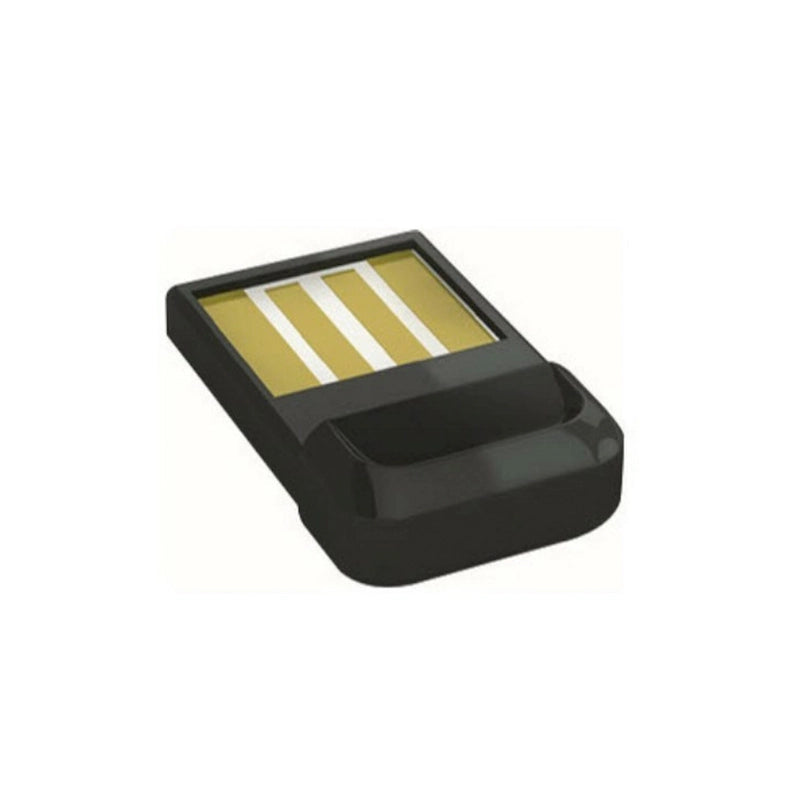
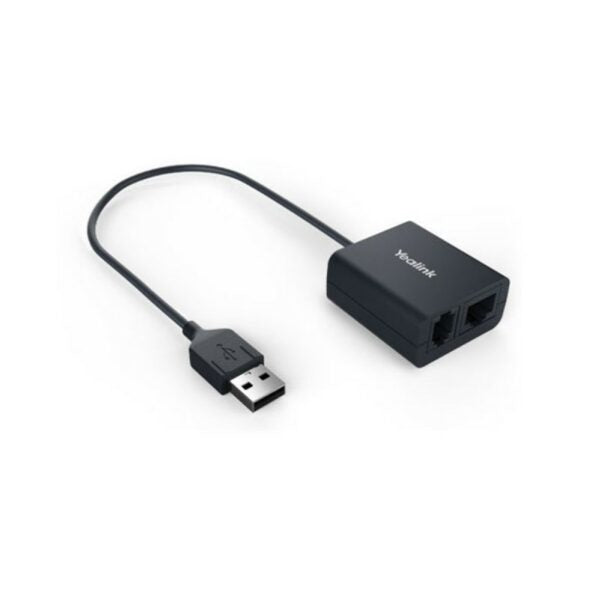
• The Yealink BT41 Bluetooth USB Dongle is a must-have accessory for adding high-performance wireless headset connectivity to your compatible Yealink IP phone. • By simply plugging the ultra-compact dongle into the USB port, you gain the freedom to receive and manage calls up to 10 meters away from your desk, instantly improving mobility and productivity in the office. Seamless Wireless Headset Integration • The BT41 is designed for broad compatibility and superior audio quality when using a Bluetooth headset. Key Features: • Wireless Freedom: Allows you to answer, terminate, and adjust the volume of incoming calls directly through your Bluetooth headset. • WBS Audio Support: Supports 16K WBS (Wideband) audio for T4U and T5 series phones, ensuring clearer, more natural voice quality compared to standard Bluetooth connections. • Advanced Bluetooth: Compatible with Bluetooth specification V4.1 and back-compatible with older versions for wide-ranging headset support. Full Compatibility and Technical Details • Supports Yealink SIP-T27G/ T29G/ T46G/ T48G/ T41S/ T42S/ T46S/ T48S/ T42U/ T43U/ T46U/ T48U/ T53 (version 82 or later) For a full list of specifications, please refer to the Yealink BT41 Bluetooth USB Dongle datasheet.

About This Product

The Yealink BT41 Bluetooth USB Dongle is designed for professionals who want to use a Bluetooth headset with their desk phone without being tethered to the handset. It is a good fit for open-plan offices, reception desks, or any workspace where mobility within a few metres of the desk is important. The dongle plugs into the USB port of a compatible Yealink IP phone and pairs with most standard Bluetooth headsets, allowing you to answer calls, hang up, and adjust volume from the headset itself. One practical tradeoff is that the range is limited to about 10 metres, so it is not suited for roaming around a large floor or between rooms. It is an overkill addition if you rarely move away from your desk or already use a wired headset that meets your needs. Conversely, it may be underpowered in very noisy environments where a DECT headset with longer range and better interference handling would be preferable. For Canadian offices, particularly in the GTA, this dongle works well with the listed Yealink phone models and pairs reliably with common Bluetooth headsets used in business settings. There is no carrier-specific concern, as the dongle operates entirely between the phone and the headset.
Services We Provide
  • Professional Installation & Configuration
  • Ongoing Maintenance & Support
  • Troubleshooting & Repairs
  • System Upgrades & Updates