Yealink EHS40 Headset Adaptor for Remote Control-1300037

Frequently Asked Questions

First, confirm the headset base is powered on and the correct Y‑cord is seated firmly at both ends. Next, verify your Yealink phone is running firmware version 83 or later, because older releases lacked the necessary USB‑EHS support. Also make sure the headset itself is set to the appropriate EHS or DHSG mode in its settings—this is often done through the headset’s base or configuration software.
Not every headset model supports the full remote call‑control profile; some may only implement call-answer signalling. Double‑check the compatibility list for your specific headset model and ensure that end‑call support is advertised. You can also try switching to the other included Y‑cord (if applicable) and testing with a different compatible headset to isolate whether the limitation is in the headset or the adapter wiring.
The USB port you are using might be reserved for flash drives only, or the phone’s firmware may need an update. Try the other USB port (if your model has two), and then restart the phone. If the message persists, a Toronto-based VoIP support provider can usually verify the firmware and USB settings remotely and help you get the adapter recognized.
Intermittent behaviour often points to a weak or dirty connection. Inspect the Y‑cord connector pins for debris and try reseating both ends. Also, a low headset battery can cause inconsistent signal interpretation, so charge the headset fully before testing again.
That audio path suggests the headset is connected for sound but not for control. Make sure the EHS mode on the headset base is activated—some Plantronics and Jabra bases require you to select ‘Electronic Hookswitch’ or ‘DHSG’ manually. If the base was previously paired with a different EHS cable or lifter, it may still be expecting that signalling method.
First, ensure the cord is the one labelled ‘Jabra‑Y’ and that it is plugged into the correct port on both the headset base and the EHS40. Some Jabra bases require you to set the base to ‘DHSG’ mode via its setup menu. If the headset still does not respond, test with another Jabra headset or the Plantronics cord on a Plantronics headset to rule out a faulty cable.
The adapter is designed for the T4S series (T41S, T42S, T46S, T48S) and the T5 series (T53, T53W, T54W, T57W, T58A). Standard T4 (non‑S) models like the T41P or T42G are not supported because they lack the required USB‑based control. All listed phones must be running firmware version 83 or higher.
No. The EHS40 manages call signalling only between the compatible Yealink desk phone and the wireless headset. It does not interface with a PC and cannot pass control commands to softphones. If your headset supports multi‑point connectivity, you can still wear it for both audio streams, but the remote call control will only affect the desk phone.
There is no driver or software installation required. The EHS40 is recognized automatically by the supported Yealink phones when it is plugged into a USB port. For full remote control functionality, however, you may need to configure the headset base itself (for example, switching it to EHS mode), which is done through the headset’s own management tools.
The EHS40 ships with cords for Jabra, Plantronics, and Sennheiser interfaces, but there are many headset variations. If your base has a different jack, you may need an additional compatibility cable from the headset manufacturer. A Toronto-based VoIP support provider can help confirm the required cord and ensure everything links up correctly.
VoIP Accessories

Yealink EHS40 Headset Adaptor for Remote Control-1300037
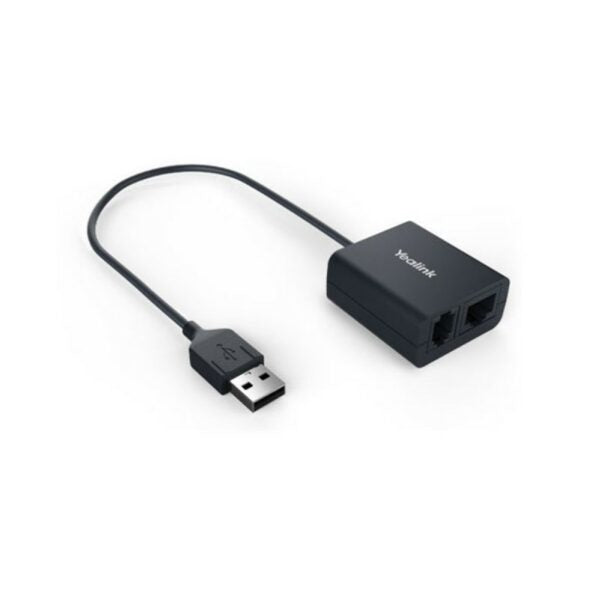
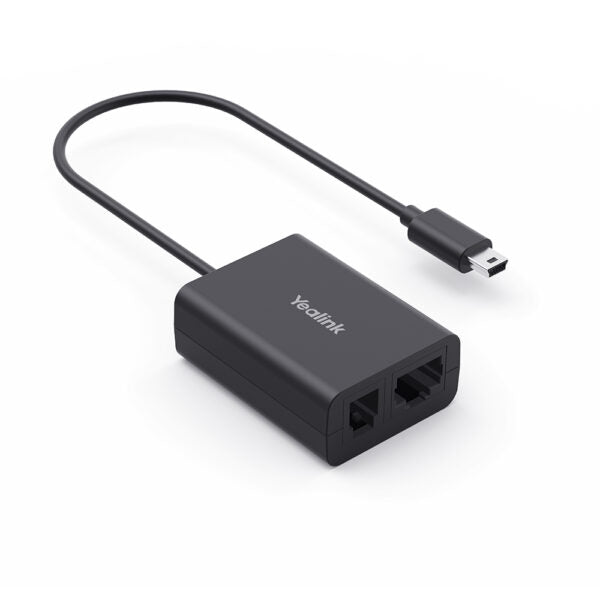
• The Yealink Headset Adapter EHS40 is a crucial accessory for professionals using premium Yealink IP phones with leading third-party wireless headsets, providing complete remote call control directly from the headset base. • Key Features: • Broad Wireless Headset Compatibility: Supports wireless headset brands like Jabra, Plantronics, and Sennheiser • Wide Phone Support: Designed for high-end Yealink T4S and T5 Series IP Phones, including T58A, T57W, T54W, T53W, T53, T48S, T46S, T42S, and T41S (requires firmware 83 or later) • Plug-and-Play Setup: Easy to install, connecting simply to the USB port of the phone for a quick setup • Remote Call Control: • Full Remote Control: Users can manage calls directly from their wireless headset to answer incoming calls and terminate/hang up calls • Instant Signalling: Incoming calls are instantly signaled in the headset earpiece, allowing users to manage calls from a distance • Ideal Application: Specifically engineered for maximum productivity across all major business sectors Technical Specifications: • 1 x USB 2.0 connector (to phone) • 1 x RJ45 (8P8C) / 1 x RJ9 (4P4C) output (to headset base) • Package Includes: • 1 x EHS40 • 1 x Jabra-Y Cord • 1 x Plantronics-Y Cord • 1 x Sennheiser-Y Cord • User Guide For a full list of specifications, please refer to the Yealink EHS40 Headset Adapter Datasheet (PDF).

About This Product

If you use a wireless headset from Jabra, Plantronics, or Sennheiser alongside a compatible Yealink IP phone, the EHS40 removes the need to walk back to your desk just to answer or end a call. It translates your headset’s control buttons into signals the phone understands, so you can answer, hang up, and receive ring notifications through the headset even when you are away from the handset. This is especially helpful in open-plan offices or contact centre floors where mobility matters, and it makes the phone feel far more responsive without requiring a handset lifter.

The adapter is a purpose-built piece of hardware rather than a software integration, which means setup is a simple matter of plugging the USB connector into the phone and connecting the appropriate Y‑cord to the headset base. There are no drivers to install, and no additional power supply is needed. That simplicity is a strength, but it also defines the boundaries: the phone must be one of the supported T4S or T5‑series models with recent firmware, and the headset must be compatible with electronic hookswitch control. The EHS40 does not carry audio—it only handles the call-control signalling—so your headset’s audio quality and range remain entirely a function of the headset itself.

For a small or home office where you rarely need to step away from your phone during a call, the EHS40 may be more than you need. On the other hand, if your team handles high call volumes and values the freedom to manage calls without touching the desk phone, this adapter is a cost‑effective productivity enhancer. It sits in a narrow niche, but when it fits, it fits cleanly.
Services We Provide
  • Professional Installation & Configuration
  • Ongoing Maintenance & Support
  • Troubleshooting & Repairs
  • System Upgrades & Updates