Yealink CAM50 HD 720P Video Camera for T58W Series Phones

Frequently Asked Questions

The camera draws power from the phone’s USB port and needs to be recognized by the phone’s firmware. Unplug the camera, power-cycle the phone, wait for it to fully register with your VoIP platform, then reconnect the CAM50. Also check that the phone’s firmware is current, as older builds may lack native USB camera support.
First slide the privacy shutter fully open — it is easy to overlook if no one uses it regularly. If the shutter is open, confirm that the phone’s video settings are toggled to the CAM50 and not to an internal or placeholder source. A quick check is to open the phone’s self-view before placing a call; if you see yourself there, the camera is working and the issue may be on the far-end or with the call platform.
The CAM50 handles exposure automatically and does not offer manual brightness controls on the phone. Start by checking your desk lighting — strong backlight from a window behind you will force the auto-exposure to darken your face. Reposition the phone so the main light source is in front of you or add a small desk lamp. If the image still looks off, reseat the USB connection to force the camera to reinitialize its auto-exposure routine.
The phone controls when the camera streams video, so typically the CAM50 is only active during a call or when you open the self-view preview. The physical privacy shutter gives you a visual guarantee that the lens is blocked when you close it. For extra assurance, closing the shutter between calls means no video can be transmitted regardless of phone state.
No, the CAM50 is not designed to pass video through to a connected PC. It communicates only with the T58-series phone it is plugged into and does not appear as a USB video device on a laptop, even if the phone is tethered to the computer for other functions.
Intermittent drops usually point to USB power or data instability. Try a different USB port if your phone has more than one, and make sure the phone itself is powered via its own AC adapter rather than relying solely on PoE — under some switch configurations, PoE power budget can dip under sustained load. Reseating the connector and checking for dust in the port is also a safe first step.
The CAM50 is compatible with the Yealink T58A and T58W series. If your phone is a different T5 model or runs a third-party firmware, the camera may not be recognized. Check your phone’s model number in the status screen; if it is not a T58A or T58W, this camera is not supported and plugging it in will not cause damage but also will not produce video.
The hinge allows forward and backward tilt for framing your face, but it does not rotate downward far enough to serve as a document camera. If you need to share paperwork, you will get better results using a dedicated document scanner or your phone’s screen-sharing option during a call.
VoIP Accessories

Yealink CAM50 HD 720P Video Camera for T58W Series Phones
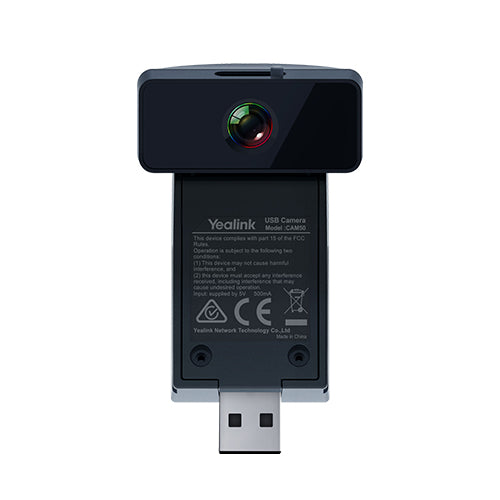
• The Yealink IP Phone Camera CAM50 is a high-quality, plug-and-play solution that transforms your Yealink SIP-T58A/SIP-T58A into a real desktop video conferencing system in seconds. • Equipped with 2M pixels and 720P resolution, the CAM50 camera provides an interactive collaboration experience with top-notch video communications. • No extra software driver is required; simply insert the CAM50 camera into the USB port on the top of the T58V/T58A for easy installation. • The camera features a special privacy shutter to protect personal privacy and allows for adjustable camera angle (forward and backward) for a more vivid and immersive video call experience. • This ideal office assistant is designed to perfectly participate in video communications, allowing you to participate immediately and effectively from your desktop phone. • Key Features: • Compatible with Yealink SIP-T58 IP Phones • 2 mega-pixel HD Camera • 720p@30fps • Ease-of-use • Plug and Play • Adjustable with privacy shutter • Additional Information: • Weight: 1 lbs • Dimensions: 6 × 5 × 2 in • Brand: Yealink • Video Room Size: Personal • Technical Specifications: • Video codec: H.264 High Profile, H.264, VP8 • White Balance • Automatic Exposure • Horizontal Field of View: 63.2° • Vertical Field of View: 38° • Diagonal Field of View: 70° • LED indicator • Interface: USB 2.0 • Power: 5V @ <500mA via USB port • Operating humidity: 10~95% • Operating temperature: 0~40°C • For a full list of specifications, please refer to the product datasheet.

About This Product

The Yealink CAM50 is a straightforward USB camera built specifically for the T5 series desk phones, turning a high-end voice terminal into a personal video endpoint. It suits individual users in open-plan offices or private workspaces who need to join occasional video calls without reserving a dedicated conference room system. In small and mid-sized Canadian businesses, it often pairs with a Yealink T58W or T58A at an executive desk or a satellite office, giving that one seat a quick video upgrade without rolling out room-scale hardware.

What you are getting is a 720p fixed-focus camera with a narrow field of view, designed for one person sitting directly in front of it. It is not a group-room solution; the 63-degree horizontal angle means a second chair beside you will be cut off. For a solo user who occasionally needs face-to-face communication, that constraint is actually an asset — it keeps framing tight and limits background clutter, which matters in glass-walled Toronto offices where visual privacy is scarce.

The key practical tradeoff is resolution. 720p at 30 frames per second looks clean on the phone’s screen and over most hosted VoIP platforms, but it will not satisfy a team that regularly shares detailed whiteboard sketches or product samples on camera. If high-definition detail is critical, a USB webcam with 1080p output may be a better fit, though you would lose the tight mechanical integration and the privacy shutter that sits flush on the phone.

Installation is genuinely plug-and-play over USB 2.0, drawing power directly from the phone. There is no separate power supply and no driver to maintain across firmware updates, which keeps deployment simple for lean IT teams. The adjustable tilt and physical shutter make it easy to follow Canadian workplace privacy expectations, particularly in roles like healthcare or financial services where clear on/off status for a camera is mandatory.
Services We Provide
  • Professional Installation & Configuration
  • Ongoing Maintenance & Support
  • Troubleshooting & Repairs
  • System Upgrades & Updates