Yealink Collaboration Bar A30-010 – 1206652

Frequently Asked Questions

First, verify that the electric privacy shutter is open. The A30 has a motorized shutter that closes when not in use; check the indicator light on the bar—if it's showing a closed-eye icon or a red light, the shutter is likely closed. Press the privacy button on the bar or unblock it via the settings menu. If the shutter is open and the screen is still black, try power cycling the unit by unplugging it for 10 seconds then plugging it back in.
Start by checking that the meeting is not muted on the device itself or from the soft client. Look for a microphone mute icon on the bar’s front display or on-screen indicator. Next, ensure nothing is physically covering the microphone holes along the bar. If the issue persists, verify that the room’s audio settings in the cloud platform are set to use the A30 as the audio device—sometimes a Bluetooth or external speaker can override it. A simple power cycle often resets the audio path.
First, check that the A30’s speaker volume is not set too high for the room size. Lower it through the device’s settings or the meeting app. Also ensure that no other audio device (like a second speakerphone) is active in the same room, as duplicated microphones and speakers cause echo. The A30 uses echo cancellation, but it can be overwhelmed by loud external audio. If the room has hard surfaces, consider placing a soft surface near the bar to reduce acoustic reflections.
Auto-framing relies on the camera having a clear view of everyone. Make sure the A30 is mounted at the recommended height (typically just above or below the display) and that the room has adequate, even lighting. Avoid strong backlight or direct sunlight on the camera lens. Also confirm that auto-framing is enabled in the device’s camera settings. If it still does not work, try resetting the feature by disabling it and re-enabling it after a few seconds.
First, move the A30 closer to your Wi-Fi access point or eliminate physical obstructions like metal shelves between them. If the device supports both 2.4 GHz and 5 GHz, try switching to the 5 GHz band for less interference, though range may be shorter. The best fix is to use a wired Ethernet connection instead—connect an Ethernet cable directly to the bar for a stable network without dropouts.
Start by verifying that the device has internet access. On the A30’s home screen, open the browser or network settings to confirm it can reach the web. Then check that you are using the correct Teams account credentials—remember the bar logs into a per-device Teams account, not a personal one. If the credentials are correct but it still fails, ensure the device’s firmware is up to date, as older versions may have compatibility issues with Teams servers. If the problem continues, reach out to your IT administrator or a Toronto-based VoIP support provider who can check the provisioning configuration.
The A30 comes with a wall-mount bracket and installation template. First, find a location above your display that is level and within reach of power and network cables. Use the template to mark screw holes, then drill and attach the bracket securely. Slide the A30 onto the bracket until it clicks into place. Make sure the bar is at least 20 cm below the ceiling to allow for proper microphone pickup and camera field of view. If your room has a TV cart or a rolling stand, the A30 can also be placed on a shelf—it does not require a permanent mount.
The A30 is built and certified primarily for Microsoft Teams. While it may technically support other platforms through its Android operating system and browser, the out-of-the-box experience is optimized for Teams. Some third-party apps can be sideloaded, but you may lose features like one-touch join and automatic camera control. For best performance, plan to use it with Teams. If you need multi-platform support, check with a qualified integrator about provisioning custom configurations.
The A30 connects to a display via its HDMI output port. Use a high-speed HDMI cable to connect the bar’s HDMI-out to an available HDMI input on your TV or projector. The bar handles video output up to 4K resolution, but the actual resolution depends on your display. Once connected, select the correct input source on your display. For audio, the bar’s built-in speaker is used, so you do not need to connect external speakers unless the room is very large.
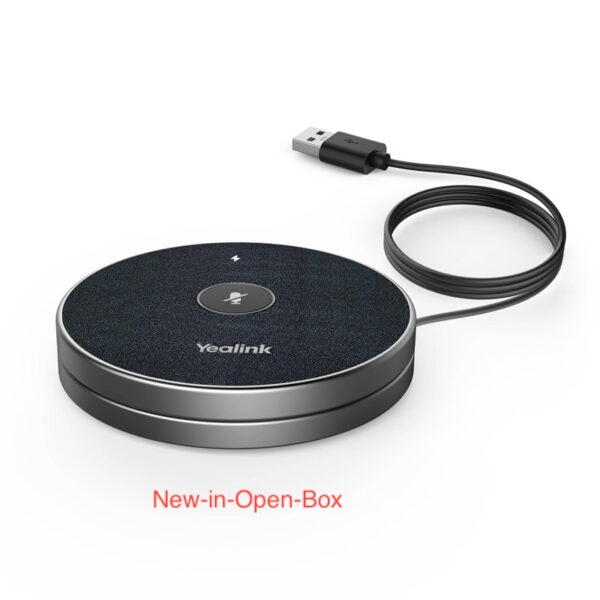
The A30 is designed as a standalone device and does not have dedicated ports for external microphones. Its built-in eight-microphone array is intended to cover medium rooms up to about 6 meters in diameter. If you need additional coverage, consider using the A30 in a room that matches its range, or look into extending the setup with Yealink’s optional expansion microphones—if available for this model. For large rooms, a different solution like the Yealink MeetingBar A40 or a separate audio system would be more appropriate. Contact a Toronto-based VoIP support provider to discuss room-specific layouts.
Video Conferencing

Yealink Collaboration Bar A30-010 – 1206652
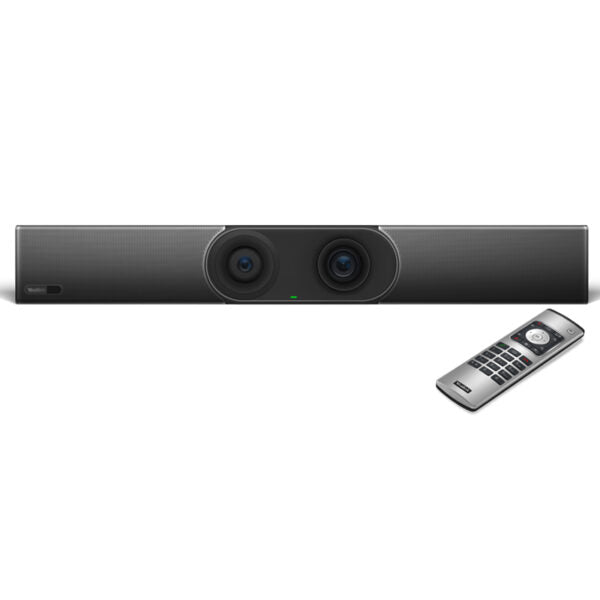
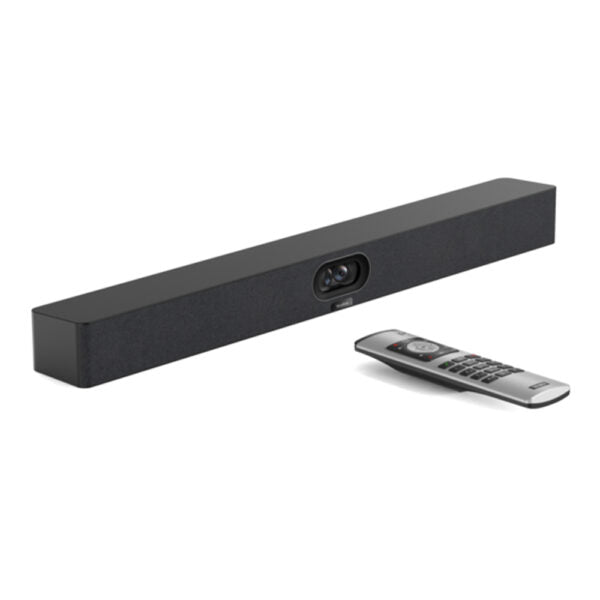
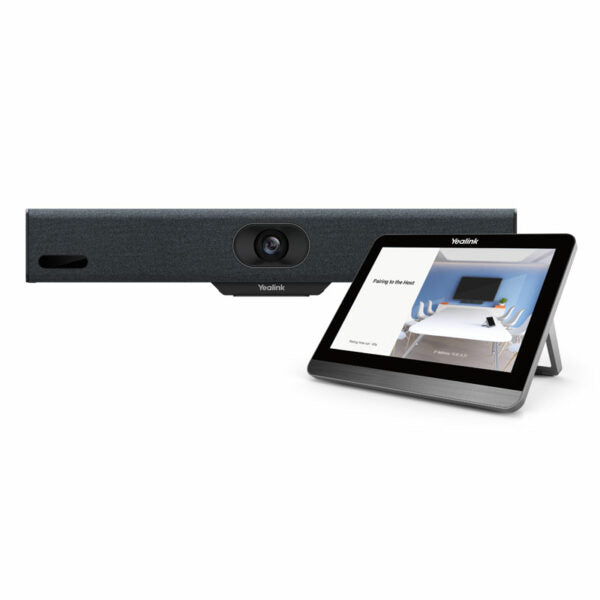
• Yealink MeetingBar A30 is an all-in-one video collaboration bar for medium rooms, delivering outstanding 8MP camera and 120° superwide-angle lens video quality. • The device features AI technologies such as Auto Framing and Speaker Tracking for a smarter and safer video conference experience. • It boasts excellent audio with 8 MEMS microphone arrays and Yealink noise proof algorithm, ensuring everyone can be heard clearly in full-duplex mode. • Key features include: • Two Cameras Design • Electric Privacy Shutter • Content sharing • Whiteboard • Built-in Bluetooth • Built-in dual-band Wi-Fi • Qualcomm Snapdragon 845 chipset • The MeetingBar A30 combines computing unit, camera, microphones, speaker, Wi-Fi, and Bluetooth for simple deployment. • It supports cloud video platforms like Microsoft Teams, eliminating the need for a PC or Mac. • Additional features include: • Human body detection • Simple and flexible deployment • Powerful features delivering excellent video collaboration performance • Technical specifications: • Model: A30-010 • Part number: 1206652 • Package Content: includes 1x A30 all-in-one Collaboration bar, power adapter, wallmount bracket, and cables • Dual Camera System: includes 8MP wide camera with 120° field of view and telephoto camera with 90° field of view and 10x Hybrid Zoom • Operating System: Android 9.0

About This Product

The Yealink MeetingBar A30 is designed for medium-sized meeting rooms where a dedicated, all-in-one video collaboration system makes sense. It fits best in spaces that seat four to ten people, such as corporate boardrooms, team huddle rooms, or training rooms in Toronto offices. Because it bundles the camera, microphones, speakers, and computing into a single bar that mounts neatly under a display, it replaces the clutter of separate components and eliminates the need for a dedicated PC or laptop. That simplicity is a real advantage for IT teams that want a consistent, low-touch deployment across multiple rooms.

Where this device shines is in its AI-driven features like auto-framing and speaker tracking, which keep the meeting participant in view and reduce manual camera adjustments. The dual-camera system with a wide and telephoto lens combined with 10x hybrid zoom provides flexibility to show the full room or zoom in on a speaker. The eight-microphone array and noise reduction help ensure that every voice is heard clearly, even in rooms with some ambient noise.

A practical tradeoff to consider: the A30 runs Android 9.0 and is optimized for cloud video platforms like Microsoft Teams. If your organization relies on a different platform or needs a more customisable environment, you will want to verify compatibility ahead of time. Also, because it is a fixed appliance, upgrading components later is not possible; the entire bar would be replaced. For very small rooms with fewer than four people, the A30 can feel overkill; for very large rooms beyond twelve, the microphone pickup and camera field of view may not cover everyone adequately, and a multi-camera or separate microphone solution could be a better fit.

In a Canadian business context, particularly in the GTA where open-plan offices are common, the A30's ability to deliver clear audio despite background noise and its simple installation (power, network, and HDMI to a display) make it a practical choice for meeting rooms that are booked throughout the day. As long as the room has a display with an available HDMI input and a network drop or strong Wi-Fi, deployment can be completed in under an hour.
Services We Provide
  • Professional Installation & Configuration
  • Ongoing Maintenance & Support
  • Troubleshooting & Repairs
  • System Upgrades & Updates