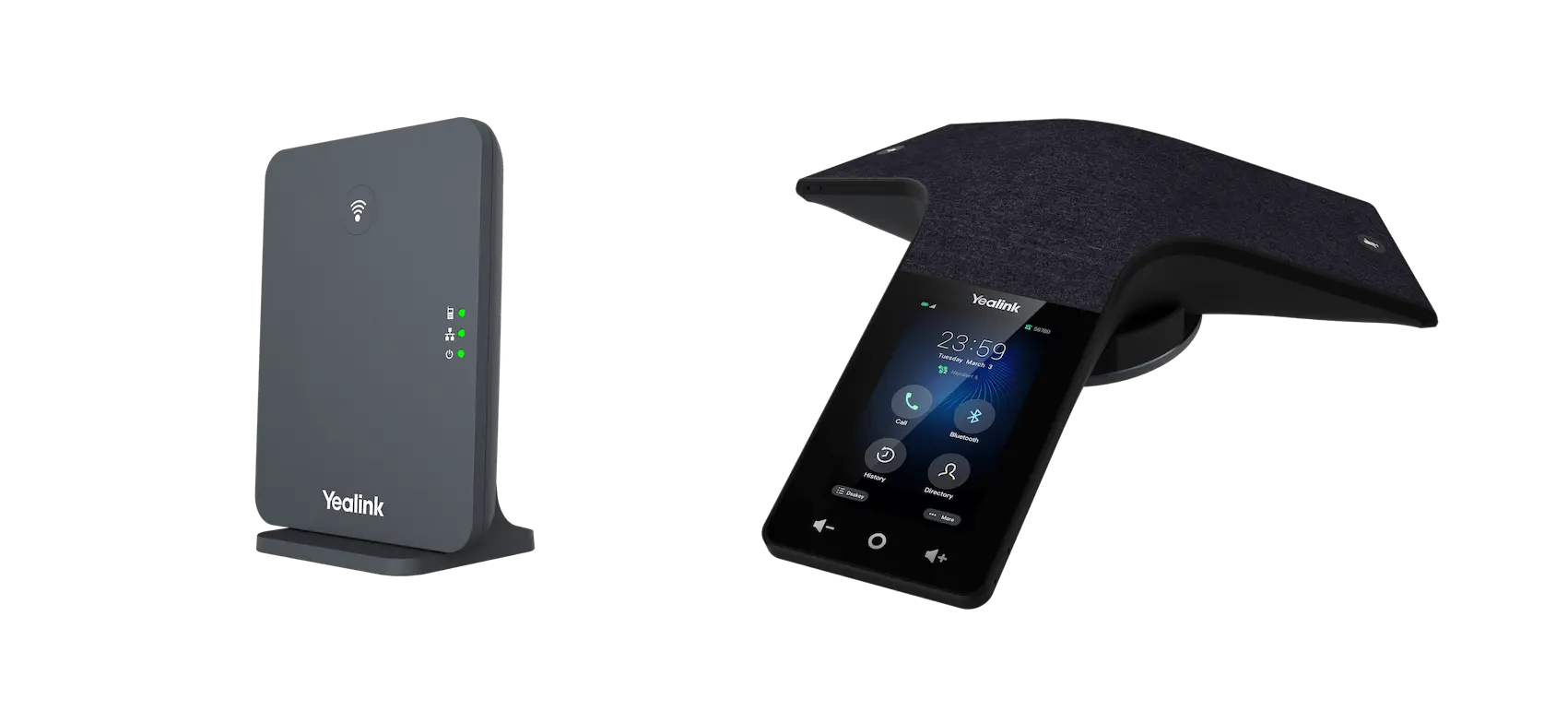
Yealink CP935W-Base HD Cordless Conference Phone System with W70B-1204613

Frequently Asked Questions

First, confirm that the SIP account settings—username, authentication name, and password—exactly match what your provider gave you. Double‑check that the base unit has a valid IP address from your network (check the phone’s network status), and that your firewall allows SIP traffic (typically ports 5060‑5061 UDP/TCP). If your provider requires a specific transport protocol, ensure it is set correctly in the phone’s account configuration.
Start by moving the base unit closer to your Wi‑Fi access point, ideally within 10 metres and with a clear line of sight. Avoid placing it near metal cabinets, microwaves, or other cordless phones that operate at 2.4 GHz. If the connection is still unstable, try switching to the 5 GHz band in the phone’s Wi‑Fi settings if your network supports it, as it usually encounters less interference in busy offices.
First, ensure Bluetooth is enabled on your mobile device and that the CP935W is in pairing mode (go to Settings → Bluetooth → Enable and then search for devices). Move the phone within 10 metres of the base. If you’ve previously paired other devices, remove them from the phone’s Bluetooth list and retry. Once paired, you must also enable the ‘Bluetooth for call’ option in the phone’s Bluetooth settings to bridge mobile calls.
Check that the room does not have excessive background noise (fans, air conditioning) and that participants are seated within the recommended distance from the phone (typically 2‑3 metres). Reduce the speaker volume slightly; too high a volume can cause audio feedback. Also verify that the phone’s firmware is up to date—older firmware versions on early CP935W units sometimes had audio tuning issues that later updates resolved.
Ensure you are using the power adapter that came with the CP935W, as third‑party adapters may not supply the correct voltage or current. Check that the power cord is securely connected to both the base and a working wall outlet. If the base still shows no signs of life, try a different outlet and inspect the power connector on the base for any physical damage.
First, place the DECT handset in pairing mode (usually by pressing and holding the OK button for about 5 seconds until it displays ‘Registering’). Then, on the CP935W base, go to Settings → DECT → Add Handset and follow the on‑screen prompts to start the pairing process. Keep the handset within 2 metres of the base during registration. If it fails, restart both devices and try again, ensuring no other base is in range that might interfere.
From the phone’s menu, go to Settings → Accounts → Register Account. Enter the SIP server, port, and your account credentials for each provider you want to add. The CP935W supports up to 10 accounts, and you can assign a specific line key to each for easy choosing during calls. After adding each account, save and the phone will attempt registration. For most Canadian business VoIP providers (such as Telus or Rogers for Business), the default settings work out of the box.
Yes, the CP935W is a standard SIP phone, so it works with any VoIP provider that supplies SIP credentials. For Telus Business Connect and similar hosted services, you may need to enter the specific proxy server and outbound proxy provided in your account portal. If you experience registration issues, contact your provider to confirm they do not block non‑default DECT or Wi‑Fi devices, though most modern providers support the Yealink platform.
For the most reliable call quality, use the DECT radio if the base is within 50 metres of a connected DECT handset, because DECT uses a dedicated frequency and is less prone to interference from other office equipment. Wi‑Fi is convenient for standalone conference‑room use where no Ethernet is available, but it is subject to network congestion and wireless interference from neighbouring office networks. In many GTA high‑rise offices, using the wired Ethernet port (if you can run a cable) will always give you the best results.
‘No Service’ typically means the phone cannot register with any configured SIP account. Check your network connection first: look at the top of the screen for the Wi‑Fi or LAN icon. If that icon shows connectivity, then review your account settings (username, password, server). If you have multiple accounts, try disabling all but one to rule out a conflict. A reboot of the base can also clear temporary registration glitches.
VoIP Conference Phones

Yealink CP935W-Base HD Cordless Conference Phone System with W70B-1204613

* High-definition, touch-sensitive cordless conference phone system designed for small to medium conference rooms. • Features a powerful DECT radio system with robust coverage up to 50m indoors • Built-in battery provides up to 20 hours of talk time and 167 hours of standby time • Supports built-in Dual-Band Wi-Fi and features a one-touch Wi-Fi and DECT mode switch • Scalable base supports up to 10 DECT cordless handsets and 10 SIP accounts • Premium audio with crystal-clear, distraction-free sound quality and advanced noise proof technology • Intuitive control with a 4-inch multi-touch screen and easy-to-use UI • Hybrid UC meeting capabilities with built-in Bluetooth 4.2 for bridging mobile calls into the conference • Supports 5-way conference calls • Ultra-thin profile and acoustics fabric design align perfectly with modern business aesthetics

About This Product

The Yealink CP935W-Base is a cordless conference phone designed for small to medium meeting rooms where running Ethernet cabling or relying on a fixed desk phone is impractical. It fits well in agile office environments—such as shared huddle spaces or boardrooms in GTA offices—where teams gather spontaneously and need a clean, portable setup. The system pairs naturally with additional Yealink DECT cordless handsets, allowing you to extend coverage across adjacent rooms or expand the number of participants beyond the built-in microphone range. Its built‑in battery gives you true cord‑free operation, so you can move it between rooms without hunting for a power outlet, but you’ll need to remember to charge it between large meetings. Businesses that already use a hosted VoIP service will appreciate the 10 SIP account support, though the device is overkill for a one‑person desk setup and may feel underpowered for very large conference rooms where a dedicated beamforming array delivers better far‑end audio. The Wi‑Fi and Bluetooth bridging options add flexibility for hybrid meetings, but rely on the company’s Wi‑Fi network quality; in dense Toronto office towers, interference can sometimes affect call stability, so a wired Ethernet connection (via the base) remains the most reliable option when it’s available.
Services We Provide
  • Professional Installation & Configuration
  • Ongoing Maintenance & Support
  • Troubleshooting & Repairs
  • System Upgrades & Updates