
Yealink CP965-Teams Microsoft Teams Conference Phone-1304017
AIM Telecom provides troubleshooting and configuration support for this product to businesses across Toronto and the GTA. Contact us to confirm whether the issue can be handled by phone or requires on-site service.
Get Support Call 416-312-4819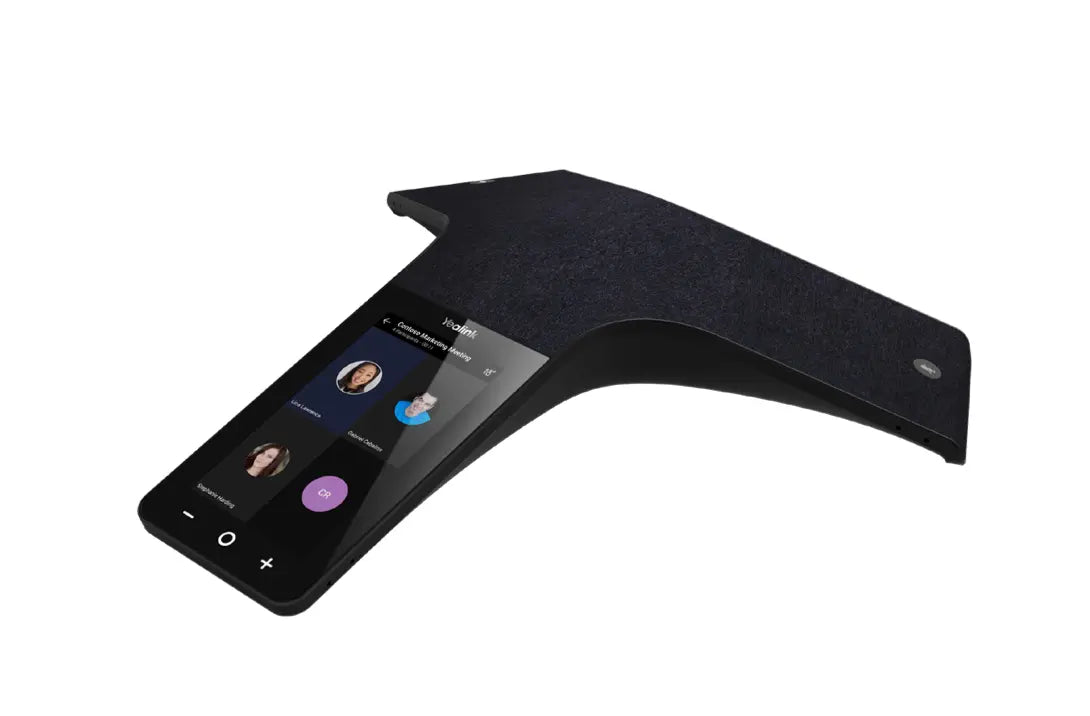
Common issues and fixes
Reviewed troubleshooting steps are not yet available for this model.
Ask AIM Telecom about this productAbout this product
The Yealink CP965 Teams conference phone is an enterprise-grade solution designed to bring the Microsoft Teams experience from desktops to medium to large-sized conference rooms. Running on Android 11, it features a native, modern Teams user interface optimized for meeting control and management.
Key Features:
• Massive Microphone Array: Industry-leading 12 built-in microphones for 360-degree voice pickup and one dedicated microphone for noise reduction.
• Optima HD Voice: Crystal-clear and responsive voice calling experience ensured by Yealink's Optima HD Voice technology.
• Expansive Range: Provides an extended 20-foot (6-meter) microphone pickup range, making it suitable for medium to large meeting rooms.
• Full Duplex & Echo Cancellation: Includes a powerful speaker, full-duplex speakerphone with AEC, and background noise suppression for distraction-free audio.
The CP965 offers seamless integration and easy management built on a powerful and modern platform. Key features include:
• Android 11 OS: Stable and secure operating system supporting Microsoft 365 and ensuring upgradability for future Teams applications.
• Intuitive Touch Screen: Features a responsive 5-inch 720x1280 capacitive multi-touch screen with the modern, full-keyboard Teams interface.
• Device Management: Supports central management platforms from Microsoft, Yealink, and Unify Square, simplifying enterprise-level deployment.
• Integrated Connectivity: Includes built-in Dual-Band Wi-Fi (2.4G/5G) and Built-in Bluetooth 4.2 for versatile connection options.
For a full list of specifications, please refer to the Yealink CP965 Teams Conference Phone datasheet (PDF).
Key Features:
• Massive Microphone Array: Industry-leading 12 built-in microphones for 360-degree voice pickup and one dedicated microphone for noise reduction.
• Optima HD Voice: Crystal-clear and responsive voice calling experience ensured by Yealink's Optima HD Voice technology.
• Expansive Range: Provides an extended 20-foot (6-meter) microphone pickup range, making it suitable for medium to large meeting rooms.
• Full Duplex & Echo Cancellation: Includes a powerful speaker, full-duplex speakerphone with AEC, and background noise suppression for distraction-free audio.
The CP965 offers seamless integration and easy management built on a powerful and modern platform. Key features include:
• Android 11 OS: Stable and secure operating system supporting Microsoft 365 and ensuring upgradability for future Teams applications.
• Intuitive Touch Screen: Features a responsive 5-inch 720x1280 capacitive multi-touch screen with the modern, full-keyboard Teams interface.
• Device Management: Supports central management platforms from Microsoft, Yealink, and Unify Square, simplifying enterprise-level deployment.
• Integrated Connectivity: Includes built-in Dual-Band Wi-Fi (2.4G/5G) and Built-in Bluetooth 4.2 for versatile connection options.
For a full list of specifications, please refer to the Yealink CP965 Teams Conference Phone datasheet (PDF).
More product details
The Yealink CP965-Teams is purpose-built for organizations that have standardized on Microsoft Teams and need a high-quality audio experience in medium to large conference rooms. It replaces the clutter of a dedicated PC, external speakerphone, and webcam audio by putting the full Teams interface directly on a 5-inch touch screen. This makes it ideal for boardrooms and meeting spaces where participants simply want to walk in, tap to join a scheduled meeting, and rely on clear, 360-degree voice pickup without having to manage extra devices.
For typical GTA offices deploying Teams voice via Direct Routing or Calling Plans, the CP965 slips in as a self-contained endpoint that can be managed centrally through the same Microsoft admin tools the IT team already uses. Its 20-foot microphone range covers most medium and large rooms, but that range is fixed: there is no option to add satellite mics for irregularly shaped or extra-large spaces. In those environments, the CP965 might come up short, requiring a more modular solution instead.
A common tradeoff with any Android-based conferencing device is longevity of the operating system version. The CP965 ships with Android 11, which is still well-supported, but buyers planning long deployment lifecycles should consider how Microsoft Teams and security updates will be delivered over time. The device’s mandatory tie to the Teams ecosystem also means it is not a great fit for offices that primarily use Zoom or other platforms, unless you are ready to switch meeting workflows entirely.
At its price point, the CP965 offers strong value for companies that have already committed to Teams and need a reliable, zero-touch conferencing phone. For small huddle rooms, it is almost certainly overkill—a simpler Teams-enabled speakerphone or a laptop with a good headset will suffice. For very large boardrooms or divisible rooms that require flexible microphone placement, you would need a different system, perhaps a modular DSP-based solution with external mics.
For typical GTA offices deploying Teams voice via Direct Routing or Calling Plans, the CP965 slips in as a self-contained endpoint that can be managed centrally through the same Microsoft admin tools the IT team already uses. Its 20-foot microphone range covers most medium and large rooms, but that range is fixed: there is no option to add satellite mics for irregularly shaped or extra-large spaces. In those environments, the CP965 might come up short, requiring a more modular solution instead.
A common tradeoff with any Android-based conferencing device is longevity of the operating system version. The CP965 ships with Android 11, which is still well-supported, but buyers planning long deployment lifecycles should consider how Microsoft Teams and security updates will be delivered over time. The device’s mandatory tie to the Teams ecosystem also means it is not a great fit for offices that primarily use Zoom or other platforms, unless you are ready to switch meeting workflows entirely.
At its price point, the CP965 offers strong value for companies that have already committed to Teams and need a reliable, zero-touch conferencing phone. For small huddle rooms, it is almost certainly overkill—a simpler Teams-enabled speakerphone or a laptop with a good headset will suffice. For very large boardrooms or divisible rooms that require flexible microphone placement, you would need a different system, perhaps a modular DSP-based solution with external mics.