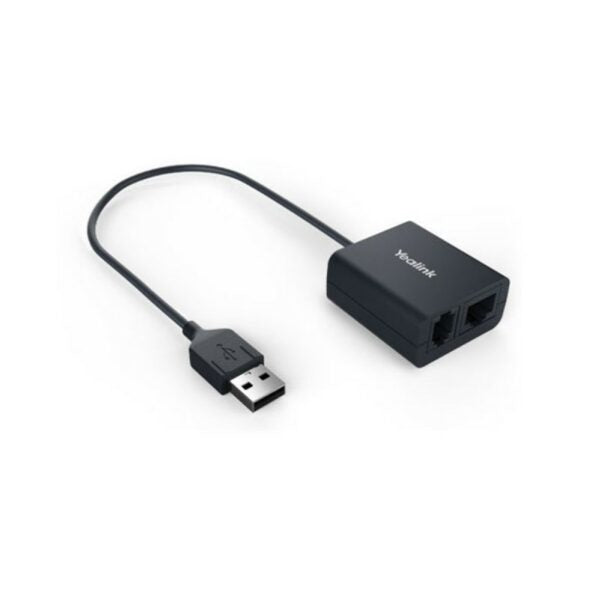
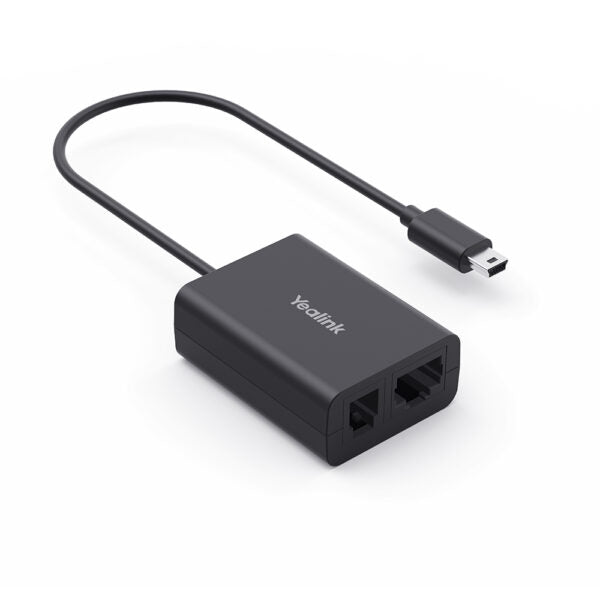
Yealink EHS35 Adaptor for connecting T3 Series with WH62/63 Headsets-330000103001

Frequently Asked Questions

Start by confirming the adapter cable is fully inserted into the RJ9 headset port on your Yealink T3 phone and into the EHS port on the headset base. Then, power-cycle the headset base by unplugging it for 10 seconds. Ensure the headset itself is paired and operating—try initiating a call from the headset’s own controls without touching the phone to see if the base responds. If the issue persists, a Toronto-based VoIP support provider can usually resolve this remotely.
Check that the EHS cable hasn't come loose at either end; a poor connection can interrupt in-ear ringing. Also verify that the headset’s ringer volume isn’t set to minimum and that the headset is not muted. If you still don’t hear ringing, try connecting the adapter to a different Yealink T3 phone’s RJ9 port to rule out a phone-side issue. Should the problem continue, a Toronto-based VoIP support provider can usually diagnose and fix this remotely.
First, inspect the adapter cable for any pinches or damage. Unseat and reconnect the cable on both ends to make sure contacts are clean. If the phone is powered via PoE, confirm the switch is delivering sufficient power—low power can cause audio problems. Also test with a different headset base if available. No permanent settings changes are needed.
Double-check that you’re using a Yealink WH62 or WH63 headset; the EHS35 is not compatible with other headset models. Make sure the cable is connected to the base station’s EHS port, not the AUX port. Power-cycle both the phone and the headset base. No factory reset or firmware downgrade is required for a connection issue like this.
The adapter itself doesn’t draw power from the headset battery; it’s a passive signal cable. The faster drain is likely because the headset remains active more often—check that the headset enters standby mode after calls. If it doesn’t, try re-pairing the headset to its base. There’s no need to reset the adapter or base.
The EHS35 is compatible with the following T3 series desk phones: T30, T30P, T31, T31P, T31G, T33P, and T33G. If you have a T4 or T5 series phone, you’ll need a different EHS adapter like the EHS40.
No, the EHS35 is designed specifically for the Yealink WH62 and WH63 wireless headset series. The WH66 uses a different connection method (typically USB or DECT base) and will not work with this adapter.
No software or firmware installation is necessary. The EHS35 is a pure hardware adapter that connects via cable; it works immediately when plugged in. Just ensure the phone and headset base are powered on.
Yes, the adapter does not interfere with the headset’s charging cradle. The base continues to charge the headset as usual; the EHS35 adds call control signalling without affecting power delivery.
VoIP Accessories

Yealink EHS35 Adaptor for connecting T3 Series with WH62/63 Headsets-330000103001
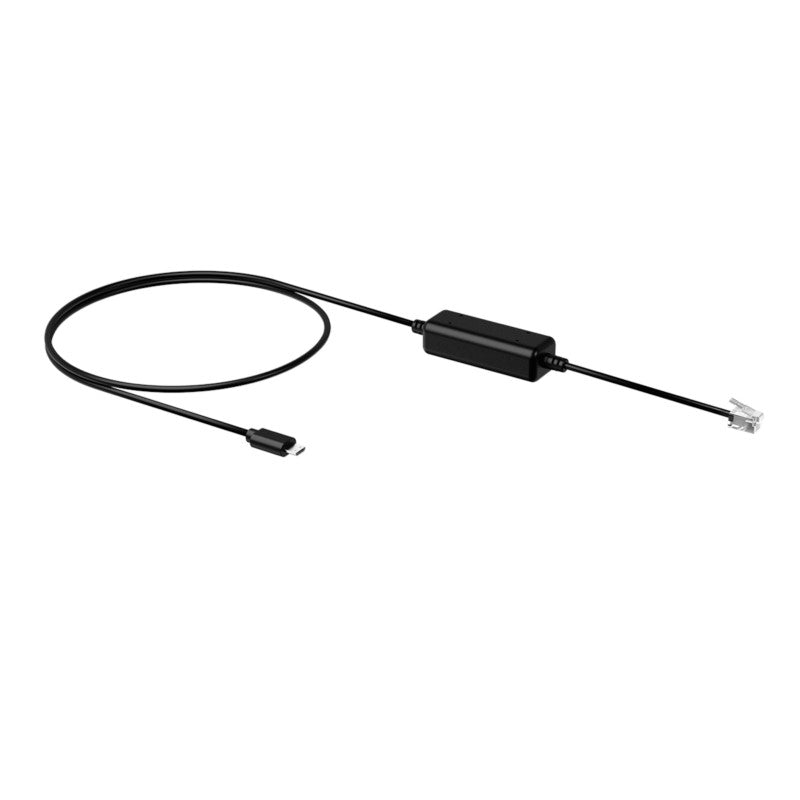
• Yealink Headset Adapter EHS35: The Essential Link for Maximizing Productivity • Seamlessly connects your Yealink T3 Series IP Phones (T30/T30P/T31/T31P/T31G/T33P/T33G) to a compatible Yealink WH62/WH63 Wireless Headset, providing effortless remote call control • Key Features: • Easy Installation: Plug-and-play setup, connecting easily to the RJ9 headset port of the phone • Complete Remote Control: Gain the ability to remotely control all major call functions directly from your wireless headset, maximizing mobility and efficiency • In-Headset Signalling: Incoming calls are instantly signaled in the headset earpiece, ensuring no call is missed while away from the desk • For a full list of specifications, please refer to the Yealink EHS35 Headset Adapter Datasheet (PDF)

About This Product

The Yealink EHS35 is a compact adapter that enables wireless headset users to control call functions directly from a Yealink WH62 or WH63 headset while connected to a compatible T3 series desk phone. It's an affordable way to add near-field mobility to any workspace where employees need to step away from their desk briefly—like answering a call while grabbing a file or referencing a wall board—without fumbling with the phone handset.

Plug-and-play setup keeps deployment simple: the cable connects from the phone's RJ9 headset port to the headset’s base, delivering electronic hookswitch control so that answering, hanging up, muting, and adjusting volume all happen from the wireless headset. For Canadian offices that have standardized on Yealink T3 series phones, the EHS35 is a straightforward, budget-friendly upgrade that eliminates the tether of a wired headset while preserving the familiar desk phone interface. It draws no extra power, so there’s no extra wall wart cluttering the desk.

The adapter does have a narrow compatibility window—it only works with the T3 series models listed in the spec sheet and only with the specific WH62 or WH63 headsets. That means if your office uses older T4x phones or a different headset brand, you’ll need a different EHS solution. For a power user juggling calls between a desk phone and smartphone, the headset may handle that independently, but the EHS35 remains tied to the desk phone only. It’s therefore ideal for call centres, reception areas, and open-plan offices where the majority of call time is spent on the Yealink phone alone.
Services We Provide
  • Professional Installation & Configuration
  • Ongoing Maintenance & Support
  • Troubleshooting & Repairs
  • System Upgrades & Updates