Yealink EXP43 Expansion Module for T4 Series-1300036

Frequently Asked Questions

First, ensure the USB cable is firmly connected to both the module and your T4 series phone. The phone must be powered on and running. If the screen remains blank, try a different USB port on the phone (if available) or a different cable. Restart the phone and module by unplugging the phone’s power for 10 seconds. If still blank, contact your VoIP support provider – a Toronto-based support team can usually diagnose this remotely.
Confirm your phone model is compatible with the EXP43 – it works with T4 series (T41S, T42S, T46S, T48S, etc.). Also check that the phone’s firmware is up to date. Then, disconnect and reconnect the USB cable while the phone is on. You may need to reboot the phone. If it still doesn't appear, verify that the module is set to "EXP43" in the phone’s LCD settings under Accessories.
Check the BLF configuration on your phone’s web interface for those keys – they may be assigned to extensions that are not monitored or have no presence status. Ensure that the phone is registered to your PBX and that BLF subscriptions are enabled. If the keys are physically unresponsive, try a power cycle of the module (unplug USB for 10 seconds) after verifying configuration.
Daisy-chaining requires connecting the first module to the phone via USB, then linking the second module to the first using the provided USB cable (or a standard USB-A to USB-B cable). The phone must support daisy-chaining – most T4S models do, but check the phone’s capacity. Also, ensure the phone’s power supply is adequate; if using PoE, the switch must deliver enough power for the phone plus modules. Try restarting the entire stack.
This may indicate a loose USB connection or a cable issue. Reseat the USB cable at both ends. If the problem persists, try a different USB cable. If the flickering occurs only during call activity, it could be electromagnetic interference or low power – ensure the phone is on a stable power source, not sharing a port with high-power devices. Contact support if the issue continues; a local VoIP provider can often resolve power or cabling issues quickly.
The LED behavior is controlled by the phone’s firmware and PBX configuration. First, confirm your PBX sends the correct presence updates. On the phone’s web interface, verify the LED pattern settings for each BLF key. Also ensure the phone’s firmware is updated. A simple power cycle of the phone and module can resync the state.
From your phone’s LCD screen, press the desired key and hold it (or navigate to the feature settings). Select "Speed Dial" and enter the number. Alternatively, use the phone’s web interface under DSS Key settings. Save your changes. The key will now dial that number with a single press.
The EXP43 is designed for the T4S series (and some T4G with firmware support). The T48G is an older model – check Yealink’s compatibility list. Generally, the EXP43 works with T4S and T4 series phones running firmware version 100.xx or later. If your T48G is on an older firmware, it may not recognize the module. You can try upgrading the phone’s firmware, but confirm compatibility first.
The phone must support a total of three expansion modules – most T4S models (like T46S, T48S) are rated for up to three EXP43 modules. However, the phone’s USB power output may be insufficient for three modules; you may need to use an external powered USB hub. Also, the phone’s PoE budget must be considered – if using PoE, ensure the switch provides at least 30W. Check your phone’s specifications and test incrementally.
The labels are pulled from the phone’s directory or BLF configuration. Log into the phone’s web interface, go to DSS Key, and edit the label for each key. If your phone is auto-provisioned, the labels may need to be updated in the provisioning server. For manual changes, save and the display will update within a few seconds.
VoIP Accessories

Yealink EXP43 Expansion Module for T4 Series-1300036
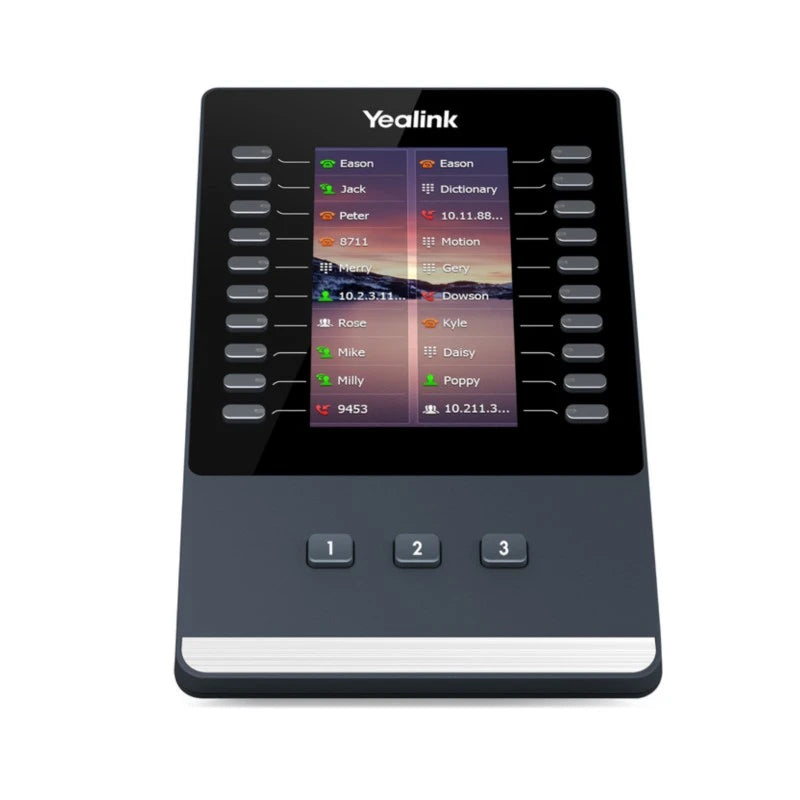
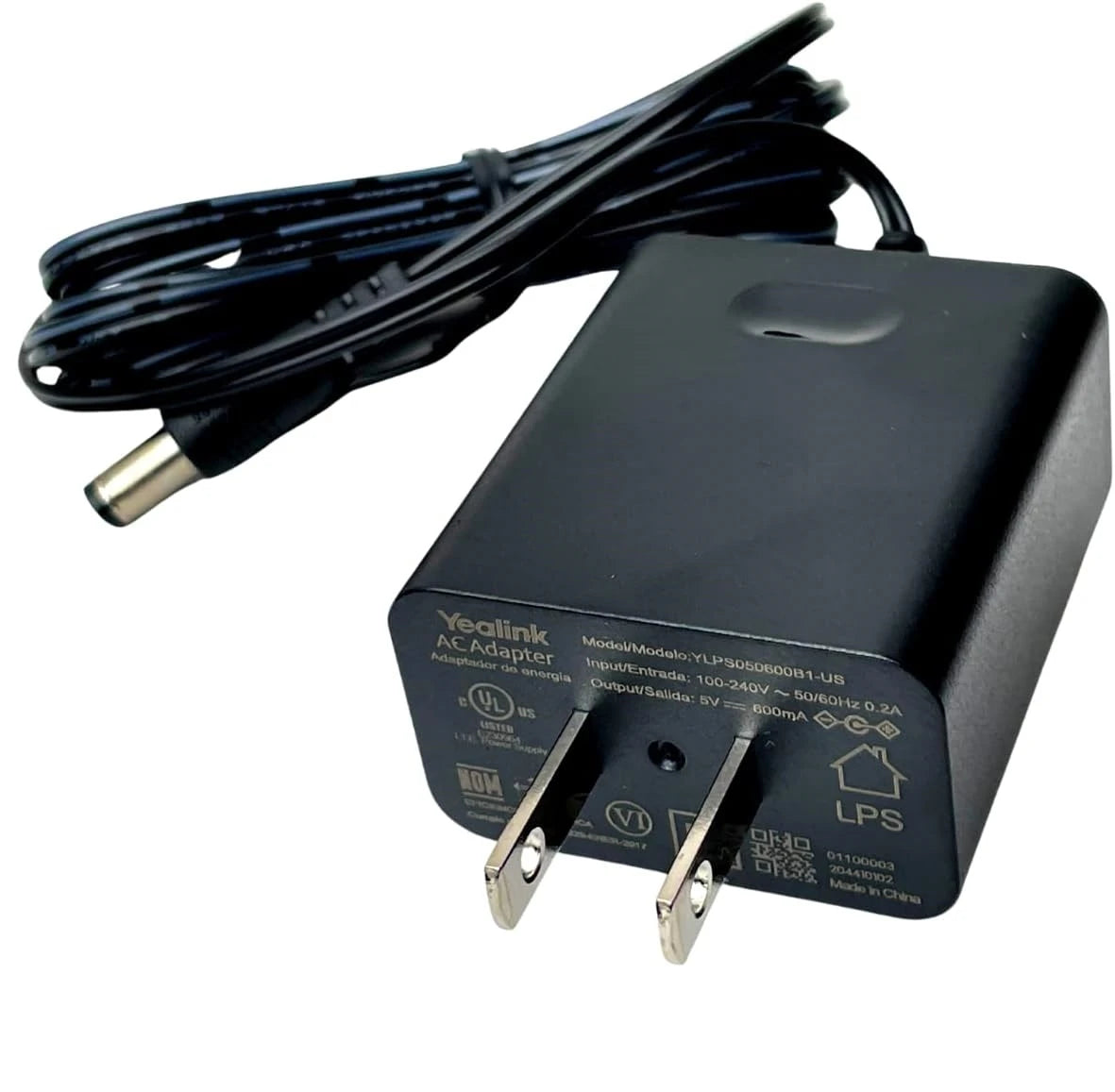
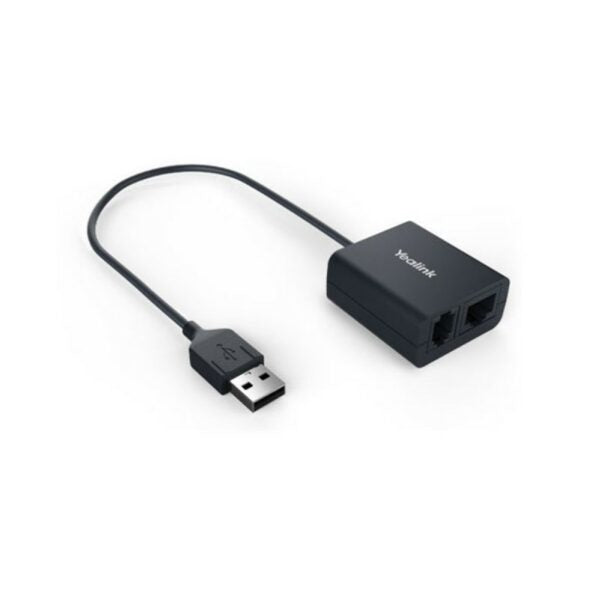
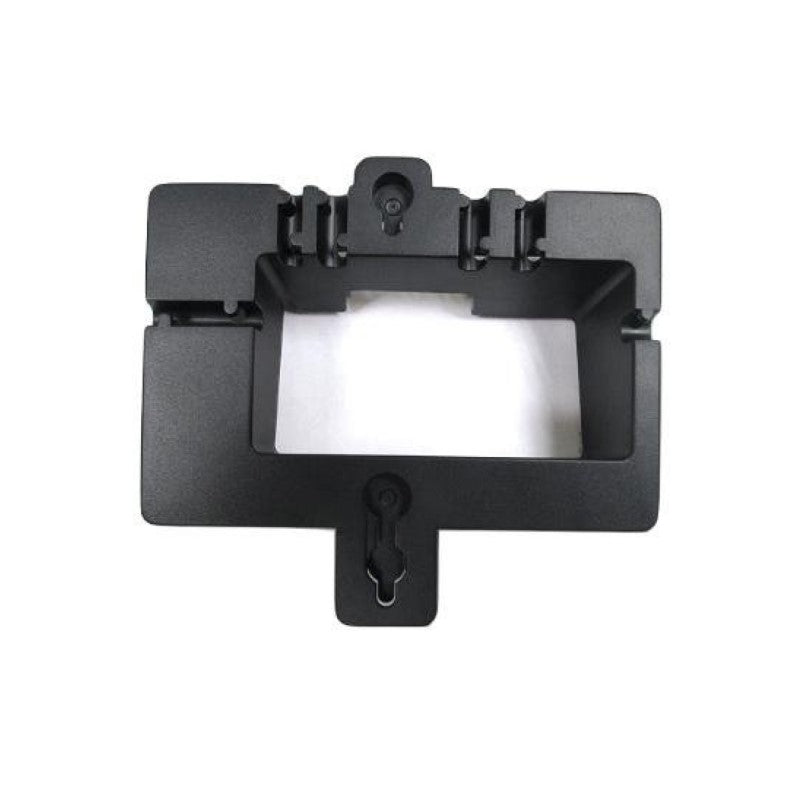
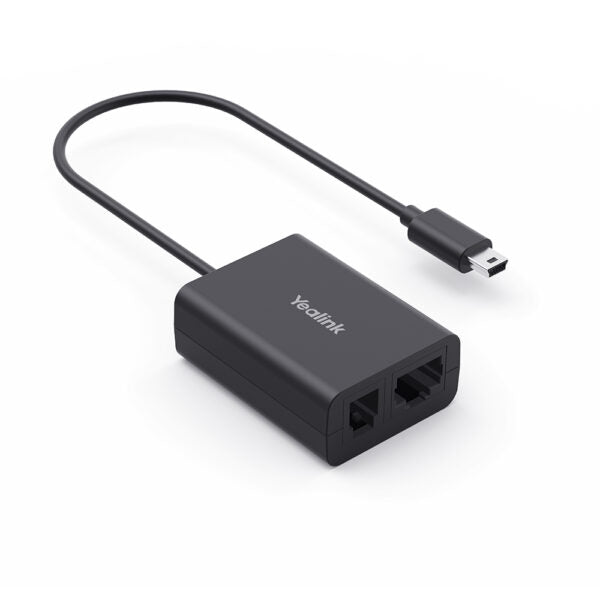
The Yealink EXP43 Color Expansion Module is an essential accessory designed to transform your compatible SIP phone into a high-powered call management system. The module features a large, vivid 4.3-inch color-screen LCD that provides comprehensive visual tools for receptionists, administrative assistants, and contact center workers. Key Features: • 60 Programmable Keys • Advanced Call Handling with BLF (Busy Lamp Field), Speed Dial, Call Forward, Transfer, Call Park, and Call Pickup • Fast Switching with three independent control keys and illuminated LEDs • Scalable Power for up to 180 programmable keys • 4.3-inch, 272x480-pixel color display with 16-bit depth color • Stand with adjustable angles for optimal viewing The EXP43 module is designed for efficiency and gives users instant access to advanced call handling capabilities that streamline daily workflow. It also supports daisy-chaining of up to three modules from a single phone, allowing for high-volume environments. What's included in the package: • EXP43 Color Expansion Module (main unit with 4.3-inch screen and keys) • Stand (adjustable desk stand) • Connecting Sheet (used to physically link the EXP43 side-by-side with the host phone) • USB Cable (used for data and power connection to the host phone) • Screwdriver • Screws • Quick Start Guide

About This Product

The Yealink EXP43 expansion module is designed for professionals who handle high call volumes and need instant visual status of colleagues’ availability. It is best suited for reception desks, administrative hubs, or contact center positions where busy lamp field (BLF) monitoring of dozens of extensions is part of daily workflow. When paired with a compatible Yealink T4 series phone, the module extends the phone’s programmable key capacity from the built-in keys to up to 60 additional ones per module, with the option to daisy-chain up to three modules for a total of 180 extension keys.

The module connects to the host phone via the included USB cable – it draws both data and power from the phone, so no separate power supply is required. This is convenient, but be aware that the host phone’s USB port must deliver sufficient power; if you chain multiple modules, the phone’s power budget can become strained, especially if it is also powering a high-consumption headset or Wi-Fi dongle. The physical link uses a connecting sheet to lock the module flush beside the phone, making for a tidy desktop setup – but the combined footprint is significant, so measure your desk space.

For a single user with only a handful of monitored lines, the EXP43 may be overkill: a phone’s built-in keys or a simpler module might suffice. Conversely, in a busy Toronto office where a receptionist needs to see the status of every department head and call queue, this module (or several) becomes nearly essential. It is fully compatible with most SIP-based Canadian carrier platforms, so integration is straightforward as long as the host T4 phone is properly provisioned.
Services We Provide
  • Professional Installation & Configuration
  • Ongoing Maintenance & Support
  • Troubleshooting & Repairs
  • System Upgrades & Updates