Yealink EXP55 Expansion Module | 5.5" Color Display for T7X/T8X Series-1300016

Frequently Asked Questions

First, ensure that the USB cable is plugged into the phone’s dedicated expansion port, not a standard USB port. If you’re using only one module and the phone is powered by PoE, it should get enough power; for two or three modules, confirm the external power adapter is connected to the last module in the chain and the phone is on. A quick power cycle of the phone can often resolve a temporary handshake glitch.
Check that the DSS keys are assigned to the correct page on the module—the screen shows the current page number. Verify the settings in the phone’s web interface or local menu under DSS Key configuration. Sometimes simply editing one key and saving it forces a refresh of all key assignments without needing a full reset.
With two or three modules, the included 5V power adapter must be plugged into the power port of the final module in the chain. Double-check all USB connections between modules and that the host phone is powered on. If it still fails, a Toronto-based VoIP support provider can usually verify the daisy-chain and power setup remotely.
The host phone’s firmware must support USB headset passthrough; update it if needed. Try connecting the headset directly to the phone’s own USB port to see if the phone recognizes it. If it works there, the module’s USB hub may need a reset—unplug the module for ten seconds, reconnect it, and then insert the headset again.
Wait a minute; if nothing changes, disconnect the module, reboot the phone, then reconnect. The phone often pushes a matching firmware to the module after a restart. If the problem continues, the module firmware may be out of sync with the phone—contact support before attempting any manual downgrade, as a mismatch can be tricky to unwind without expert guidance.
This usually means the BLF subscription failed to reach the SIP server. Confirm the phone itself is registered and that the extension being monitored is correctly configured in the DSS key settings. Try temporarily changing the key type to Speed Dial and back to BLF to force a new subscription; also test with a different known-working extension to isolate the issue.
No. The EXP55 is designed exclusively for the T7X and T8X series. T5‑series phones need a different expansion module, such as the EXP50. Check the compatibility list that came with the module to avoid a mismatch.
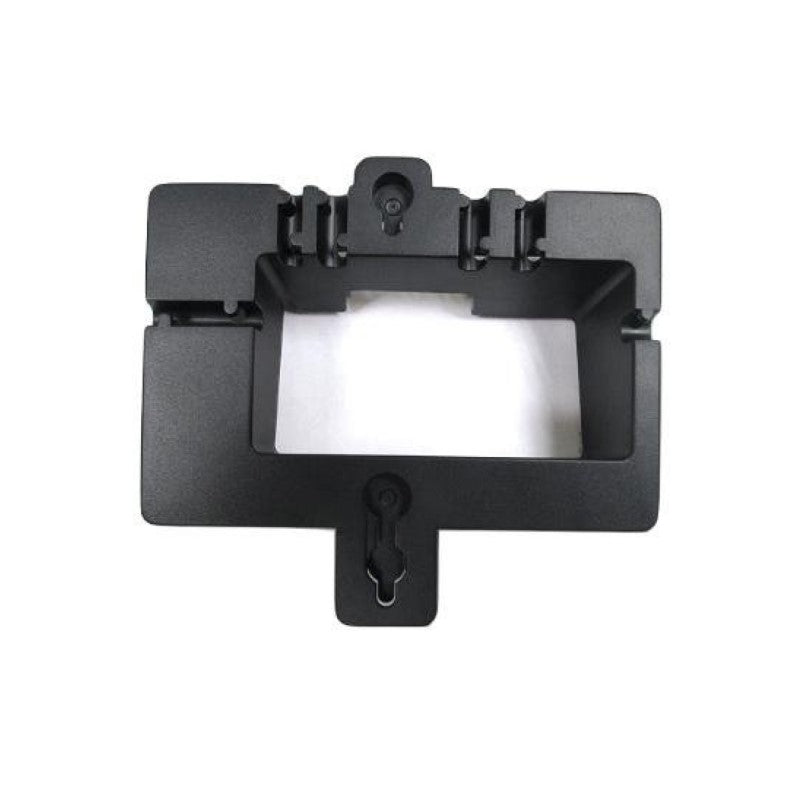
The module includes an adjustable desk stand but no wall‑mount bracket. It can be wall‑mounted by removing the stand and using the base screw holes, but this is not officially supported and may place strain on the USB cable. For a professional wall install, consult a certified installer who can ensure cable management and stability.
Access the host phone’s web interface and navigate to the expansion module settings. Upload a 480×960 pixel image in .png or .jpg format, then assign it as the wallpaper. The module itself has no direct interface; all visual customizations are managed through the paired phone.
You can program only the keys you need; the rest remain unassigned and their LEDs will stay off. There’s no built‑in way to hide the blank screen area behind those keys, but you can set a screensaver to appear after a short idle time, which reduces visual clutter. If you need a truly minimal look, consider whether the host phone’s own softkeys might suffice instead.
VoIP Accessories

Yealink EXP55 Expansion Module | 5.5" Color Display for T7X/T8X Series-1300016
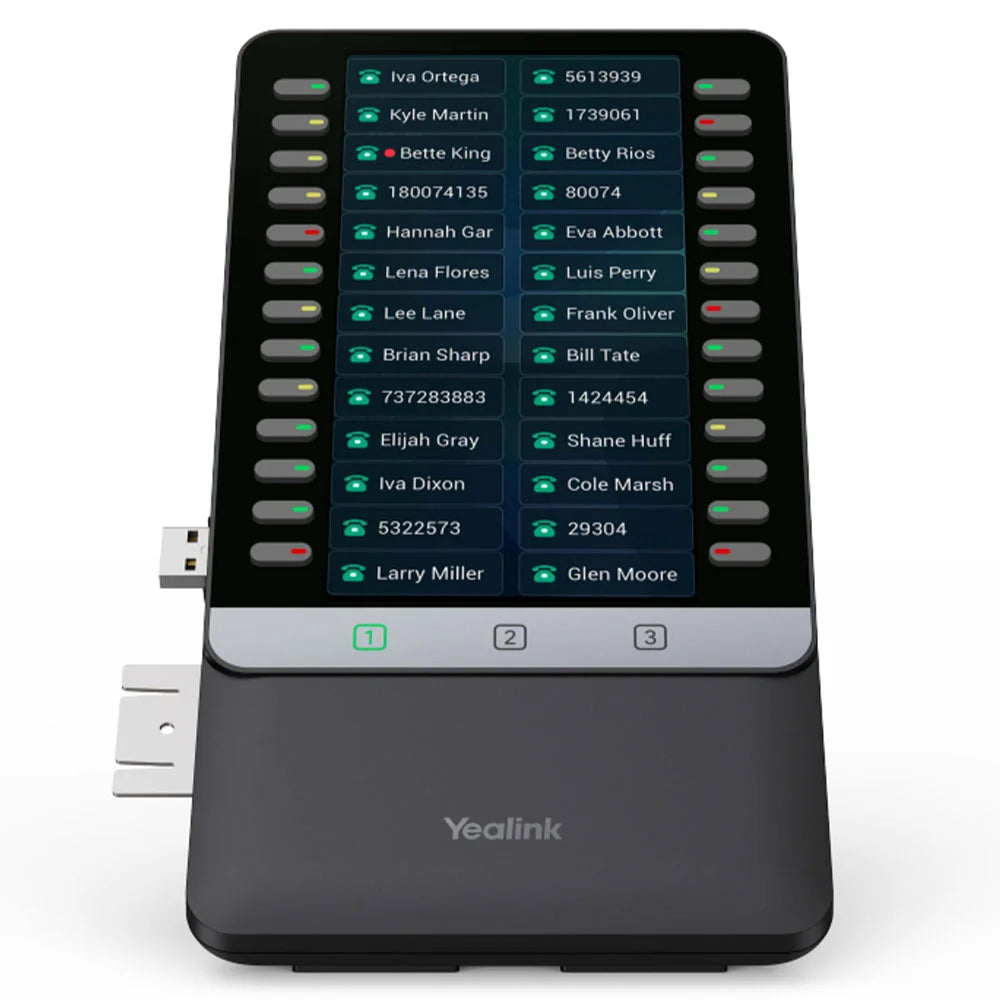
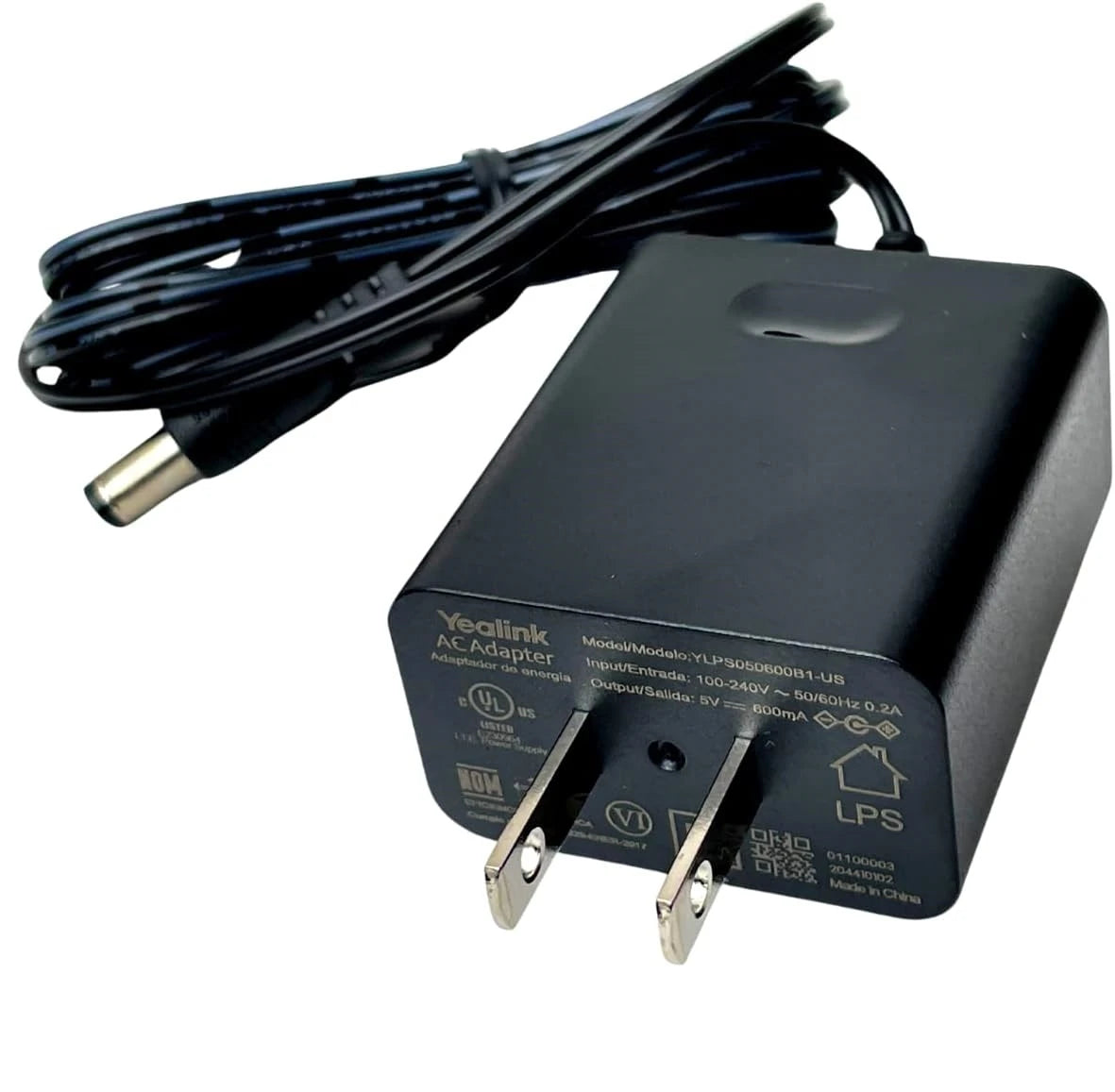
• Yealink EXP55 Color Expansion Module is a professional solution designed to elevate the functional capability of your high-end Yealink T7X and T8X IP phones. • Ideal for receptionists, administrative assistants, and contact center workers who need to monitor a large volume of contacts and manage concurrent calls with exceptional ease. Key Features: • Large 5.5" Color Screen (480x960-pixel color display) with backlight • Intuitive Programmability: 26 physical keys per page with dual-color LEDs, allowing up to 78 various features for rapid access • High Expansibility: Supports up to three cascaded EXP55 modules, adding up to 234 additional buttons for maximum call control • Vivid Visualization: Color icons for DSS keys, custom wallpapers, and screensavers offer a personalized and intuitive operating experience Advanced Call Handling and Integration: • Dedicated Line Keys: Programmed as shared line, BLF/BLA, speed dial, call forward, transfer, call park, call pickup, conference, and more • High Reliability Connection: Directly connects to your T7X/T8X phone for faster data refresh rates and higher data transmission reliability • USB Passthrough: Remaining USB 2.0 port can be used to extend phone functions, including wired/wireless USB headsets, Wi-Fi via WF40/WF50, or USB call recording via a flash drive • Adjustable Stand: Includes a stand with two adjustable angles for matching the viewing angle of your host phone Compatibility: • Compatible with Yealink T7 Series and T8 Series IP Phones (SIP-T77U, SIP-T74U, SIP-T74W, SIP-T73U, SIP-T73W, SIP-T88W, SIP-T88W PRO, SIP-T88V PRO, SIP-T87W, SIP-T85W) • Includes: Yealink EXP55 Expansion Module Unit, Stand, Screwdriver, Screws, Quick Start Guide (QSG), and a power adapter 5V 2A for support of two or three cascaded EXP55 modules (sold separately)

About This Product

The Yealink EXP55 brings a color-coded, high-visibility sidecar to receptionists, executive assistants, and call-heavy team members who rely on Yealink T7X or T8X desk phones. Its dedicated keys and bright screen let you monitor up to 78 statuses per page—whether speed dials, BLF lamps, or call-park slots—without cluttering the host phone’s display. For a busy front desk in a Toronto corporate office, a single module often transforms call handling from a hunt-and-peck chore into a glance-and-tap routine.

It’s important to know that the EXP55 is not a standalone device; it must connect directly to a compatible T7X or T8X handset. If your phone doesn’t support sidecar expansion, the module simply won’t work. The USB connection also shares bandwidth with any USB headset, Wi‑Fi dongle, or recording flash drive you attach, so plan your accessories accordingly. When cascading two or three modules, you’ll need the included power adapter to avoid drawing too much current from the phone—so be prepared for an extra cable on the desk.

For a small office where each person handles only a handful of lines, the EXP55 is overkill; the host phone’s built‑in screen and softkeys usually suffice. Conversely, in a 24/7 contact centre with dozens of ring groups and sidecar-intensive workflows, even three chained modules (giving 234 buttons) can feel tight. Think of it as the ideal fit for roles where you manage between 20 and 200 monitored extensions and want colour‑coded at‑a‑glance status without toggling screens.
Services We Provide
  • Professional Installation & Configuration
  • Ongoing Maintenance & Support
  • Troubleshooting & Repairs
  • System Upgrades & Updates