Yealink MCore-OPS Windows 10 for MeetingBoard Series

Frequently Asked Questions

First, ensure the MeetingBoard itself is powered on and that the OPS module is fully seated in the slot. Try removing and reinserting the module firmly until you hear a click. If it still doesn’t power on, check that the MeetingBoard’s OPS power setting is enabled in its menu. A loose connection is the most common cause.
This is often a display driver issue. Connect a USB keyboard and try pressing the Windows key + Ctrl + Shift + B to reset the graphics driver. If that doesn’t work, boot into Safe Mode by interrupting the startup three times, then uninstall and reinstall the Intel graphics driver from the device manufacturer’s website.
The MCore-OPS ships with Windows 10 IoT Enterprise pre-installed and should activate automatically via the embedded license key. If it doesn’t, go to Settings > Update & Security > Activation and run the troubleshooter. If the issue persists, contact your reseller—the license is tied to the hardware and should not require a separate purchase.
Start by checking that the antennas are securely attached to the MCore-OPS module. Loose antennas are a common cause of intermittent Wi-Fi. Also verify that the MeetingBoard is not too far from the access point and that there are no physical obstructions. If the problem continues, try updating the Wi-Fi driver from the Intel website.
First, ensure Bluetooth is enabled in Windows Settings and that the peripheral is in pairing mode. On the MCore-OPS, go to Devices > Bluetooth & other devices and click “Add Bluetooth or other device.” If it still doesn’t find the device, try moving it closer and removing any USB 3.0 devices that might cause interference. A simple power cycle of the MCore-OPS often resolves Bluetooth glitches.
CEC functionality depends on the MeetingBoard’s settings. Verify that CEC is enabled in the MeetingBoard’s on-screen display menu. Also confirm that the HDMI cable connected from the MCore-OPS to the board supports CEC (most do). If it’s still not working, try a different HDMI port on the MeetingBoard, as some ports may not support CEC.
Close any unnecessary applications running in the background, especially web browsers with many tabs. Check Task Manager for high CPU or memory usage. The 8GB RAM is adequate for most meetings, but if you’re running multiple apps, consider reducing the load. Also verify that Windows updates and drivers are current—outdated graphics drivers can cause sluggishness.
First, test the USB device on another computer to confirm it works. If it does, try a different USB port on the MCore-OPS. Sometimes a simple restart of the module resolves USB enumeration issues. If only certain ports fail, check for bent pins or debris inside the port. Avoid using USB extension cables, as they can cause power or signal problems.
Firmware updates for the MCore-OPS are handled through the MeetingBoard’s system menu, not through Windows. Navigate to the MeetingBoard’s settings, look for “OPS” or “Module Update,” and follow the on-screen instructions. Always ensure the MeetingBoard is connected to the internet and stable power during the update. If you’re unsure, contact your Yealink dealer for guidance.
A slight coil whine or fan noise can occur under load, but it should be very quiet. If the noise is loud or intermittent, check that the ventilation slots on the module are not blocked by dust or debris. Ensure the MeetingBoard is on a stable surface. Persistent loud noise may indicate a hardware issue—contact support for further diagnosis.
Video Systems

Yealink MCore-OPS Windows 10 for MeetingBoard Series
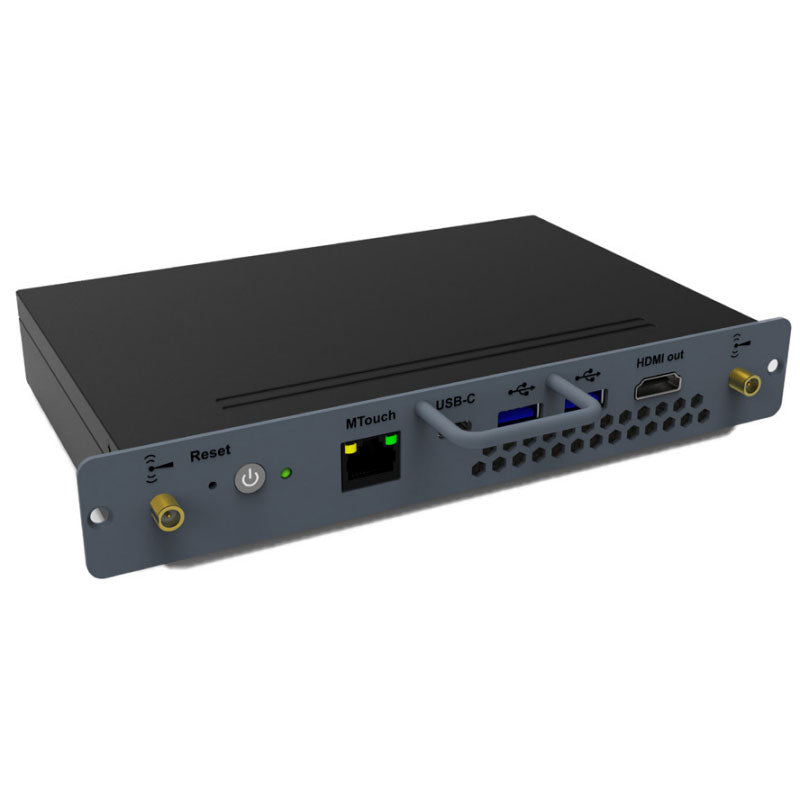
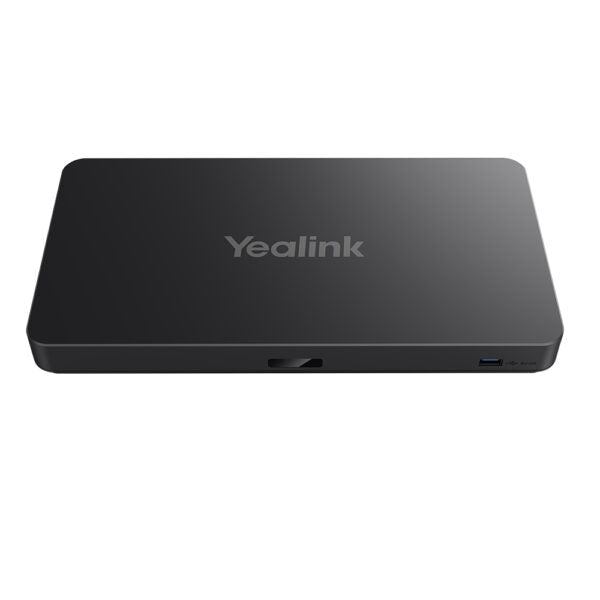
• Modular compute solution for interactive whiteboards, featuring an Intel 11th generation Core i5 processor for enhanced computing performance and efficient graphics processing power. • Supports TPM 2.0 to ensure robust data security and automatically wakes up the screen via CEC (Consumer Electronics Control). • No external equipment required for installation and deployment, thanks to the sophisticated structural design. Key Features: • Intel Core 11th i5 processor • Support for TPM2.0 and CEC • Windows 10 loT Enterprise x64 operating system • 8GB(2*4GB) DDR4 memory • 128GB SSD storage • Intel Iris X Graphics 1.30 GHz graphics processing unit GENERAL INFO: • Model: MCore-OPS • Part number: 1303084 • Box contents include MCore-OPS, 2 x antenna, 2 x screw, 1 x screwdriver, and 1 x Quick Start Guide. INTERFACE: • 1 x MTouch port (RJ-45) • 1 x HDMI out • 2 x USB3.0 Type-A ports • 1 x USB3.0 Type-C port • Bluetooth 5.2: AX201 • WLAN: Wi-Fi 6 (802.11ax) BIOS FEATURES: • Support for TPM2.0 • UEFI Secure Boot • Kernel DMA • DisplayPort (DP) • CEC support • Custom boot logo For a full list of specifications, please refer to the <a href="https://cdn.shopify.com/s/files/1/0643/6736/2234/files/Yealink-MCore-OPS-datasheet.pdf?v=1756139737" target="_blank" title="Mcore-OPS Datasheet" rel="noopener"><strong>Product Datasheet</strong></a>.

About This Product

The Yealink MCore-OPS is a modular compute module designed specifically for the MeetingBoard series of interactive whiteboards. It eliminates the need for an external PC by sliding directly into the board’s OPS slot, making it ideal for boardrooms, huddle rooms, and classrooms where a clean, all-in-one setup matters. With an Intel 11th-gen Core i5 processor, 8GB of RAM, and a 128GB SSD, it handles Windows-based collaboration tools, video conferencing apps, and digital whiteboarding smoothly. For Canadian businesses, especially those in the GTA, this is a practical choice when you want a dedicated Windows environment on your MeetingBoard without cable clutter or a separate mini PC under the table.

This module pairs exclusively with Yealink MeetingBoard displays, so it’s not a standalone computer. If you only need wireless screen mirroring or a simple Android-based whiteboard, the MCore-OPS would be overkill. On the other hand, if your workflow relies on Windows-only software—like Microsoft Teams Rooms or custom presentation tools—this module provides the necessary horsepower without sacrificing desk space. Keep in mind that the Windows 10 IoT Enterprise license is tied to the device, so enterprise deployment may require volume licensing considerations.

A practical tradeoff to note: the MCore-OPS uses an OPS form factor, meaning it’s not upgradable in the same way a standard PC would be. The RAM and storage are soldered or fixed, so you’re locked into the 8GB/128GB configuration. For most meeting-room workloads that’s sufficient, but if you anticipate running heavy local applications or storing large files, you might find the storage limiting. Network connectivity is strong with Wi-Fi 6 and Bluetooth 5.2, but wired Ethernet is not listed—relying on the MeetingBoard’s own network port or Wi-Fi is expected. Overall, this module is a good fit for organizations that want a polished, integrated Windows experience on their interactive whiteboard and don’t mind the fixed specs.
Services We Provide
  • Professional Installation & Configuration
  • Ongoing Maintenance & Support
  • Troubleshooting & Repairs
  • System Upgrades & Updates