Yealink MCoreKit-C5-MS Native Microsoft Teams Rooms system BaseKit

Frequently Asked Questions

First, check that the PoE or power adapter is seated properly at both the panel and switch ends, and that the Ethernet cable is delivering power. If the panel still stays dark, verify that the MCore Pro PC is fully booted and connected to the same network, because the touch controller receives its wake signal from the compute unit. A quick power cycle of the panel often restores the handshake.
Confirm that the sensor is mounted at the recommended height and that its detection window isn’t obstructed by furniture, whiteboards, or door swing. The sensor has a ±20° manual tilt, so small adjustments can remove a dead spot near the entrance. Also check the battery seating if the device has been idle for an extended period.
Make certain the displays are powered on and set to the correct HDMI input, and try a different cable to rule out a bad connection. In the MCore Pro, the three HDMI ports are active simultaneously, so confirm in Windows display settings that the MCore hasn’t defaulted to a resolution or refresh rate the room displays cannot accept. A simple reconnect of the HDMI cables while the system is on usually triggers renegotiation.
The MTouch Plus supports wired BYOD content sharing via its USB-C or HDMI-in port. Connect the visitor’s laptop to the appropriate input on the touch panel, and the signal should appear as a content source you can select on the Teams Rooms controller. There is no need for the visitor to install anything or join the meeting.
First, verify that the room account credentials are still valid by logging into the same account from a web browser. Then confirm the MCore Pro has a stable internet connection and that the system time is set correctly, because a time skew can break modern authentication. If those are fine, a simple restart of the MCore often re-establishes the token.
The MCore Pro provides standard USB ports, so you can connect a single USB camera and a USB speakerphone directly and they will appear in the Teams Rooms peripheral settings. For larger rooms needing multiple microphones or advanced DSP, you would typically add a certified audio DSP or a beamforming microphone array that presents itself as a single USB audio device.
First, give the MCore Pro a few extra minutes, because it may be installing pending Windows or Teams updates that were interrupted by the outage. Check that the network is fully up before the PC finished its startup; if the switch stack takes longer to boot, momentarily disconnecting and reconnecting the network cable can force a fresh DHCP lease and app login. Hold off on any reset or app reinstallation until these basics are confirmed.
Make sure the anti-glare screen is clean and free of moisture, as buildup can interfere with touch detection. If the panel is connected over a long Ethernet run, try re-terminating the cable or moving to a shorter patch lead to eliminate a marginal PoE delivery or data error issue. A reboot of the MCore Pro followed by the MTouch Plus usually clears any temporary UI lag.
Video Systems

Yealink MCoreKit-C5-MS Native Microsoft Teams Rooms system BaseKit
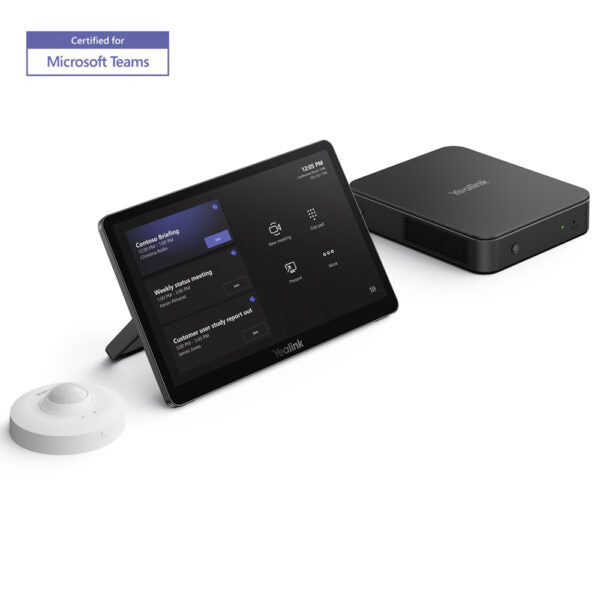
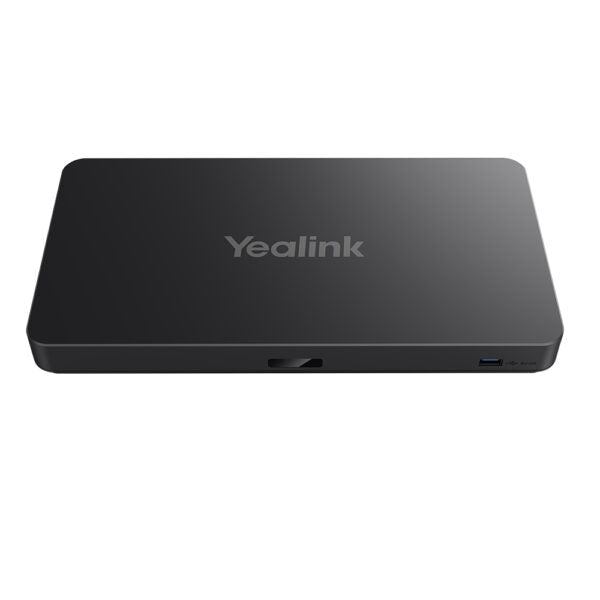
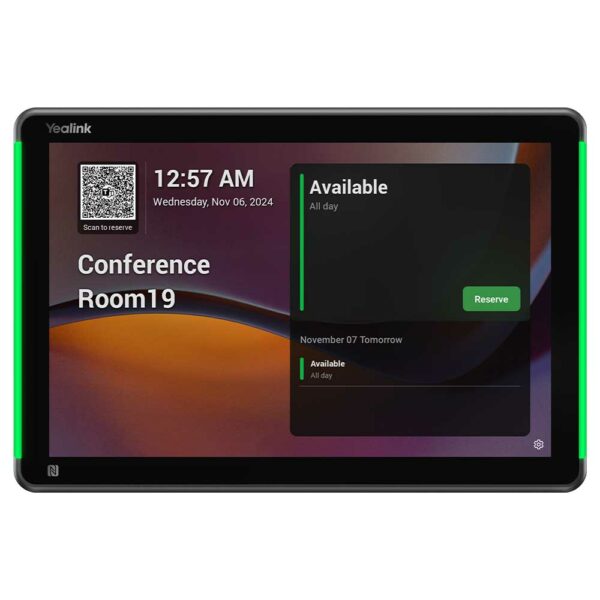
• Yealink MCoreKit-C5-MS Native Microsoft Teams Rooms system BaseKit • Includes Mcore Pro Mini PC, MTouch Plus, and RoomSensor • The MCore Pro is a Mini-PC specially designed for Yealink conference room systems • Key Features: • Intel Core 11th generation i5 processor with excellent performance • Three built-in HDMI video output interfaces for simultaneous display of three screens • TPM 2.0 for secure data protection • Automatic wakeup screen feature supported by CEC for convenient experience • Built-in security slot for simple and reliable deployment • MTouch Plus: • 11.6-inch anti-fingerprint and anti-glare IPS large screen with 1920 × 1080 resolution • Multiple panels to control, third-party screen sharing, wireless BYOD, and more • Supports Power Supply for PC (Content Sharing) and three deployment methods • RoomSensor: • Detection angle: 120° • Adjustable detection angle: ±20° • Operating temperature: 0-40℃ • Operating humidity: 10-95% • Battery powered, 4 year life • Additional Information: • Weight: 8.82 lb • Dimensions: 14.17 × 10.91 × 10.24 in • Video Conferencing: BYOD, Microsoft Teams, Control Panel

About This Product

The Yealink MCoreKit-C5-MS is designed for organizations that have standardized on Microsoft Teams and want a turnkey compute-and-control foundation for a medium to large conference room. It bundles the processing unit, touch controller, and an occupancy sensor in one package, leaving the selection of cameras, speakers, and microphones to be matched to the room’s size and layout. This makes it a flexible starting point for a custom room system rather than an all-in-one appliance. Canadian IT teams will find it fits naturally into existing Teams-driven workflows without retraining users on a new interface.

Because the kit includes a full Windows-based Mini-PC with an 11th-generation Intel Core i5 processor, it can drive three independent displays and handle content-sharing and video processing without choking, even in a room with dense participant lists. The MTouch Plus control panel provides an 11.6-inch, 1080p touch surface that doubles as a wired content-sharing endpoint. For Toronto-area firms outfitting boardrooms or training spaces, this local compute power means the system runs natively rather than relying on a user’s laptop to carry the meeting load.

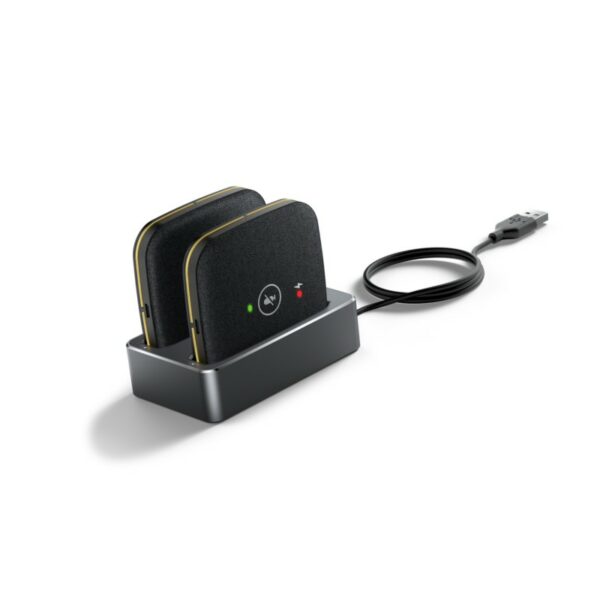
The RoomSensor is a battery-powered PIR presence sensor that can wake the system automatically and feed occupancy data to the Teams Rooms management dashboard, which is increasingly relevant for hybrid-workplace analytics. Its 120-degree detection angle with manual ±20° adjustment helps avoid false triggers from passersby outside a glass-walled meeting room. The four-year battery life means you set it and forget it, though teams in high-use huddle rooms may still want to schedule a check during annual maintenance.

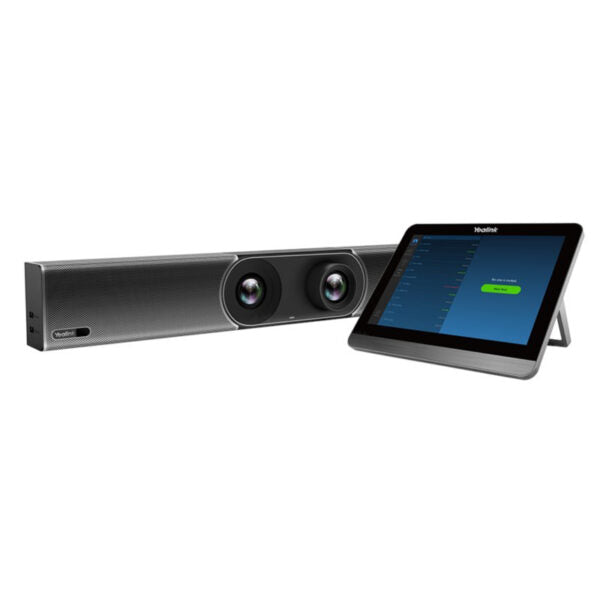
This kit is overkill for a small, two-person huddle space where a simple Teams-certified soundbar would suffice. Likewise, it stops short of being a complete room solution: you must add your own AV peripherals and plan for certified USB or HDMI-connected cameras and audio. Before committing, confirm that the room’s display cabling runs match the three HDMI outputs, and that your network can reliably deliver Windows updates and Teams client patches to yet another managed endpoint on the floor.
Services We Provide
  • Professional Installation & Configuration
  • Ongoing Maintenance & Support
  • Troubleshooting & Repairs
  • System Upgrades & Updates