Yealink MeetingBar A50-031 ( A50 with CTP25)

Frequently Asked Questions

First, confirm the device is receiving power and the network cable is securely connected. Then check whether the Teams status light on the CTP25 shows an error; if so, verify that the device is properly signed into a Teams Rooms account with valid credentials and that your corporate network allows outbound traffic to Microsoft 365 endpoints. A Toronto-based VoIP support provider can help troubleshoot firewall rules if needed.
Ensure the CTP25 is connected correctly to the A50 via the supplied USB-C cable and that both units are powered. Try disconnecting and reconnecting the cable at both ends, then give the system a full minute to initialize. If the screen remains dark, power-cycle the MeetingBar by unplugging its power adapter or PoE for ten seconds.
Echo is often caused by mechanical noise cancellation being insufficient for the room layout. Make sure nothing is placed directly in front of the built-in microphones and that the volume isn't set excessively high. The A50's full-duplex system should handle normal room acoustics, but if echo persists, check whether your Teams software audio settings are set to use the device's built-in speakers and mic array, not a separate USB speakerphone.
First, clean the camera lenses with a soft, dry cloth—dust or smudges are common culprits. Then verify there isn't an obstruction on the electric lens cap; if it's partially closed, the camera may not expose properly. If the image remains blurry, restart the bar and check for firmware updates through the Teams Admin Center.
Auto-framing works best when everyone is within the camera's 98-degree horizontal field of view. If participants sit far to the edges or behind pillars, the system may not include them. Try repositioning the MeetingBar so it has an unobstructed view of the full table, or manually adjust the camera presets through the touch console for that particular room layout.
Unplug the network cable for ten seconds, then reconnect it to force a fresh DHCP lease. Once the device reconnects, verify it can reach the internet by testing another device on the same network. If provisioning still fails, confirm that your DHCP server assigns the correct VLAN and that the MeetingBar’s MAC address is allowed through any MAC filtering rules.
The CTP25 communicates over the USB-C cable with the A50. Try a different USB-C port on the bar (there are two) and ensure you're using the cable that came in the box. If the message persists, power off both the bar and the console, then power on the bar first and wait for it to fully boot before powering on the console.
First, check the audio status on the CTP25 to see if the device is in a muted state or if the volume has been lowered. If not, the bar may be overheating—ensure its ventilation grills are not blocked and that it’s mounted in a location with adequate airflow. If the cutouts happen at the same time each meeting, investigate whether your network is experiencing periodic bandwidth congestion affecting audio packets.
The CTP25 does not have a separate reset button; a factory reset would clear both the bar and the console. Instead, try disconnecting the USB-C cable from the bar, waiting five seconds, and reconnecting it. This reinitializes the console without changing any provisioning. If you need to troubleshoot further, contact support before attempting any reset.
The MeetingBar A50-031 is shipped as a Teams Rooms device and is certified for Teams. While it may work with Zoom Rooms if you reinstall the Zoom Rooms software, that process requires a factory reset and is not officially supported by Yealink for this specific SKU. If Zoom is your primary platform, consider the Zoom-certified version of the same hardware to avoid compatibility issues.
Video Systems

Yealink MeetingBar A50-031 ( A50 with CTP25)
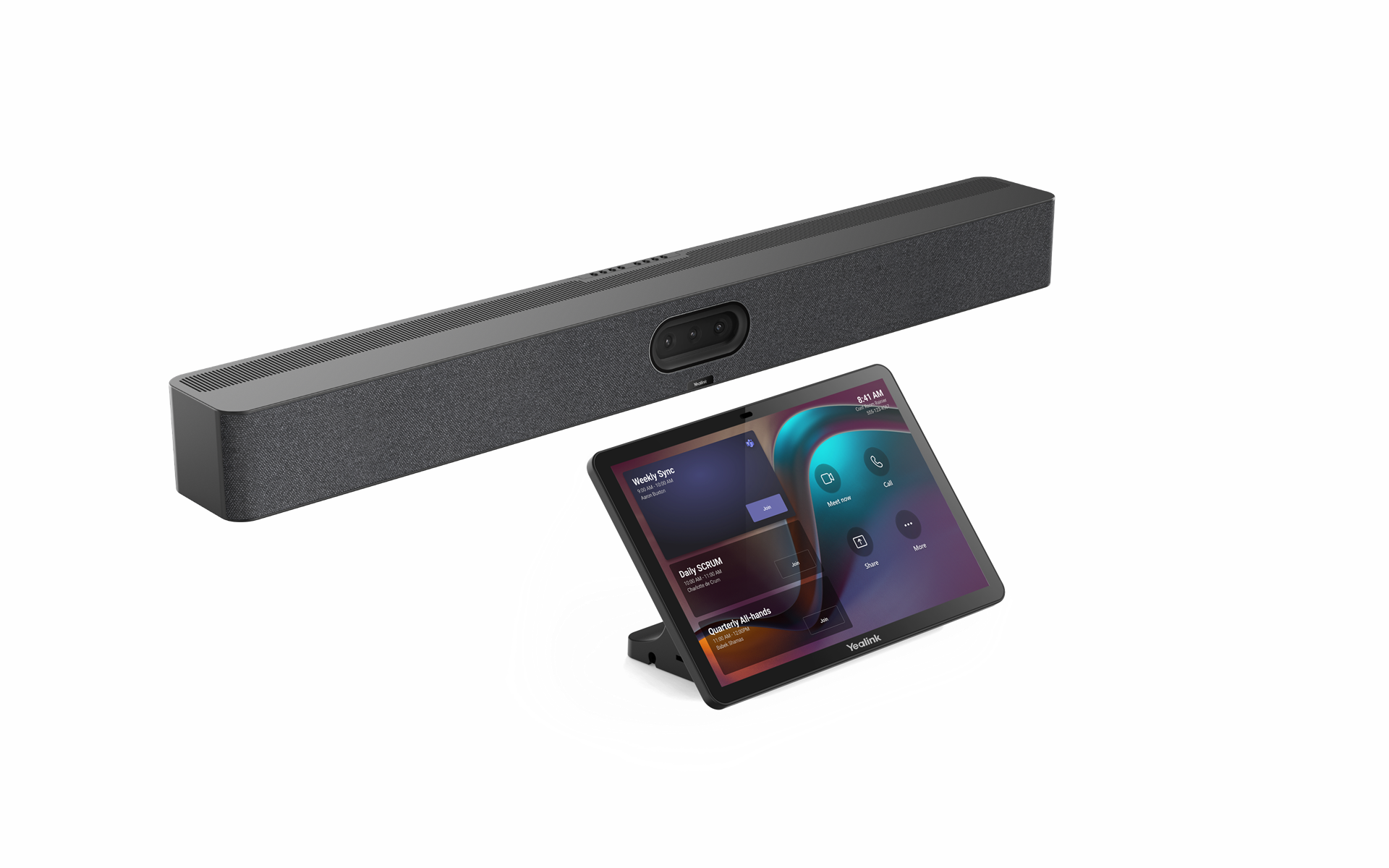
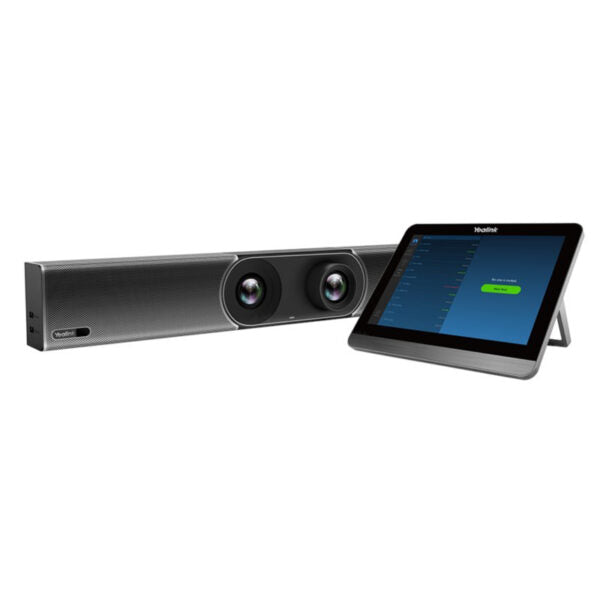
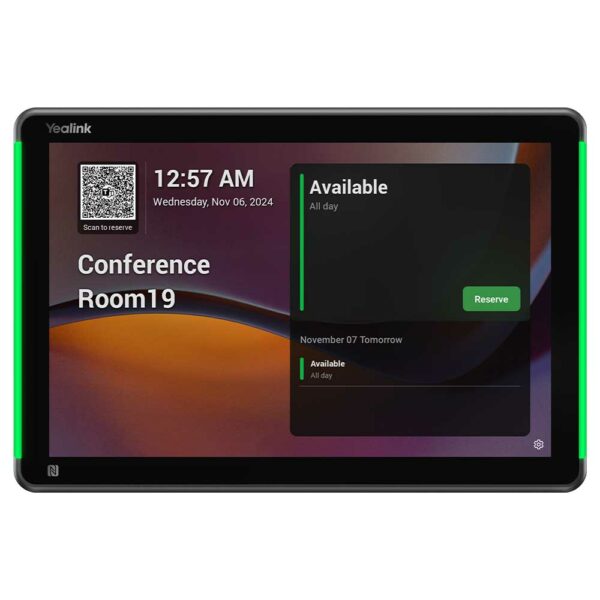
*The Yealink MeetingBar A50-031 is an all-in-one video collaboration bar designed for premium medium-to-large meeting rooms, delivering advanced audio and video communication capabilities powered by cutting-edge AI technology. Key features include: • Intelligent full-duplex audio • IntelliFocus • Video fence • Seamless compatibility with Microsoft Teams Rooms (MTR) across both Android and Windows platforms • Compatibility with Microsoft’s MDEP for enhanced security and deployment processes • Direct connection to the CTP25, simplifying the login process and improving user convenience All-in-one design Triple-eye camera system (3*50MP) Electric lens cap Built-in 4 x 5W speakers 10-meter pickup distance Compatible with Microsoft’s MDEP CTP25 touch console Teams Certified Additional Information: Weight: 28.18 lb Dimensions: 41.73 × 20.91 × 9.45 in Video Room Size: Large, Medium Technical Specifications: Box Contents: 1x A50 all-in-one Collaboration bar, power adapter, wall mount bracket and cables 1x CTP25 touch console, PD power adapter, Desktop stand and cables 2 Year Hardware Warranty MeetingBar A50 Specifications: Operating System: Android 13 Camera: Maximum pixels: 3*50MP pixels Number of preset positions: 9 Electronic gimbal 1x Wide HFOV 98°, VFOV 81° ; 2x Tele HFOV 41.6° VFOV 31.8° 8x digital zoom Maximum resolution: 4K Privacy cover: Electric lens cap Lens calibration Intelligence Features IntelliFocus Auto Framing Speaker Tracking People counting Picture in Picture Smart Gallery (Zoom only) Number of cameras: 3 CTP25 Specifications: OS: Android 13.0 Display: Screen: 10.1 inch Display Type: IPS Resolution: 1280 x 800 Contrast ratio: 1000:1 Brightness: 350 cd/㎡ (typical) Viewing angle (horizontal/vertical): 178°(H)/178°(V) Touchpoints: Multi-points capacitive touch support Anti-glare Anti-fingerprint Audio: Built-in Ultrasound Unit Wireless: Wi-Fi 6 802.11a/b/g/n/ac/ax Bluetooth 5.0 Network: VLAN, 802.1P/Q, and Diffserv 802.1X, and LLDP-MED HTTPS Device Management: Yealink Web Portal Yealink Device Management Platform Teams Admin Center Zoom Device Management Physical Interface: 1 x USB-A port 2 x USB-C port 1 x RJ45 port (PoE 802.3af complaint) 1 x Reset hole Motion Sensor Installation: Place on the Table Mount on the Table Mount on the Wall Power: Power Consumption: – Standby: 5 W – Average: 7.3 W – Peak: 15.2 W Power Adapter: 65W PD PoE: IEEE 802.3af and above

About This Product

The Yealink MeetingBar A50-031 is an all-in-one video collaboration bar designed for medium-to-large meeting rooms that run Microsoft Teams Rooms. It combines a triple-camera system, AI-driven audio and video features, and a dedicated CTP25 touch console in a single package, making it a strong choice for organizations that already use Teams and want a streamlined, consistent experience across their meeting spaces. The electric lens cap and automatic framing help ease privacy and usability concerns, while the built-in speakers and microphone array handle full-duplex audio in rooms up to around ten metres of pickup distance.

This device is best suited to environments where Teams Rooms are the standard and where IT teams are comfortable managing devices through the Teams Admin Center or Yealink’s management platform. It fits naturally into boardrooms, large conference rooms, or executive meeting spaces where participants expect a polished, low-friction start to calls. Because it is Teams-certified and compatible with Microsoft’s MDEP, it integrates well with Canadian enterprises that rely on Azure AD and Intune for device security and updates.

A practical tradeoff to consider is the upfront investment: the A50 and its CTP25 touch panel represent a premium solution, and in smaller huddle rooms the advanced camera features may be underutilized. Network readiness also matters—while the bar supports PoE, the bundled power adapters mean you can deploy it without PoE switches, but performance will depend on sufficient bandwidth and VLAN configuration for quality of service. For teams evaluating video bars, the A50 delivers strong imaging and intelligent tracking, but if your meetings rarely have more than six attendees or rarely require speaker tracking, a simpler, less expensive model might be a better fit.
Services We Provide
  • Professional Installation & Configuration
  • Ongoing Maintenance & Support
  • Troubleshooting & Repairs
  • System Upgrades & Updates