Yealink MeetingBoard 12X PRO Optical Zoom Camera– 1303128

Frequently Asked Questions

First, power off the MeetingBoard completely and reseat the camera module firmly in the slot. Then power back on and wait up to two minutes for the system to recognize it. If it still doesn’t appear, verify that the MeetingBoard itself is a second-generation unit (the module is not compatible with the first generation). A simple restart of the MeetingBoard often resolves initial detection issues.
Ensure the lens cover was removed during installation and that the lens surface is clean. The 12X PRO uses auto-focus, so try pointing the camera at a high-contrast object and wait a few seconds. If blurriness persists, check that the MeetingBoard’s firmware is up-to-date—older firmware may not fully support the optical zoom module. Dust or fingerprints on the lens are a common cause; a gentle wipe with a microfiber cloth usually solves it.
First, confirm that AI features are enabled in the MeetingBoard’s admin settings under Camera > Tracking. The 12X PRO relies on the same algorithms as the built-in camera, so toggling the tracking mode off and on again can reinitialize the process. Also, ensure the room has adequate lighting—very low or very backlit conditions can confuse the image analysis. A power cycle of the MeetingBoard often resets the AI engine cleanly.
No. The 12X PRO is designed exclusively for the second-generation MeetingBoard via its dedicated slot interface. It does not support USB, HDMI, or any other standard connection, and it will not work with other Yealink devices or third-party platforms. If you need a standalone camera for a different system, consider a USB or HDMI model instead.
First, check that the MeetingBoard’s built-in camera is working normally—if that also fails, the issue may be with the board itself rather than the module. If the built-in works but the 12X PRO doesn’t, reseat the module as described earlier. Also, verify that the video source selected in the call application (e.g., Teams, Zoom) is set to the external camera and not the internal one. A quick test with a short local recording can help isolate the problem.
No. The module draws power directly from the MeetingBoard through the slot connector, so no separate power cable or PoE injection is needed. As long as the MeetingBoard itself is properly powered (using its included power adapter or PoE+ if your model supports it), the camera will receive power automatically. If you encounter intermittent power drops, check the MeetingBoard’s power connection first.
The 12X PRO’s optical zoom is controlled through the MeetingBoard’s camera settings or the remote control. Look for a zoom slider or +/- buttons in the admin menu under Camera > Zoom. If you’re using a third-party UC app, check that app’s camera controls—some apps only offer digital zoom, which won’t use the full optical range. Ensure the camera is in normal (not auto-framing) mode to have manual control.
The 12X PRO is a camera-only module—it does not contain microphones or speakers, so it cannot directly cause audio echo. The issue likely comes from the MeetingBoard’s audio settings or room acoustics. Check that the MeetingBoard’s speaker volume isn’t too high, and that the microphone is not positioned too close to the speakers. If the problem started after installing the camera, it may be coincidental; try reducing the audio output level and enabling echo cancellation in the MeetingBoard’s audio settings.
The 12X PRO does not have its own separate firmware; it relies on the firmware of the MeetingBoard host device. To ensure the camera functions correctly, update the MeetingBoard itself to the latest firmware via the Yealink device manager or the admin web interface. After a firmware update, reboot the board to allow the camera module to synchronize. If you’re unsure how to check the current firmware version, contact your IT provider or a Toronto-based VoIP support team for assistance.
A blinking red LED on the 12X PRO typically indicates a communication error between the module and the MeetingBoard, or a firmware mismatch. First, power cycle the MeetingBoard completely. If the LED remains red, remove and reseat the module firmly. If it still blinks, try updating the MeetingBoard’s firmware to the latest version. If the problem persists, the module may need to be paired again or possibly replaced—contact Yealink support or a local authorized reseller for further diagnostics.
Video Systems

Yealink MeetingBoard 12X PRO Optical Zoom Camera– 1303128
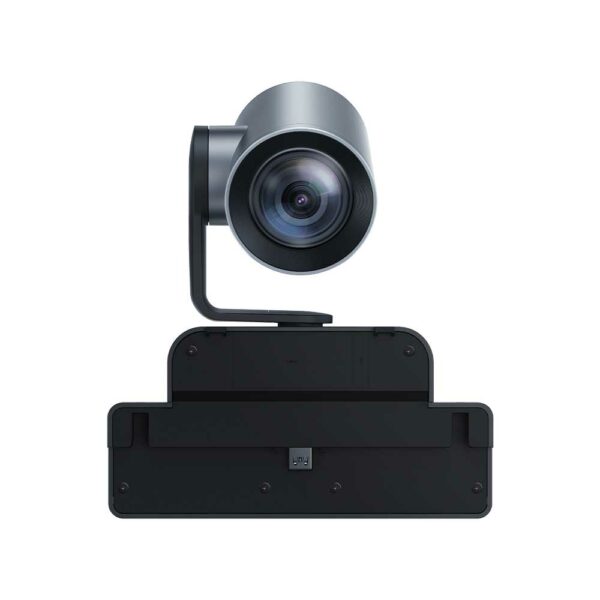
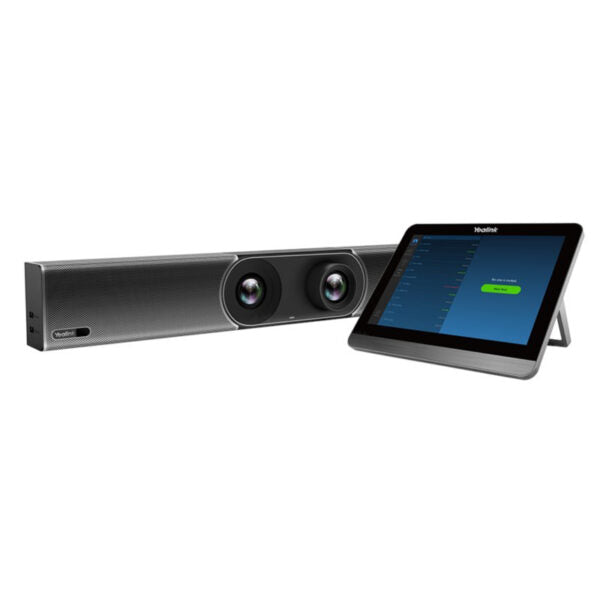
• The MB-12X Pro is a specialized optical zoom camera module designed for the second-generation Meetingboard, ideal for medium and large conference rooms. It features a customized slot interface, eliminating the need for additional wiring and mounting brackets. • This innovative design provides a streamlined deployment experience and integrates seamlessly with the wide-angle lens built into the second-generation MeetingBoard. • The MB-12X Pro is equipped with Yealink’s AI voice positioning and image algorithms, analyzing participant movement in real-time through its built-in wide-angle lens to achieve automatic framing, voice tracking, and intelligent tracking experiences. • Key features include: • 4K/30FPS video resolution • 12x Optical Zoom for precise subject detection • Automatic Exposure control for optimal image quality For a full list of specifications, please refer to the MeetingBoard 12X PRO Datasheet.

About This Product

The Yealink MeetingBoard 12X PRO is an optional camera module designed exclusively for the second-generation MeetingBoard all-in-one collaboration board. It is intended for medium to large conference rooms where the built-in wide-angle lens may not provide enough reach for participants at the far end of the table. By slipping into the custom slot interface, this 12x optical zoom camera adds lossless magnification without the clutter of external cabling or mounting brackets.

This module pairs naturally with the MeetingBoard itself, transforming a capable room system into a solution suited for larger boardrooms or classrooms where precise subject framing matters. It leverages the same AI algorithms already in the MeetingBoard, so auto-framing and speaker tracking work seamlessly. However, the 12X PRO is not a standalone camera—it has no compatibility with other Yealink devices or third-party systems, and it only supports the second-generation MeetingBoard. Buyers should also note that the optical zoom is most useful when the camera is positioned at a distance from the presenters; in smaller rooms, the built-in lens typically suffices.

Deploying this module is straightforward for any integrator or IT team familiar with MeetingBoard devices: simply align and insert. There are no power or data cables to route, as both are handled through the slot connector. For Toronto-area businesses with large open-plan offices or executive boardrooms, the 12X PRO adds professional-grade video capture that can handle dimmer lighting and deeper rooms without pixelation. Conversely, a small huddle space or a room already equipped with a dedicated USB camera will not benefit from this investment.
Services We Provide
  • Professional Installation & Configuration
  • Ongoing Maintenance & Support
  • Troubleshooting & Repairs
  • System Upgrades & Updates