Yealink MeetingBoard 65" - 4K Built-in Camera- MB65-A001 – 1303066

Frequently Asked Questions

First, verify that your network allows outbound connections to Microsoft’s servers on the required ports. Since the device is Teams-certified, it should connect automatically after signing in with valid credentials. If still failing, power cycle the MeetingBoard and check that your Teams account is not locked or requiring reauthentication.
Ensure the electric privacy shutter is fully open (check the slider or on-screen icon). If the shutter is open and no image appears, reseat the camera cable internally if accessible, or power cycle the unit. If the problem persists, contact your VoIP support provider; the camera module may need service.
Echo is often caused by audio from the speakers being picked up by the microphone array. Reduce the speaker volume and ensure no other audio sources (like a laptop speaker) are active nearby. Also check that the room has soft surfaces to reduce reverberation. The MeetingBoard’s built-in acoustic echo cancellation should handle most cases, but if echo continues, try muting participants who aren’t speaking.
First, clean the screen with a soft, dry cloth to remove any oils or debris that might interfere with touch. Restart the MeetingBoard by unplugging it for 30 seconds and plugging it back in. If the issue is isolated to one app, try updating that app. For persistent touch issues, a calibrated touch test in the settings can confirm if the hardware is faulty.
With Wi-Fi 6, you can use the Yealink wireless presentation feature or Miracast. On your laptop, open the display settings and connect to the MeetingBoard’s wireless display if available. If you are using Teams, you can also share your screen directly through the meeting. Make sure both devices are on the same network and that wireless display is enabled in the MeetingBoard’s settings.
Check that the Ethernet cable is securely plugged in and that the port on the unit is not damaged. If using Wi-Fi, ensure the device is within range of a strong signal. A network congestion or IP address conflict could also cause drops; try assigning a static IP address or consulting your IT team to check the switch configuration.
Verify that the microphone array is not muted (look for a mute icon on the screen). Also, ensure no debris or dust is covering the microphone holes (located on the front of the unit). Test by recording a short audio clip in the settings. If still no input, the array may need service; contact a VoIP support specialist in Toronto for diagnosis.
The optional PTZ camera connects to the MeetingBoard via a dedicated port. Once physically attached and power cycled, the device should recognize it automatically. You can then configure camera settings in the MeetingBoard’s menu, including switching between the built-in and PTZ camera. If not detected, confirm the camera is a compatible Yealink model and reinsert the connection.
The device runs Android 10 and supports other video conferencing apps as well, such as Zoom or Skype for Business, but it is certified for Teams and may not have full feature parity on others. You can install apps from the Google Play Store. Check provider documentation to ensure compatibility.
First, adjust the brightness and contrast settings from the on-screen menu. If flickering, ensure the power cable is secure and not damaged. A loose connection or interference from nearby electrical equipment could cause flickering. If the issue persists, the backlight or power supply may be failing; cease use and contact support.
Video Systems

Yealink MeetingBoard 65" - 4K Built-in Camera- MB65-A001 – 1303066
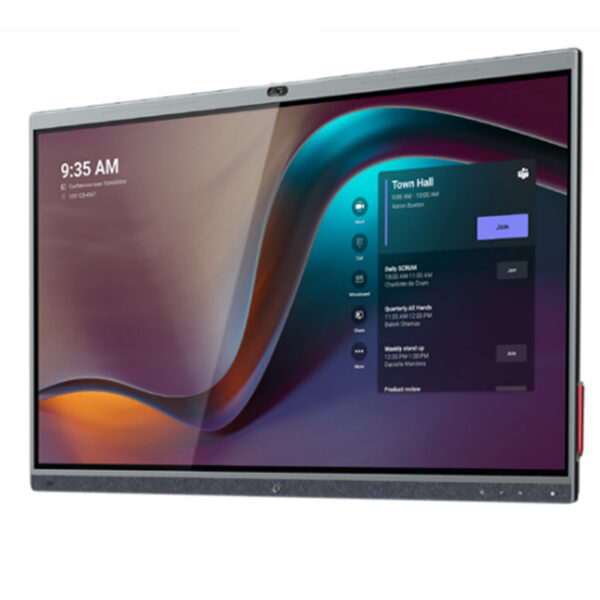
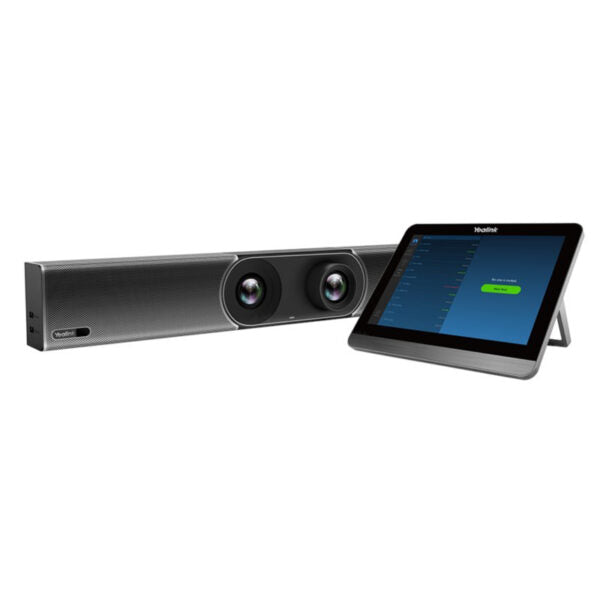
* Revolutionize Your Meetings with the All-in-One Yealink MeetingBoard * A cutting-edge collaboration solution that combines stunning visuals, premium audio, and AI-driven features to bring everyone together in a real-time immersive environment. * Seamlessly integrate with Microsoft Teams for a fluent digital paper writing experience, allowing users to brainstorm, project plan, solve problems, or collaborate on any activity from anywhere at any time. Features: • All-in-one design • 65-inch LED Touch Screen • Android 10 • 4K built-in camera • Electric privacy shutter • Enhanced AI Noise Cancellation • Detachable optional PTZ camera for larger spaces (sold separately) • Dual-screen supported • WiFi 6 wireless presentation • Upgradeable Android OPS Module • Teams Whiteboard • Microsoft Teams certified Additional Information: Weight: 187.39 lb Dimensions: 65.94 × 9.25 × 42.32 in Video Room Size: Medium, Small/Huddle Video Conferencing: Android, Microsoft Teams Displays: 4K Displays, All Displays/Monitors Technical Specifications: Display: • 65-inch D-LED touch screen • Ultra HD 4K (3840 x 2160 screen resolution) • Anti-glare and anti-fingerprint coating • Contrast ratio 1200:1(typ.) • Viewing angle 178°(H) / 178°(V) • Ratio 16:9 • Refreshing Frequency 60Hz • Touch Points 20 points • Location Accuracy ±1mm(over 90% Area) • Contact Height < 2mm Built-in Camera: • 8MP Sony sensor • 120° Diagonal field of view • 4x e-PTZ • Electric privacy shutter • Supports PTZ camera module (optional) to build an intelligent dual-cam system • Intelligence Features: Auto Framing, Speaker Tracking Operating System: Android 10 Audio: • Built-in 16 MEMS Mic Array • 4 full range+2 tweeter stereo speakers • Support RCA input/output • Yealink Enhanced Noise Proof Technology • Acoustic Echo Cancellation • Reverberation Suppression • Auto Gain Control • Beamforming Technology • CNG/PLC/AJB/De-Rerb For a full list of specifications, please refer to the product datasheet (PDF) available for download.

About This Product

The Yealink MeetingBoard 65 is an all-in-one collaboration display designed for medium and small huddle rooms where teams need a rich interactive whiteboard experience integrated with Microsoft Teams. With its 65-inch 4K touchscreen, built-in 8MP camera, and 16-element MEMS microphone array, it serves as a central hub for virtual meetings and in-person collaboration. It is particularly well-suited for organizations already invested in the Microsoft Teams ecosystem, as it carries Teams certification and supports Team Whiteboard for real-time digital brainstorming. The unit also includes an electric privacy shutter for the camera and supports dual-screen setups, making it adaptable for rooms where additional display real estate is beneficial.

Buyers should consider the physical footprint: at 187 pounds and nearly 66 inches wide, this is a substantial piece of equipment that requires professional mounting and adequate floor or wall support. It is designed for rooms where the viewing distance is comfortable for a 65-inch screen—too large for a typical 4-person huddle room but ideal for spaces designed for 6–10 participants. The optional detachable PTZ camera (sold separately) can be added for larger spaces or to get a closer view of speakers, but without it the fixed wide-angle camera covers the whole room. The device runs Android 10, which means app compatibility and update cycles differ from Windows-based solutions; check that your meeting platform clients are supported beyond Microsoft Teams.

In a Canadian business context, this MeetingBoard fits well in GTA office environments where Microsoft Teams is the standard collaboration platform. It can replace a dedicated PC, webcam, and standalone audio system for a streamlined install. However, for sprawling boardrooms seating more than 15, the integrated audio and camera may struggle, and a separate room kit with full PTZ cameras and ceiling mics would be a better fit. Conversely, in very small rooms the 65-inch screen may dominate the space and the depth of features could be more than needed—consider a smaller MeetingBoard model for tighter spaces.
Services We Provide
  • Professional Installation & Configuration
  • Ongoing Maintenance & Support
  • Troubleshooting & Repairs
  • System Upgrades & Updates