Yealink MeetingBoard 65 PRO-4K-MB65PRO-A02 – 1203670

Frequently Asked Questions

First, verify that the device is set to the correct operating mode—it supports both Teams and Zoom modes, and you need to be in Teams mode for authentication. Go to the main menu and confirm the mode is set to 'Microsoft Teams.' Then ensure your network allows outbound connections to Microsoft's servers on the required ports (typically HTTPS on port 443). If the issue persists, double-check your Teams account credentials and that your license includes devices.
Start by checking your network bandwidth: the 4K video streams require at least 2 Mbps upstream per call, but for full 4K quality, aim for 5 Mbps or more. Run a speed test from the device's browser or a connected laptop. Also, verify that the camera lens is clean and not obstructed. If the picture is still soft, adjust the camera zoom settings; the triple-eye system can automatically frame participants, but manual settings may help in unusual room layouts.
Echo is usually caused by audio feedback from the room speakers. First, check that the MeetingBoard's built-in microphone and speaker are being used as the room's only audio device—disable audio from any connected laptop to avoid dual audio. Next, ensure that no other sound source (like a separate speakerphone) is active. If the echo persists, try lowering the speaker volume or moving the device slightly away from reflective surfaces like glass walls.
Make sure the MeetingBoard and your laptop are on the same network subnet—wireless sharing relies on network multicast, so a VPN or a different VLAN can block discovery. On Windows, press Win+K and select the MeetingBoard from the list; on macOS, enable AirPlay and select the device. If it still doesn't appear, restart both the MeetingBoard and your laptop, then try connecting via a wired HDMI cable as a fallback to confirm the basic video path works.
First, check if the screen is in whiteboard mode—sometimes the device remains in video call mode and touch inputs are used for other controls. Tap the whiteboard icon to switch. If the screen still doesn't register touches, clean the display with a microfiber cloth to remove any residue or static. If that doesn't work, power cycle the unit by unplugging it for 30 seconds. Persistent touch issues may require a sensor calibration, which can be done from the settings menu under 'Display' → 'Touch Calibration.'
Start by checking the power source: ensure the AC cable is securely plugged into a dedicated outlet (not a power strip shared with high-load equipment). Overheating can also cause reboots—check that the ventilation slots on the back are clear and the ambient room temperature is within the operating range (32-104°F). If the problem started after a recent firmware update, let the device sit powered on for a few hours to complete background tasks. For persistent instability, contact your VoIP support provider to review logs.
Check the volume level on the device itself—there is a physical volume rocker on the side or a slider in the settings. Also verify that the call or application you're using hasn't silenced the audio output. If other audio sources (like HDMI input from a laptop) also have no sound, the speakers may be disabled in the system settings; go to Settings → Audio and confirm the speaker output is enabled. A quick power cycle often resolves transient mute issues.
IntelliFocus is part of the AI-powered view settings. During a call, look for a camera icon or a 'Frame' button on the touchscreen—tap it to enable auto-framing. In the device settings menu, navigate to 'Camera' → 'AI Camera' and ensure IntelliFocus is toggled on. Note that this feature requires the latest firmware version; check for updates under 'About' → 'Software Update.' If it still doesn't work, the room lighting may be too dim for the camera's sensor—turn on overhead lights.
On the home screen, tap the gear icon to open Settings, then go to 'Device Settings' → 'Meeting Mode.' You'll see options for 'Microsoft Teams' and 'Zoom' (as well as a generic 'General Mode'). Select the desired mode and confirm. The device will restart and load the corresponding application. Note that switching modes may require you to sign in again with your credentials for that platform.
First, confirm that the Ethernet cable is securely plugged into the device and the network switch, and that the switch port is active (check with a known-working device). On the MeetingBoard, go to Settings → Network → Ethernet to see if it obtained an IP address. If it shows 'No IP,' check your DHCP server for available addresses or try a static IP. If using Wi-Fi (some models), ensure the wireless network is within range and the correct SSID and password are entered. A simple cable swap can sometimes resolve a mis-seated connector.
Video Systems

Yealink MeetingBoard 65 PRO-4K-MB65PRO-A02 – 1203670
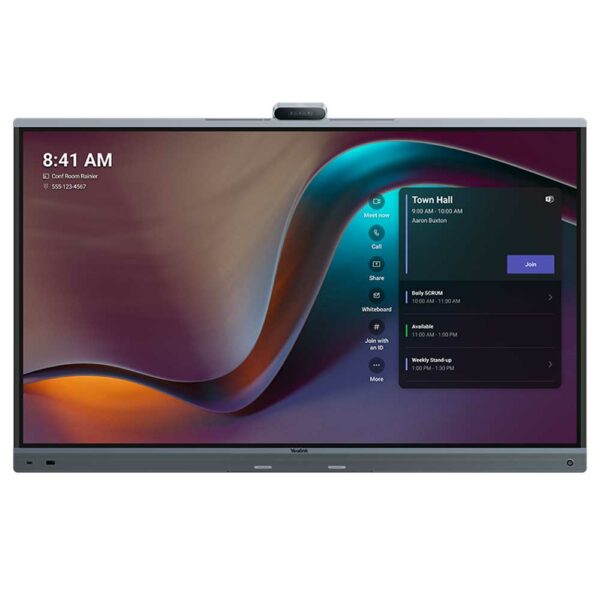
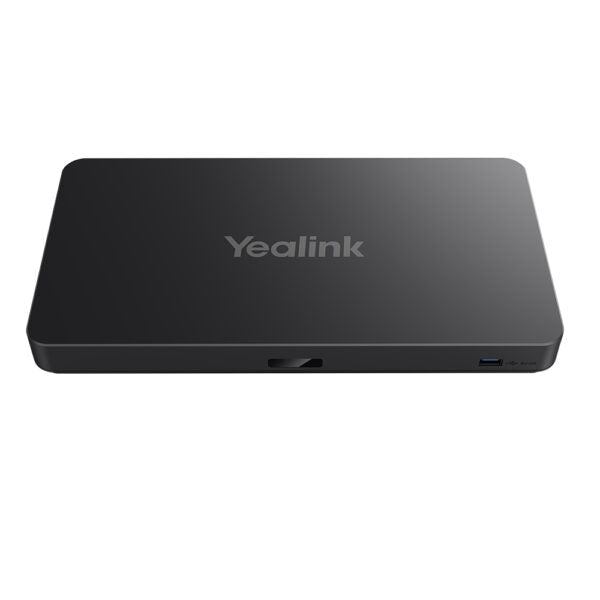
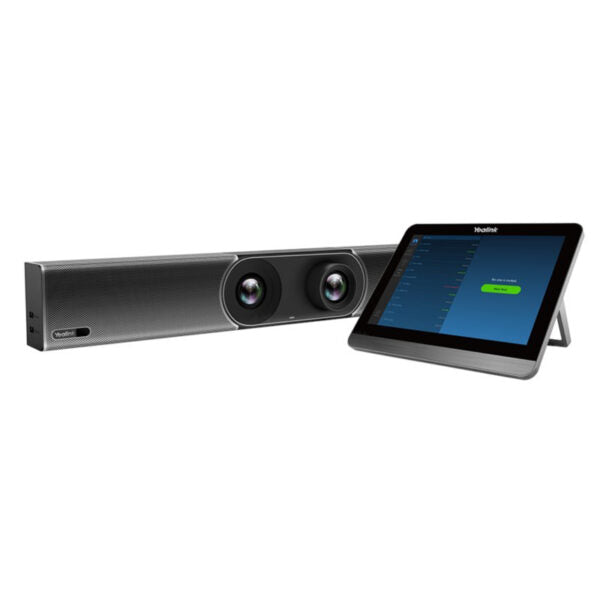
• Yealink MeetingBoard 65 Pro is the latest all-in-one meeting device, combining video conferencing, HD wireless content sharing, and an electronic whiteboard for seamless video conferencing. • With its cutting-edge AI technology, this product delivers crystal-clear sound and ultra-HD visuals, supporting up to 4K video call quality. Key features: • 65" Display • Streamline Installation and Deployment • Triple-eye Camera System (3*50MP) • AI-Powered View: IntelliFocus, Video Fence • Pro Sound: 12-meter full duplex (39 feet), noise cancellation, and noise reverberation • Support native Teams, Zoom, and General Mode • Dual-Solution (MTRA/MTRW) • Support whiteboard collaboration Additional Information: • Weight: 88.18 lb • Dimensions: 47.40 × 66.93 × 10.24 in • Video Room Size: Medium, Small/Huddle • Supports Android and Microsoft Teams video conferencing • Features 4K Displays and all displays/monitors

About This Product

The Yealink MeetingBoard 65 Pro is designed for organizations that need a full-featured collaboration hub for medium-sized conference rooms or larger huddle spaces. It combines a 4K interactive display, an integrated triple-eye camera system, and advanced audio processing into a single device, eliminating the need for separate peripherals and simplifying room setup. This makes it a solid choice for teams that frequently host video meetings on platforms like Microsoft Teams or Zoom, as it supports both natively and can switch between them on the fly. The large 65-inch screen works well for presentations and whiteboarding sessions, but it also means the device requires adequate wall or cart support and a room where participants can sit at a comfortable viewing distance.

For Canadian businesses, particularly in the GTA where hybrid work is common, the MeetingBoard 65 Pro can streamline meeting room deployments by reducing cabling and equipment clutter. It ships with pre-loaded software and can be provisioned via cloud management, which is a plus for IT teams overseeing multiple rooms. However, the device is a significant investment and may be overkill for small huddle rooms or spaces where only a few participants gather; a smaller IP conference phone or a personal webcam setup might suffice in those cases. Conversely, in larger boardrooms, you might find that the 65-inch display plus its built-in 12-meter audio pickup still works well, but for very deep rooms, additional ceiling microphones could be needed to cover all seats.

Practical tradeoffs include the need for a power and network drop—PoE is not sufficient, so plan for an AC outlet and a wired Ethernet connection. The touchscreen whiteboard feature is responsive and works with fingers or stylus, but it lacks the feel of a dedicated writing surface. If your team relies heavily on analog whiteboarding, the transition to digital may take some adjustment. Overall, the MeetingBoard 65 Pro is best for companies that want a polished, all-in-one meeting experience and are willing to invest in the infrastructure to support it.
Services We Provide
  • Professional Installation & Configuration
  • Ongoing Maintenance & Support
  • Troubleshooting & Repairs
  • System Upgrades & Updates