Yealink MeetingBoard 75 PRO A02 – 1203626

Frequently Asked Questions

First, check that the camera is not physically blocked and that the device is powered on. Then verify that the video call platform (Teams or Zoom) has permission to access the camera in its settings. If the issue persists, a simple power cycle of the MeetingBoard can often restore video.
The MeetingBoard 75 PRO supports both wired Ethernet and wireless network connections. For Wi-Fi, go to the device settings menu, select Network, and choose your corporate SSID. If your network uses 802.1X authentication, you may need to upload a certificate or enter credentials provided by your IT department.
Ensure that no mute button is active on the screen or on the remote control. Check the audio settings in the meeting application to confirm the MeetingBoard is selected as the microphone source. If the room is large, verify that participants are within the 12-meter pickup range and that no obstructions are blocking the microphones.
First, confirm that the whiteboard application is open and the correct input source is selected. If touch is unresponsive, gently clean the screen with a soft, dry cloth to remove any residue or smudges. Restarting the device can also recalibrate the touch sensors.
If your device is running Microsoft Teams Rooms (MTR), sign in with your Teams account and ensure the Exchange calendar sync is enabled in the device settings. For Zoom Rooms, sign in with your Zoom account and configure the calendar integration under Room Management. Your IT administrator may need to grant permissions for calendar access.
Start by checking the Ethernet cable connection at both ends and reseating it. If using Wi-Fi, move the device closer to the access point or reduce interference from other electronics. A wired connection is always more stable for video conferencing, so consider running a dedicated Ethernet drop to the device.
Firmware updates are typically delivered through the device's settings menu under 'About' or 'System Update'. Ensure the device is connected to the internet, then check for updates and follow the on-screen prompts. For enterprise deployments, updates may be managed centrally via a provisioning server.
Echo can occur if the MeetingBoard's speakers are too loud or if the microphones are picking up sound reflected off hard surfaces. Lower the speaker volume in the call settings and check that no other audio devices (like a laptop speaker) are active nearby. The device has built-in acoustic echo cancellation, but extreme room echo may require adding soft furnishings.
Yes, the device supports a 'General Mode' that works with any standards-based SIP or H.323 video conferencing system, and it can also be used as a standalone display for wireless content sharing. However, native features like one-touch join and AI framing are optimized for Teams and Zoom.
Confirm that the power cable is securely connected to both the MeetingBoard and a working wall outlet. If the device uses Power over Ethernet (PoE), check that the PoE switch is delivering sufficient power (the device requires PoE++). Try a different outlet or cable to rule out a power supply issue.
Video Systems

Yealink MeetingBoard 75 PRO A02 – 1203626
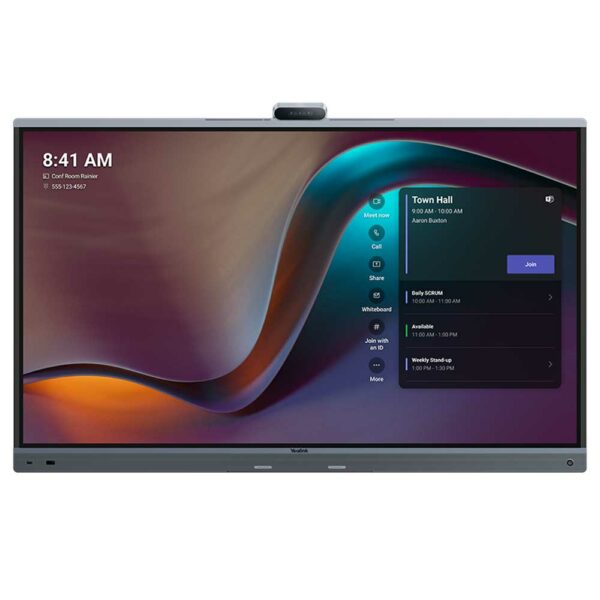
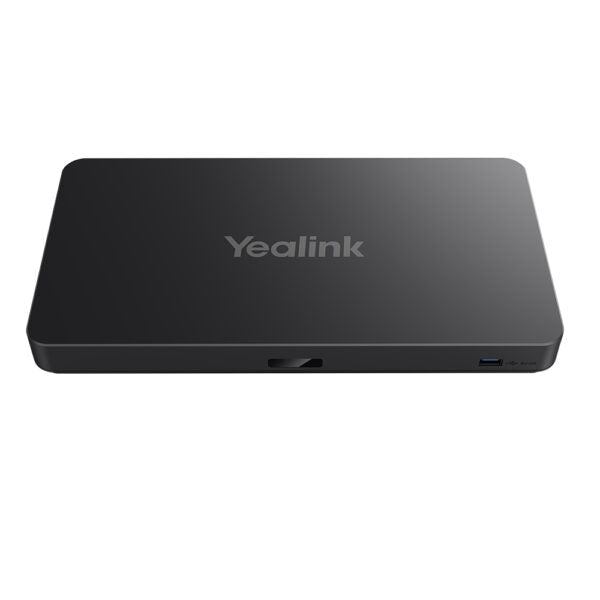
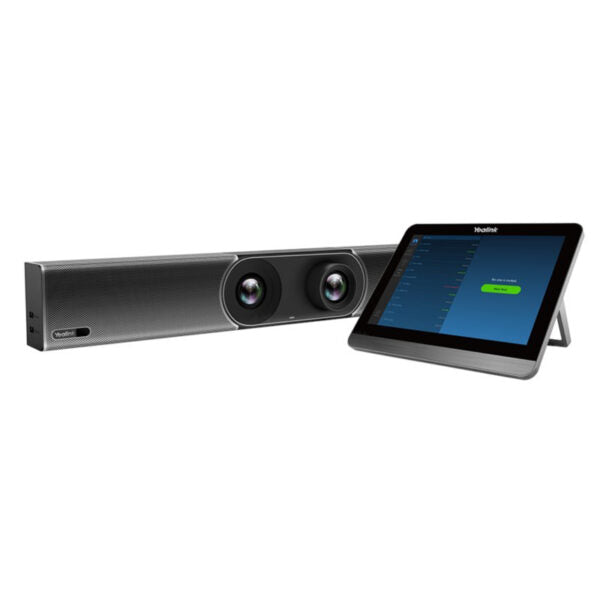
* Yealink MeetingBoard 75 Pro is the latest all-in-one meeting device, integrating video conferencing, HD wireless content sharing, and an electronic whiteboard. • Supports up to 4K video call quality • All-in-one design with flexible mounting options for easy installation • Advanced AI technology for crystal-clear sound and ultra-HD visuals • Key features: • 75″ Display • Streamline Installation and Deployment • Triple-eye Camera System (3*50MP) • AI-Powered View: IntelliFocus, Video Fence • Pro Sound: 12-meter full duplex, noise cancellation, and noise reverberation • Support native Teams, Zoom, and General Mode • Dual-Solution (MTRA/MTRW) • Support whiteboard collaboration • Certified by both Teams and Zoom platforms for seamless integration

About This Product

The Yealink MeetingBoard 75 PRO is designed for medium-to-large conference rooms where a single, integrated device can replace a separate display, camera, microphone, speaker, and whiteboard. It fits naturally in boardrooms or training spaces that already use Microsoft Teams or Zoom, since it is certified for both platforms and supports native modes without extra hardware. The 75-inch 4K display and triple-eye camera system make it a strong choice for rooms where participants sit at a distance, while the AI-powered framing and 12-meter audio pickup ensure everyone is seen and heard clearly. For a small huddle room or a tight budget, the MeetingBoard 75 PRO is likely overkill — its size and price point are better suited to spaces that regularly host 8 to 20 people. On the other hand, it may be underpowered for very large auditoriums or open-plan areas where dedicated ceiling microphones and larger displays would be more appropriate. In a Canadian business context, this device pairs well with existing Teams or Zoom subscriptions common in GTA offices, and its all-in-one design simplifies IT deployment compared to managing separate components. Installation does require a sturdy mount or cart, so factor in professional setup if your room lacks a suitable wall or stand.
Services We Provide
  • Professional Installation & Configuration
  • Ongoing Maintenance & Support
  • Troubleshooting & Repairs
  • System Upgrades & Updates