Yealink MeetingBoard 86 PRO A02 – 1203671

Frequently Asked Questions

First, confirm that your network's 5 GHz band is enabled and that the SSID is visible. The MeetingBoard supports Wi-Fi 6 (802.11ax), but it will not connect to hidden networks unless you manually enter the SSID. If the issue persists, try power cycling the display and your access point, then re-enter the network credentials.
Check that the microphone array is not blocked by any object or wall in front of the display. The 12-meter pickup range is directional, so placing the unit in a corner or behind a partition can cause echo. Also verify that the room's echo cancellation setting is enabled in the device settings under Audio > Advanced.
Make sure the IntelliFocus feature is turned on in the camera settings. The AI needs a clear view of participants' faces, so ensure no one is sitting directly behind a laptop or in deep shadow. If the room is unusually dark, increase the lighting to help the camera detect faces.
Navigate to Settings > General > Platform and select the desired mode. The device will reboot into the chosen platform. Note that switching modes clears any cached credentials, so you will need to sign in again. If you need to switch frequently, consider using the General mode and launching the apps manually.
Verify that your laptop and the MeetingBoard are on the same subnet and that the wireless sharing feature is enabled on the display (Settings > Wireless Sharing). If you are using a corporate VPN, disconnect it temporarily, as VPNs often block local multicast traffic required for discovery.
First, confirm that the power cable is securely connected to both the display and a working wall outlet. The MeetingBoard uses a standard IEC C13 power cord, so you can test the outlet with another device. If the unit still does not power on, check the circuit breaker or try a different outlet on the same circuit.
Check that the input source selected on the MeetingBoard matches the port your device is connected to (HDMI 1, HDMI 2, or USB-C). If using an HDMI cable, try a different cable or port. Also ensure the connected device is powered on and outputting a resolution supported by the display (up to 4K at 60 Hz).
Yes, you can connect external audio via the 3.5 mm line-out or Bluetooth, but the built-in speaker array is designed to be the primary audio source. Adding external speakers may introduce latency or echo if not properly configured. For best results, use the internal speakers and adjust the room acoustics instead.
First, clean the screen with a soft, dry cloth to remove any residue or grease that can interfere with touch sensitivity. If the issue continues, go to Settings > Touch > Calibration and run the calibration tool. Avoid using a stylus or sharp object, as the display is designed for finger touch only.
Go to Settings > System > Firmware Update and select 'Check for Updates.' The device will download and install the latest firmware automatically over the internet. Ensure the MeetingBoard has a stable network connection during the update, and do not power it off until the process completes. If the update fails, try again after a power cycle.
Video Conferencing

Yealink MeetingBoard 86 PRO A02 – 1203671
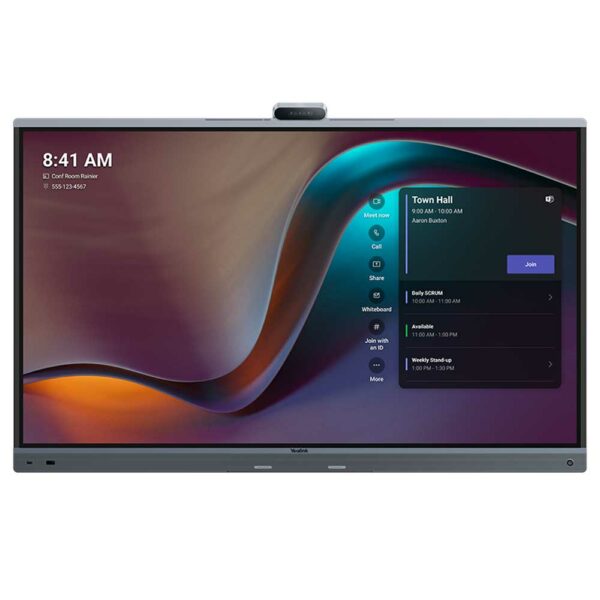
• Yealink MeetingBoard 86 Pro is the latest all-in-one meeting device, integrating video conferencing, HD wireless content sharing, and an electronic whiteboard. This intelligent device supports up to 4K video call quality and delivers cutting-edge audio and video communication capabilities powered by advanced AI technology. Key Features: • 86″ Display • Streamline Installation and Deployment • Triple-eye Camera System (3*50MP) • AI-Powered View: IntelliFocus, Video Fence • Pro Sound: 12-meter full duplex, noise cancellation, and noise reverberation • Support native Teams, Zoom, and General Mode • Dual-Solution (MTRA/MTRW) • Support whiteboard collaboration For a full list of specifications, please refer to the Product Datasheet.

About This Product

The Yealink MeetingBoard 86 Pro is a large-format all-in-one collaboration display designed for mid-to-large conference rooms and boardrooms. Its 86-inch screen and integrated triple-camera system make it a natural fit for spaces where a dedicated video bar and separate display would otherwise be needed, simplifying both installation and cabling. The device supports native Teams, Zoom, and a general mode, so it can slot into organizations that use multiple platforms without requiring a separate PC or codec. For a Toronto office with a 10- to 16-person meeting room, this eliminates the clutter of separate peripherals while delivering 4K video and AI-driven camera framing. The tradeoff is size and cost: at nearly eight thousand dollars and with an 86-inch footprint, it is overkill for a huddle room or a small team space, and it may require professional mounting and a power/data drop. Conversely, in a large training room or executive boardroom where legibility at distance matters, the display size is an asset, though the single-unit design means you cannot swap out the camera or speakers independently if your needs change. Pair it with a Yealink wireless presentation dongle or a room scheduling panel for a complete deployment, but be aware that the all-in-one form factor limits upgrade paths compared to a modular system.
Services We Provide
  • Professional Installation & Configuration
  • Ongoing Maintenance & Support
  • Troubleshooting & Repairs
  • System Upgrades & Updates