Yealink MSpeaker II Black Video Conferencing Speaker

Frequently Asked Questions

First, check that the PoE port you're connected to is active and delivering power. If you're using the included power adapter instead, verify it's firmly plugged into the speaker and a working outlet. Reseating the Ethernet or power cable often resolves the issue. If the problem persists, a Toronto-based VoIP support provider can usually diagnose this remotely.
Check the volume level on the speaker and on your conferencing device—distortion can occur if the input signal is too high. Also ensure the 3.5mm audio cable is fully inserted at both ends. If you're using Bluetooth or a wireless connection, try switching to a wired AUX connection to rule out interference.
Yes, the MSpeaker II can be used with any video conferencing system that has a 3.5mm audio output. Simply connect the included audio cable from the speaker's AUX input to the device's line-out port. Keep in mind that features like microphone integration may only work fully with Yealink microphones.
First, reduce the speaker volume to see if the echo diminishes. Echo typically occurs when the speaker's audio is picked up by the room's microphone. Position the MSpeaker II away from the microphone or acoustic reflectors like windows. If the problem continues, check your conferencing software's echo cancellation settings.
Verify that the source device is sending audio—try playing a test tone or music. Check the AUX cable connection and try a different cable if available. If you're using a Yealink microphone system, ensure the microphone is properly paired and not muted. A quick power cycle of both the speaker and the source device often restores audio.
The MSpeaker II comes with a wall mount bracket designed for its dimensions. If you're mounting it yourself, ensure the bracket is securely anchored to a wall stud or drywall anchor. The speaker weighs about 4.6 lb, so use appropriate hardware. For GTA office installations, many VoIP integrators can handle mounting as part of the setup.
Firmware updates are typically applied through the Yealink device management platform or by connecting the speaker to a Yealink provisioning server. Check the Yealink support site for the latest firmware version and instructions. As a first step, confirm your speaker is on the network with a valid IP address before attempting any update.
Yes, the included power adapter allows you to power the speaker from a standard electrical outlet. Simply plug the adapter into the speaker and a nearby wall socket. This is useful if your network switches do not support PoE or if you want to avoid Ethernet cable routing.
A low hum often indicates a ground loop, especially when using the 3.5mm AUX input. Try unplugging the speaker from the wall outlet and powering it via PoE instead, or use a ground loop isolator on the audio cable. Also ensure no other metal objects are contacting the speaker's chassis.
Video Systems

Yealink MSpeaker II Black Video Conferencing Speaker
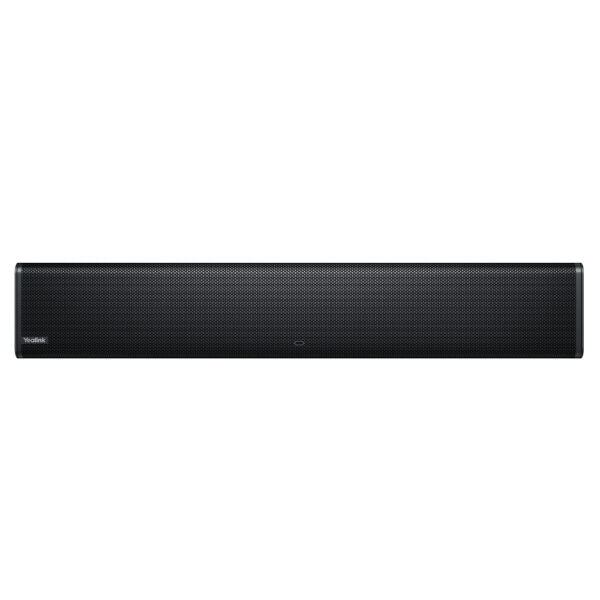
Two built-in speakers providing powerful output to cover middle and large meeting rooms, supporting Yealink microphone and Yealink Noise Proof Technology for crystal and vivid audio experience. MSpeaker II Black supports PoE, enabling simple deployment, reducing complex installation procedures and costly expenses. • Two built-in speakers • Supports PoE • Supports 3.5mm AUX input • Stereo speakers with frequency response: 100Hz-20KHz • High-quality audio output: 89dB SPL @1W, 98dB SPL @8W, both +/-2dB at ½m Additional Information: Weight: 4.6 lb Dimensions: 23 × 6 × 6 in Video Conferencing: Collaboration Bars Technical Specifications: Model: MSpeaker II Black Part number: 1306029 Box Contents: • MSpeaker II Black • Power Adapter • 3 m audio cable (3.5 mm) • Wall Mount Bracket • Quick Start Guide

About This Product

The Yealink MSpeaker II Black is a dedicated speaker for video conferencing, designed to fill mid-to-large meeting rooms with clear, powerful audio. It pairs naturally with Yealink conferencing systems and microphones, making it a strong choice for businesses that already use Yealink endpoints or are building a cohesive audio ecosystem. Because it relies on PoE for both power and data, installation is straightforward in modern offices with PoE-enabled network switches—a common setup in Toronto and GTA workplaces—eliminating the need for extra power cables near the table or ceiling.
Services We Provide
  • Professional Installation & Configuration
  • Ongoing Maintenance & Support
  • Troubleshooting & Repairs
  • System Upgrades & Updates