Yealink MVC860-C5-000 Teams Rooms system for Medium-to-large rooms

Frequently Asked Questions

First, check that the MINI-PC has a stable internet connection—either via Ethernet or Wi-Fi. Then verify that the Teams admin has assigned a valid Teams Rooms license to the device. If the issue persists, a Toronto-based VoIP support provider can usually resolve this remotely.
Make sure the touch panel is properly connected to the MINI-PC via the included USB-C or HDMI cable. A loose connection can cause the display to go dark or the touch to stop working. Power-cycle the touch panel by unplugging it for 10 seconds and reconnecting.
Check that the camera’s firmware is up to date via the Yealink Device Management portal. Also ensure the camera has a clear view of the room—obstructions or poor lighting can confuse the tracking algorithms. Adjust the camera’s position and angle, then test again.
First, confirm that all participants are using the room’s built-in microphone and speakers rather than a laptop’s audio. Echo often comes from a secondary device being unmuted. If the issue continues, check the room’s acoustics—hard surfaces can cause reflections, so consider adding soft furnishings.
Verify that the power adapter is firmly plugged into the MINI-PC and a working wall outlet. If you’re using Power over Ethernet (PoE) for the camera, note that the MINI-PC requires its own AC power. Try a different outlet or cable to rule out a faulty power source.
Connect the second display to one of the MINI-PC’s three HDMI ports. In the Teams Rooms app settings, go to 'Device settings' and select the display layout you prefer (e.g., content on one screen, gallery on the other). The system should automatically detect the additional monitor.
Ensure that both the touch panel and the presenter’s laptop are on the same local network. On the laptop, open a browser and navigate to the URL displayed on the touch panel to join the sharing session. If the code doesn’t appear, restart the touch panel and try again.
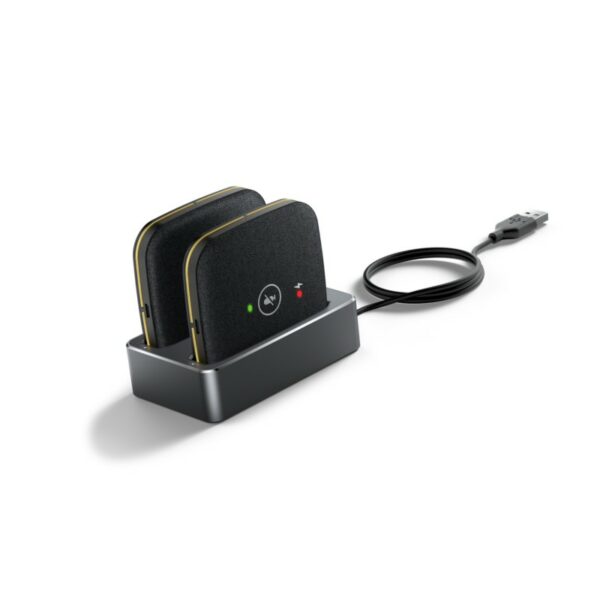
The RoomSensor is battery-powered and its life depends on usage and room activity. If it’s draining faster than expected, check that it’s not placed near a heat source or in direct sunlight, which can affect battery performance. Replace with a fresh CR123A battery and monitor the next cycle.
BYOD mode requires a USB-C cable from your laptop to the touch panel or MINI-PC. Make sure the cable supports data and video (not just charging). Also, on your laptop, select the correct audio and video peripherals (the room’s camera and speakers) from the meeting app settings.
Start by checking the network bandwidth—Microsoft Teams recommends at least 4 Mbps for 1080p video. If you’re on Wi-Fi, switch to a wired Ethernet connection for the MINI-PC to reduce interference. Also, close any unnecessary applications on the MINI-PC that might be using bandwidth.
Video Systems

Yealink MVC860-C5-000 Teams Rooms system for Medium-to-large rooms
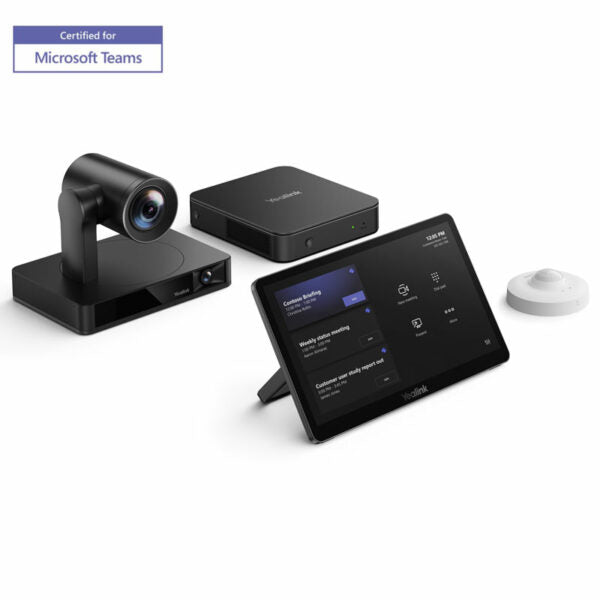
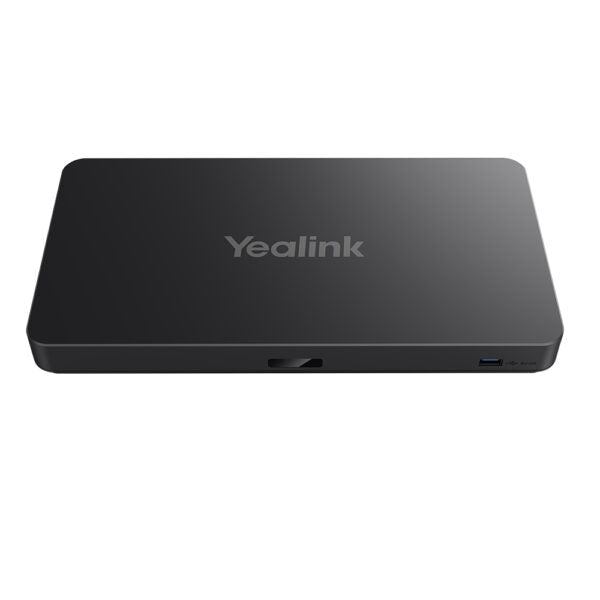
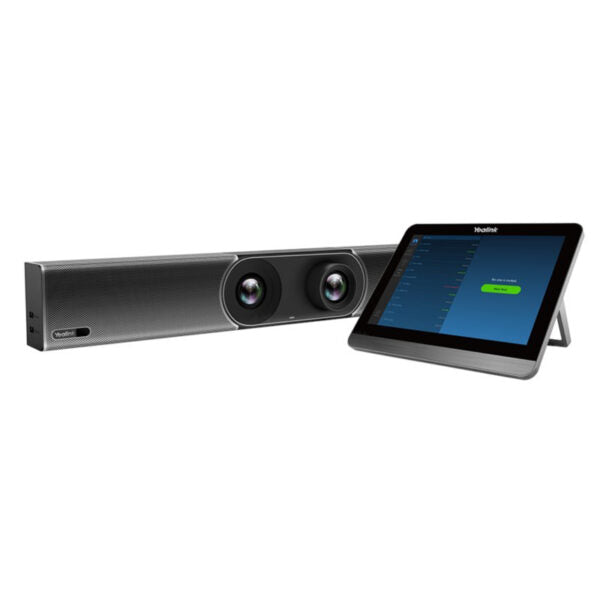
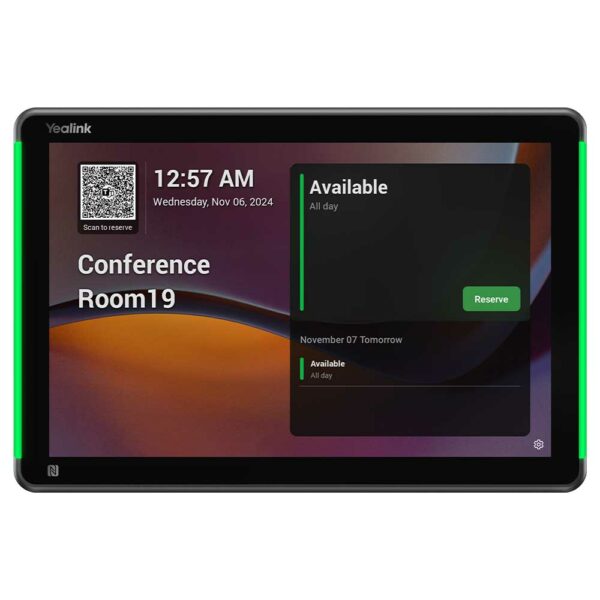
• The Yealink MVC860 is a conference room solution designed for medium to large rooms, featuring a new generation high-performance MINI-PC, touch panel, and intelligent 4K PTZ camera. • Key features include: • One Cable Technology for streamlined setup • Multi-Screen Control with support for multiple panels and third-party screen sharing • Device Management and room sensing technology for stable wake-up experience • Speaker tracking, presenter tracking, multi-focus, and multi-focal capabilities • Third-party DSP and Teams Certified compatibility • This set includes: • MINI-PC MCore Pro with three HDMI ports and EDID support • Touch panel MTouch Plus with 11.6-inch ultra-large display, multiple panel support, and content sharing capabilities • Intelligent 4K PTZ camera UVC86 with auto-framing, speaker tracking, presenter tracking, and multi-focus features • Additional features: • Weight: 20.75 lb • Dimensions: 20 × 16 × 12 in • Video Conferencing support for BYOD, Collaboration Bars, Microsoft Teams, and video room size of medium to large • Preload with Windows 11 IoT Enterprise X64, Microsoft Teams Rooms App, Yealink RoomConnect, and other software • Technical Specifications: • MINI-PC MCore Pro: Intel Core i5, 8GB RAM, 128GB SSD, Wi-Fi IEEE 802.11 a/b/g/n/ac/ax, Bluetooth BT 5.2 • Touch panel MTouch Plus: 11.6-inch IPS display, 1920 x 1080 video resolution, adjustable angle of support frame, and support for wireless content sharing • RoomSensor: detection angle of 120°, adjustable detection angle of ±20°, operating temperature range of 0-40℃, and power source as battery-powered

About This Product

The Yealink MVC860-C5-000 is a complete conference room system built for medium-to-large meeting spaces that rely on Microsoft Teams. It bundles a MINI-PC, an 11.6-inch touch panel, and a 4K PTZ camera with speaker and presenter tracking, so teams can walk in and start a call without fumbling with cables. The one-cable technology simplifies installation, and the multi-screen support works well with dual displays or third-party screen-sharing tools. This system is a strong fit for organizations in the GTA that have standardized on Teams and want a reliable, all-in-one solution for boardrooms or training rooms where video quality and ease of use matter.

Before committing, consider the tradeoffs: the MINI-PC runs Windows 11 IoT with 8GB RAM and a 128GB SSD, which is ample for the Teams Rooms app but not meant for heavy multitasking or running additional software. The RoomSensor is battery-powered, so you’ll need to monitor battery life or plan for periodic replacement. The camera’s auto-framing and tracking work best in rooms with consistent lighting and minimal obstructions. For very large spaces (over 20 people) or rooms with complex AV setups, you might find the 4K PTZ camera’s field of view limiting, and the system could be overkill for a small huddle room where a simpler collaboration bar would suffice.

In a Canadian business context, the MVC860 is well-suited for mid-size offices in the Greater Toronto Area that already use Teams for daily communication. It pairs naturally with Yealink’s ecosystem of peripherals and can replace older, proprietary video conferencing hardware. Because it’s Teams-certified, compatibility with Canadian carriers and cloud services is seamless—no special configuration needed. Just ensure your network provides stable Power over Ethernet (PoE+) for the camera and a strong Wi-Fi or wired connection for the MINI-PC. If your room already has a third-party DSP, the system can integrate with it, but verify compatibility with Yealink’s device management beforehand.
Services We Provide
  • Professional Installation & Configuration
  • Ongoing Maintenance & Support
  • Troubleshooting & Repairs
  • System Upgrades & Updates