Yealink SmartVision 40-Intelligent Camera for Enhanced Teams Rooms Experience

Frequently Asked Questions

First, ensure the USB 3.0 cable is firmly connected to both the device and your Teams Room PC. Then verify that the Teams Room software is up to date and that your PC meets the minimum hardware requirements for a Teams Rooms system. If the issue persists, a Toronto-based VoIP support provider can usually resolve this remotely.
Confirm that the power adapter is connected and the device's power port has a secure cable. The SmartVision 40 does not use PoE, so it requires the included power adapter to operate. If it still won't power on, try plugging into a different wall outlet and check the adapter for any damage.
Check for any physical obstructions near the microphones or speakers, and ensure the room does not have excessive background noise. Also verify that the USB connection is stable and not running through an unreliable hub. If the problem continues, try disconnecting and reconnecting the USB cable to reinitialize the device.
Speaker tracking requires the SmartVision 40 to be used in Microsoft Teams Rooms mode with the latest software installed. Ensure that the feature is enabled in the device settings within the Teams Rooms admin interface. If you are using BYOD mode, speaker tracking is not available.
Yes, the SmartVision 40 works as a standard USB video bar in BYOD mode, so it is compatible with Zoom, Google Meet, and other platforms. However, advanced AI features like multi-stream IntelliFrame and speaker tracking are only supported when connected to a Microsoft Teams Rooms system.
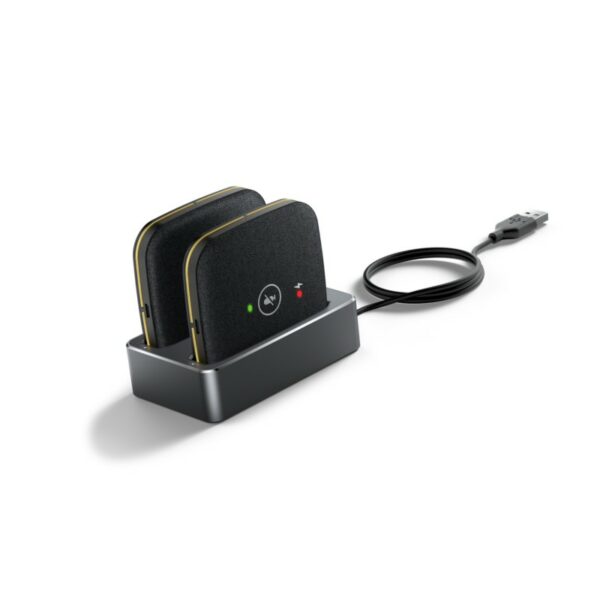
Verify that the expansion microphones are correctly plugged into the VCH port using the provided RJ-45 cable. Check that the microphones are not muted and that the audio settings in the conferencing application recognize the additional microphones. If they still do not work, try reconnecting them firmly.
Check if the cover is manually closed by sliding the switch on the device. If it is stuck, gently wipe the lens cover area with a soft, dry cloth to remove any debris. Do not force it. If it remains stuck, contact your support provider for assistance rather than attempting to pry it open.
Yes, the SmartVision 40 requires the included power adapter to operate. The USB connection is for data only and does not provide sufficient power. Ensure the power adapter is plugged into a working outlet and securely connected to the power port on the device.
IntelliFrame and other advanced AI features are only available when the SmartVision 40 is connected to a Microsoft Teams Rooms system with the latest software. In BYOD mode, these features are disabled. Ensure the device is set up as a Teams Rooms peripheral in your meeting room, not simply plugged into a laptop.
Firmware updates are typically managed through the Yealink Device Management platform or by downloading the update file from Yealink's support site. If the device is registered, updates may also be pushed via provisioning. Before attempting any update, confirm the current firmware version and instructions from Yealink support to avoid disruption.
Video Systems

Yealink SmartVision 40-Intelligent Camera for Enhanced Teams Rooms Experience
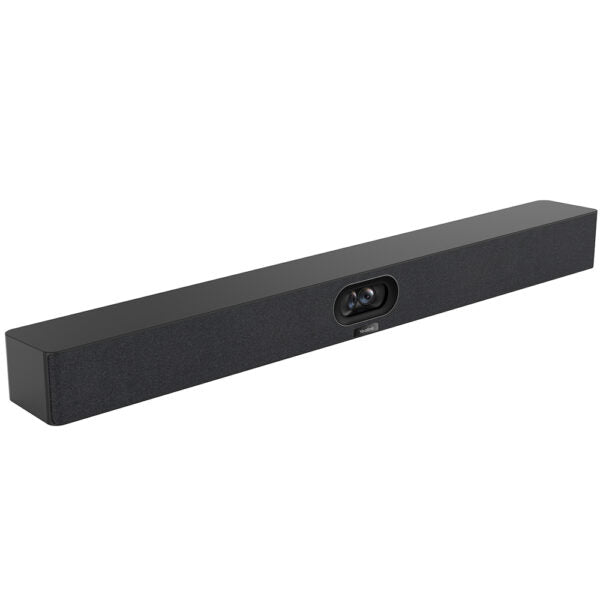
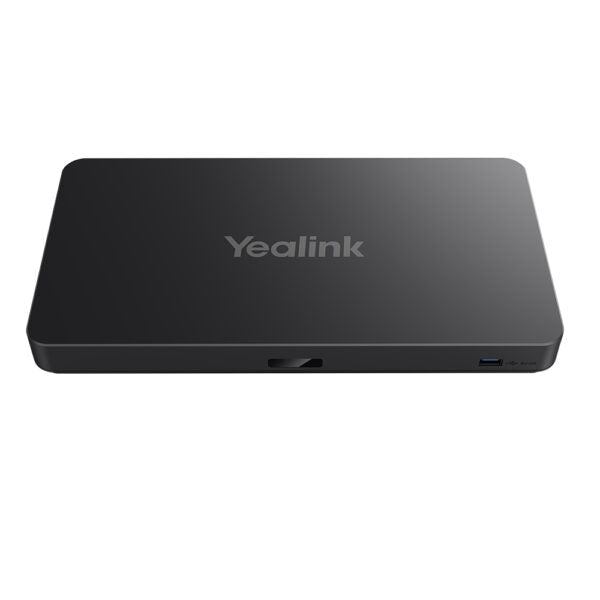
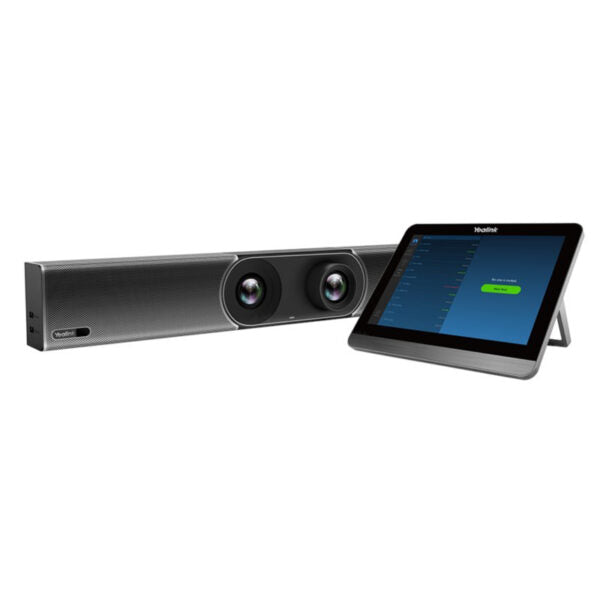
Ultra-HD Intelligent All-in-One Conference System • Ultra HD picture quality with 48MP lenses for a higher pixel picture and clearer image quality • Built-in stereo speakers, 8 long-range pickup microphones, and supports 2 additional expansion microphones • Intelligent noise reduction technology for a good audio experience • Face detection, sound source positioning, and voice tracking with AI technologies • Multi-stream IntelliFrame feature for automatic framing and display of speakers on the screen • Simple deployment and installation without complicated wiring and setup steps • Automatic lens privacy cover for protecting user privacy and security Weight: 9.5 lb Dimensions: 28.07 × 7.21 × 7.13 in Video Conferencing: BYOD, Collaboration Bars, Camera Technical Specifications: Model: SmartVision 40 Part number: 1206656 Box Contents: 1x SmartVision 40 all-in-one Intelligent USB video bar 1x VCR20 remote control 1x 2.5m USB3 cable 1x Wall mount bracket 1x power adapter Including 2-year hardware warranty Audio: Built-in 8 MEMS microphone array 6-meter voice pickup range 4-meter quality voice pickup range Stereo speakers Support 2x expansion microphone Intelligent noise cancellation technology Full-duplex technology Echo cancellation technology Frequency Response: 100-20kHz AI Feature: IntelliFocus Multi-Stream IntelliFrame (Only for Microsoft Teams Room) Video Fence Auto Framing Speaker Tracking Image Super Resolution Technology Multi-Focus Picture-in-Picture Connections: 1x USB3.0 Type-B port 1x USB2.0 Type-A port 1x USB-C port 1x Yealink VCH port (RJ-45) 1x 3.5mm Line-in & Line-out port 1x Power port 1x Security lock slot 1x Reset slot 1x HDMI-out Built-in Wi-Fi For a full list of specifications, please refer to the Product Datasheet.

About This Product

The Yealink SmartVision 40 is an all-in-one intelligent video bar designed for medium to large meeting rooms that demand high-quality video and advanced AI features. It is particularly well-suited for corporate environments standardized on Microsoft Teams Rooms, where its multi-stream IntelliFrame and speaker tracking capabilities shine. This device replaces the need for separate components, integrating a 48MP camera, stereo speakers, and an eight-microphone array into a single, streamlined unit. For Canadian businesses, especially those in the GTA, it offers a polished Teams Rooms experience that pairs naturally with a compatible Teams Room PC over a simple USB 3.0 connection.
Services We Provide
  • Professional Installation & Configuration
  • Ongoing Maintenance & Support
  • Troubleshooting & Repairs
  • System Upgrades & Updates