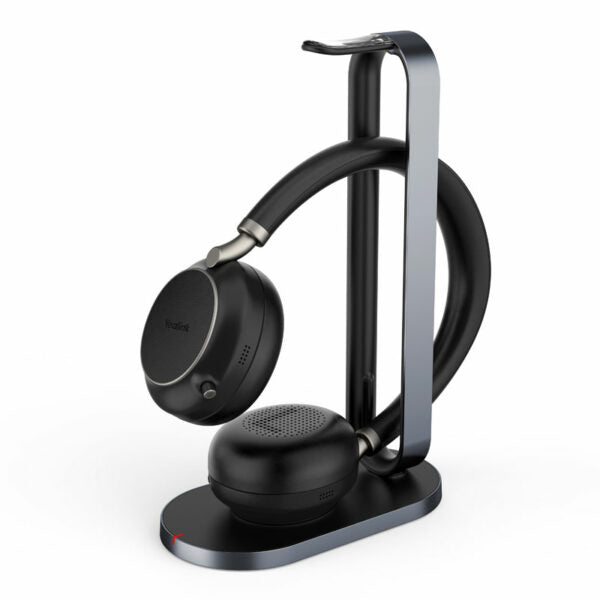
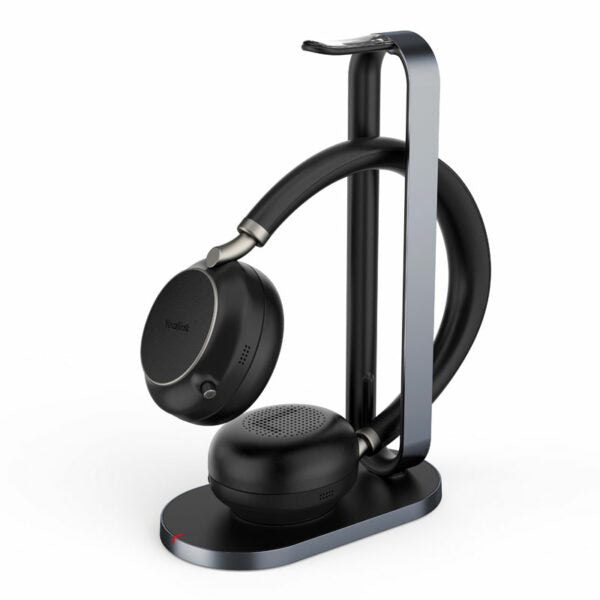
Yealink UH35 Dual Teams USB-C/A – 1308163

Frequently Asked Questions

First, confirm the phone model supports USB headsets — many Yealink T4 and T5 series phones do, but older or lower-end models may not. Re-seat the USB connector firmly, and check if the phone's screen shows a headset icon. A simple phone restart often completes the handshake. If the issue continues, try a different USB port if available, and ensure the phone's firmware is up to date, as headset compatibility can improve with later versions.
Adjust the boom arm so the microphone sits about an inch from the corner of your mouth, and make sure the side with the mic (the end with the pinhole) is facing you. In your call software or phone settings, verify that the UH35 is selected as the input device and not the built-in mic. Keep the microphone free of lint or debris — a quick visual check can help.
The UH35 has separate audio profiles for calls and music mode. In your computer's sound settings, set the Yealink UH35 as the default playback device for both communications and general audio. Then check if the headset's inline control has a call/music mode toggle; press it to switch to music mode. Some applications also need a restart to detect the device change.
The busy light typically requires the headset to be used with a compatible Yealink phone or the Microsoft Teams app on a computer. Confirm that the UH35 is set as the active audio device within Teams (Settings > Devices). On a phone, ensure the headset is enabled for busy light signalling in the phone's headset settings menu, if available. The light also depends on call state detection, so a quick PC reboot or Teams logout/login can re-activate it.
Check for physical interference: a damaged or sharply bent USB cable can cause intermittent audio. Plug the headset directly into a different USB port on the phone or computer, avoiding hubs or docking stations that may provide insufficient power. If using a PC, disable any audio enhancements in the Sound control panel and test again. In many cases, moving to a direct USB-A port solves the problem.
Plug the headset into a USB port on your Mac. Open Teams, go to your profile picture > Settings > Devices, and select Yealink UH35 for both speaker and microphone. macOS may prompt you to allow the device for audio input; grant that permission. The Teams certification means call controls (answer/end, mute) should work automatically, but you may need to quit and reopen Teams after the first connection.
The UH35 is a USB wired headset, not designed for standard 3.5mm or Bluetooth connections. Most mobile phones lack a USB-A or USB-C port that supports headset audio class, so direct connection to an iPhone or Android phone is not practical. It is best kept at your desk for use with Yealink phones or computers.
The headband is designed for a secure but gentle fit; extend the band to its maximum length to reduce clamping force on the ears. The memory foam ear cushions will soften slightly with use. If discomfort persists, periodic breaks are recommended, and ensure the ear cups are positioned symmetrically. This model uses a skin-friendly leather, but individual sensitivity varies.
In Teams, under Settings > Devices, check that the microphone dropdown shows Yealink UH35 and that the input level bar moves when you speak. Also look at the physical microphone mute button on the inline control; unmute if it's red. Your privacy settings in Windows or macOS may block Teams from accessing the microphone, so review those and allow access. If the issue persists, a Toronto-based VoIP support provider can usually resolve this remotely.
On a Yealink phone, ringtone may still play through the phone's speaker unless the headset is set to 'Headset' mode during a call or always. Check your phone's audio path settings; some models require you to lift the handset or press the headset key to route audio. On a PC, ensure the UH35 is the default communications device and that 'Allow applications to take exclusive control' is disabled in the speaker properties Advanced tab, as this can block ring tones.
VoIP Headsets

Yealink UH35 Dual Teams USB-C/A – 1308163
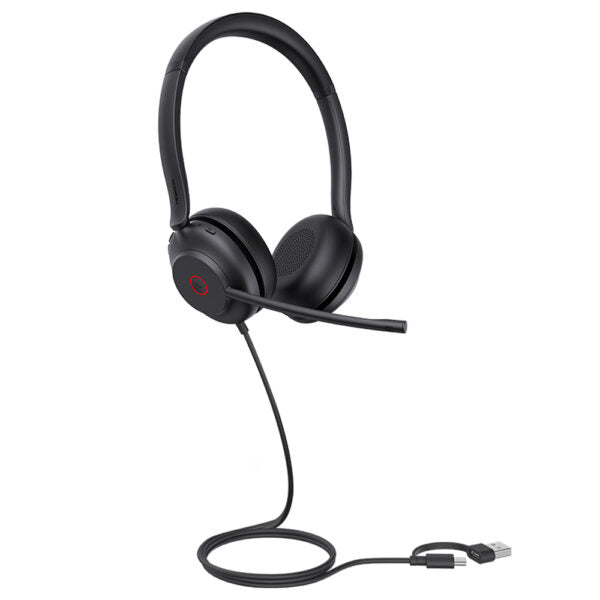
• The Yealink UH35 is a professional USB-wired headset designed for exceptional audio quality, comfort, and durability. Key features include: • Plug-and-play-USB connectivity to Yealink IP phones • Dual Noise-Canceling Microphones • 35 mm Speaker with Brilliant Audio Quality • Lightweight Comfort with skin-friendly leather headband and ear cushions • Busy light and Call and Music Mode functionality • Teams Certified for seamless integration • Additional Information: • Weight: 0.54 lb • Dimensions: 8.54 × 5.91 × 2.05 in • Headset Type: Stereo, Teams Certified, USB • Supported Operating Systems: Microsoft Windows, Apple Mac OS • Color: Black • Technical Specifications: • General Information: • Headset cable length: 1.2 m • Weight: 139.5 g • Operating temperature: -10°C to +50°C • Box Contents: UH35 Dual Headset, Carrying Case, Quick Start Guide • Main Features: • HD Voice/Wideband speaker performance • Noise-canceling microphones and passive noise cancellation • Active Protection technology safeguards users from acoustic injury • Music control • Integrated LED indicator and warning tone • 300° bendable boom arm for easy adjustment without breaking • Microphone: • Microphone quantity: 2 • Microphone frequency response range: 100 Hz-10 kHz • Microphone type: ECM • Microphone bandwidth: Wideband • Microphone sensitivity: -44.0 dB re. 1 V/Pa • Speaker: • Speaker size: 35mm • Speaker sensitivity: 109 dB SPL @ 1 kHz, 179 mV • Speaker frequency response range: 20 Hz-20 kHz • Speaker impedance: 32+/-4.8Ω, @ 1.0 kHz • Speaker input power: Normal 10 mW, Max. 30 mW • For a full list of specifications, please refer to the product datasheet.

About This Product

The Yealink UH35 Dual is a wired USB headset built for professionals who spend a significant portion of their day on calls and need clear, consistent audio without managing batteries or wireless interference. It's a natural fit for open-plan offices, contact centers, and home desks where the priority is reliable, plug-and-play connectivity to Yealink IP phones or a computer running Microsoft Teams. The dual-ear design and leather cushioning suit longer sessions, while the busy light helps signal availability in shared workspaces.

Because it connects over USB, the UH35 instantly pairs with Yealink phones that support USB headsets, bypassing traditional RJ9 adapters and simplifying deployment. On a PC or Mac, it's certified for Teams, meaning the call control button, mute sync, and volume levels are designed to work without extra drivers. This makes it a sensible choice in organizations standardizing on Teams across Toronto office floors, where IT staff appreciate headsets that behave predictably out of the box.

A buyer should know that passive isolation from the snug ear cushions is the main defense against background noise; this is not an active noise-cancelling headset and won't silence heavy machinery or loud café chatter. For a typical open office or quiet home environment, the dual noise-cancelling microphones do a solid job of focusing on your voice. The headset is wired, so you're tethered to the desk — a tradeoff that means zero charging, but no freedom to pace during calls.

At this price, the UH35 is overkill for someone who only occasionally takes voice calls. For a full-time receptionist or dispatcher using a Yealink desk phone and Teams simultaneously, it's a comfortable, durable tool. In high-noise industrial settings, a ruggedized headset with active cancelation would be a more appropriate step up.
Services We Provide
  • Professional Installation & Configuration
  • Ongoing Maintenance & Support
  • Troubleshooting & Repairs
  • System Upgrades & Updates