Yealink UH35 Mono Teams Headset | USB-C/A, Acoustic Shield, 35mm Earpad– 1308165

Frequently Asked Questions

First, try a different USB port—preferably one directly on the computer rather than a hub. If it’s still not showing up, check Device Manager (Windows) or System Information (macOS) to see if the headset appears as an audio device; if it does, set it as the default playback and recording device in your sound settings. A simple restart of the computer often resolves recognition glitches.
Confirm the inline controller’s mute button isn’t engaged—a red LED on the controller indicates mute is on. Next, in your meeting software (like Teams), verify the UH35 is selected as the microphone device. If the issue persists, test the headset on another computer to rule out a hardware fault.
The UH35 is a mono headset, so audio is designed to come through only the single earpiece. This lets you stay aware of your surroundings. If you expected stereo sound, a dual-ear model would be more appropriate, but your headset is functioning normally.
Make sure the Microsoft Teams app is running and you’re signed in. The dedicated button requires the Teams desktop client to be active; it won’t work with the web version. Also check that the headset firmware is up to date using the Yealink USB Connect application.
Move the USB cable away from power adapters, wireless chargers, or other electronics that might cause interference. Try a different USB port, preferably on the opposite side of the computer. If the noise only happens with a specific softphone, ensure that application’s audio settings aren’t applying aggressive noise suppression that conflicts with the headset’s own processing.
Check the inline volume control and the system volume separately—sometimes one is set low while the other appears high. In Windows, go to Sound settings > Device properties and disable any ‘signal enhancements’ that might be limiting output. Also confirm the earpad is seated properly over your ear, as a poor seal can reduce perceived loudness.
The UH35 is a USB headset, so it connects to one device at a time. If your Yealink phone has a USB port that supports headsets, you can plug directly into the phone for calls, but you’d need to swap the cable to the computer for softphone use. It doesn’t support simultaneous dual connections.
It works with any standard calling application—Zoom, Google Meet, Webex, and others. The Teams certification means the dedicated button and LED integrate natively with Teams, but the headset functions as a normal USB audio device everywhere else. Just select it as your speaker and microphone in the app’s settings.
For basic audio, no—the headset uses standard USB audio drivers built into Windows and macOS. To get firmware updates and customize settings like sidetone, you can install the free Yealink USB Connect software, but it’s not required for day-to-day calls.
Make sure the microphone boom is positioned about two finger-widths from the corner of your mouth, not pushed up against your cheek. In your computer’s sound settings, check that the microphone level isn’t set too low. If the problem continues, test the headset on another device to isolate whether it’s a hardware issue; a Toronto-based VoIP support provider can usually resolve this remotely if needed.
VoIP Headsets

Yealink UH35 Mono Teams Headset | USB-C/A, Acoustic Shield, 35mm Earpad– 1308165
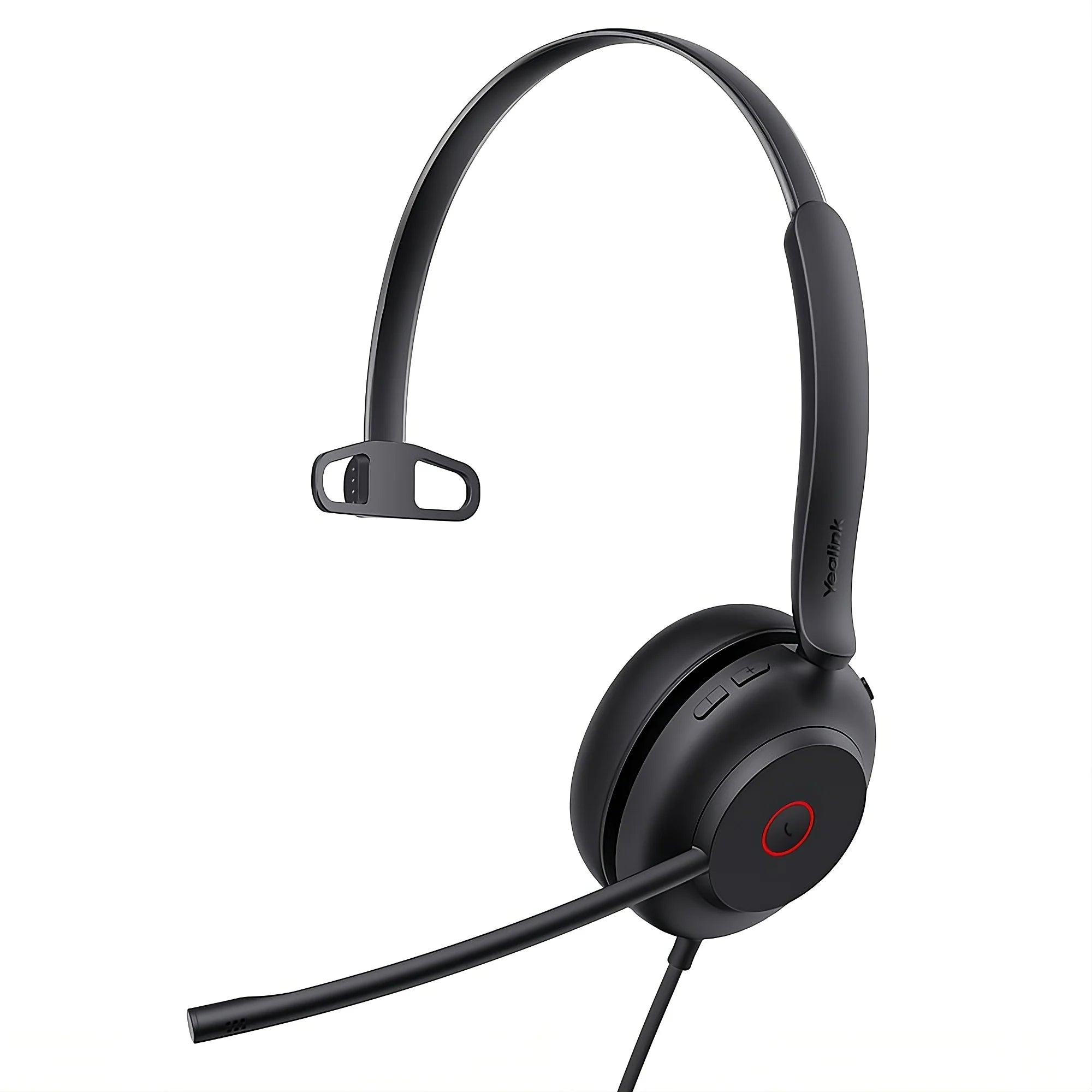
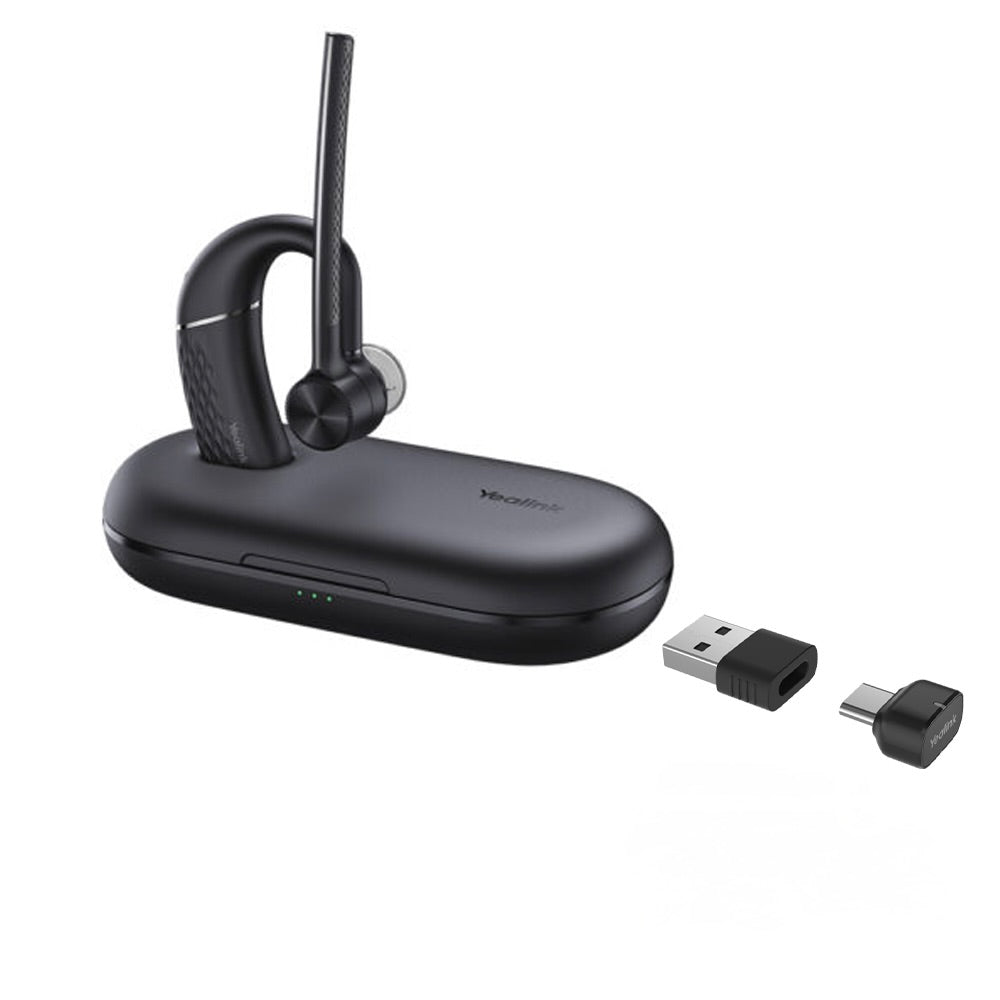
The Yealink UH35 Mono Teams Headset is engineered for the demands of the modern workplace, delivering professional audio quality in a lightweight, single-ear design. Key Features: • Universal USB-C and USB-A connection (via included adapter) • Acoustic Shield Technology to filter out over 90% of background noise • Optima HD Voice for crisp, natural-sounding conversations • Passive Noise Cancellation to reduce distractions for the wearer • Certified for Microsoft Teams with dedicated buttons for Teams activation and LED indicator • Ergonomic, lightweight design with adjustable stainless steel headband and leatherette earpad • Durable construction with reinforced cord • Simplified call control with in-line controller featuring dedicated Teams button and mute/volume controls The headset includes a carrying case, quick start guide, and is compatible with various Yealink IP phone series.

About This Product

The Yealink UH35 Mono Teams Headset is built for professionals who split their day between calls and in-person collaboration. Its single-ear design keeps you connected to your surroundings, making it a natural fit for open-plan offices, contact centres, or any desk where you need to hear a colleague’s question without removing the headset. The USB-C and USB-A connectivity means it plugs into modern laptops and legacy workstations alike, and the dedicated Teams button streamlines joining meetings in Microsoft-centric environments.

Where this headset shines is in balancing call clarity with environmental awareness. The Acoustic Shield technology does the heavy lifting on the microphone side, filtering out background chatter so your voice comes through cleanly, while passive noise cancellation dampens ambient hum for the wearer. It’s a practical choice for a Toronto office floor or a GTA hybrid worker who wants reliable audio without sealing themselves off from the room. For deployments that rely on Yealink IP phones, the headset integrates directly, so it can serve as a single audio device across desk phone and softphone.

A buyer should understand the limitations of a mono design. If you need immersive sound for focused work, video editing, or music, this isn’t the right tool—it’s purpose-built for voice. Similarly, in exceptionally loud environments, the passive isolation may not be enough, and a dual-ear headset with active noise cancellation would be a better fit. For someone who only takes an occasional call and doesn’t depend on Teams certification, a simpler, less expensive headset might do the job just as well.
Services We Provide
  • Professional Installation & Configuration
  • Ongoing Maintenance & Support
  • Troubleshooting & Repairs
  • System Upgrades & Updates