Yealink UH35 Mono UC USB-C/A – 1308166

Frequently Asked Questions

First, make sure the USB plug is firmly inserted into your computer or Yealink phone. Then, check that the headset is selected as the default audio device in your operating system or softphone settings (look for 'Yealink UH35' in sound settings). If the volume is turned down or muted on the headset’s inline controls, press the volume up button a few times. If still no sound, test the headset on another device to rule out a hardware issue.
Start by checking that the microphone boom is fully extended and the mute button on the headset cable isn't active (the mute LED should be off). In your softphone or operating system audio settings, confirm the Yealink UH35 is set as the default input device. If you're using the headset with a Yealink desk phone, ensure the phone is set to use the USB headset as the primary audio path. A quick test with the Windows or Mac sound recorder can confirm if the mic is working.
The busy light on the Yealink UH35 is controlled by the device driver or softphone app. First, check if any application (like Teams, Zoom, or a desk phone client) has an active call or is in a meeting state. Close all voice or video apps, then restart your computer. If the light remains on, check your operating system’s privacy settings for microphone access—sometimes a background app may have locked the device. If the issue persists after a full reboot, contact your VoIP support provider for further troubleshooting.
This headset is Teams certified, so it should work with minimal setup. First, make sure the headset is fully plugged in and that Teams is set to use the Yealink UH35 as both the speaker and microphone in Teams audio settings. Try disabling and re-enabling the device in Teams. If Teams still doesn't recognize it, go to your computer’s sound settings and ensure the UH35 is the default communication device. If all else fails, reinstall the Teams app or update your USB drivers.
The Yealink UH35 has an inline control module on the cable. To adjust volume, press the up or down buttons. To mute or unmute your microphone, press the mute button (often marked with a microphone icon). A red LED near the mute button indicates your mic is muted. There is no separate power switch—the headset is powered over USB and works as soon as it’s connected.
First, check that the headset is fully inserted into the USB port (try a different port). Reduce the volume slightly—distortion can occur at high volume levels. Ensure any audio enhancements in your computer’s sound properties are disabled (for example, on Windows, go to Sound > Device properties > Additional device properties > Enhancements and disable everything). If you're using the headset with a Yealink desk phone, confirm the phone’s audio settings are set to 'Headset' mode. If the issue only happens on one specific app, check that app’s audio settings separately.
Start by unplugging the headset, waiting 10 seconds, and plugging it back in. If that doesn't help, try a different USB port (avoid USB hubs if possible). If the issue persists, reboot your computer. For Windows, check Device Manager to see if there's a yellow warning on the Yealink device; if so, try updating the driver or uninstalling and letting Windows reinstall it automatically. If the headset works on another computer but not yours, there may be a USB controller conflict—contact your IT support.
Yes, the UH35 works with any computer running Windows or macOS, and with softphones like Zoom, RingCentral, 8x8, and Cisco Jabber, as long as they support USB audio devices. It is also compatible with Yealink IP phones that have a USB port. For other desk phones, you would need an adapter or a different headset. A Toronto-based VoIP support provider can help verify compatibility with your specific system.
The UH35 is designed to be lightweight (96.5g) with skin-friendly ear cushions. If you’re experiencing discomfort, first check that the headband is adjusted properly—it should sit evenly on your head with the ear cup centered over your ear. The mono earpiece may feel different if you’re used to stereo headsets; try switching the earpiece to the other side if possible (the boom arm can be rotated 300 degrees). If discomfort persists, consider taking short breaks every hour.
Right-click the speaker icon in your system tray and select 'Open Sound settings.' Under Output, choose 'Yealink UH35' as the default device. Under Input, choose the same. Then click 'Sound Control Panel' on the right, go to the 'Playback' tab, right-click the Yealink UH35, and select 'Set as Default Communication Device.' Repeat on the 'Recording' tab for the microphone. This ensures all your communication apps use the headset properly.
VoIP Headsets

Yealink UH35 Mono UC USB-C/A – 1308166
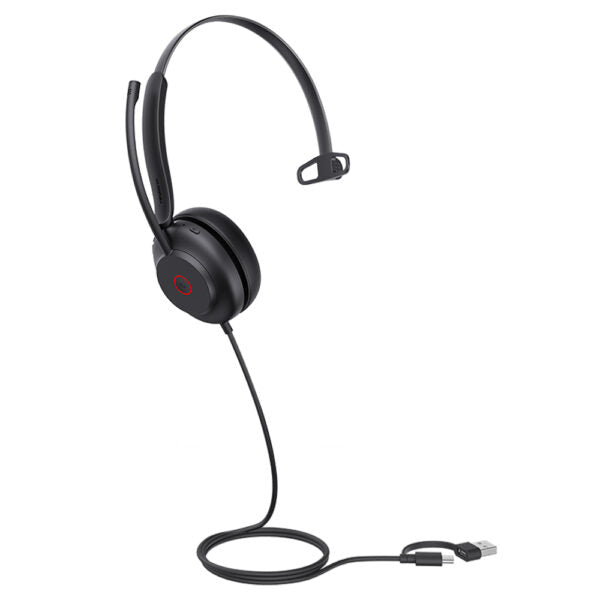
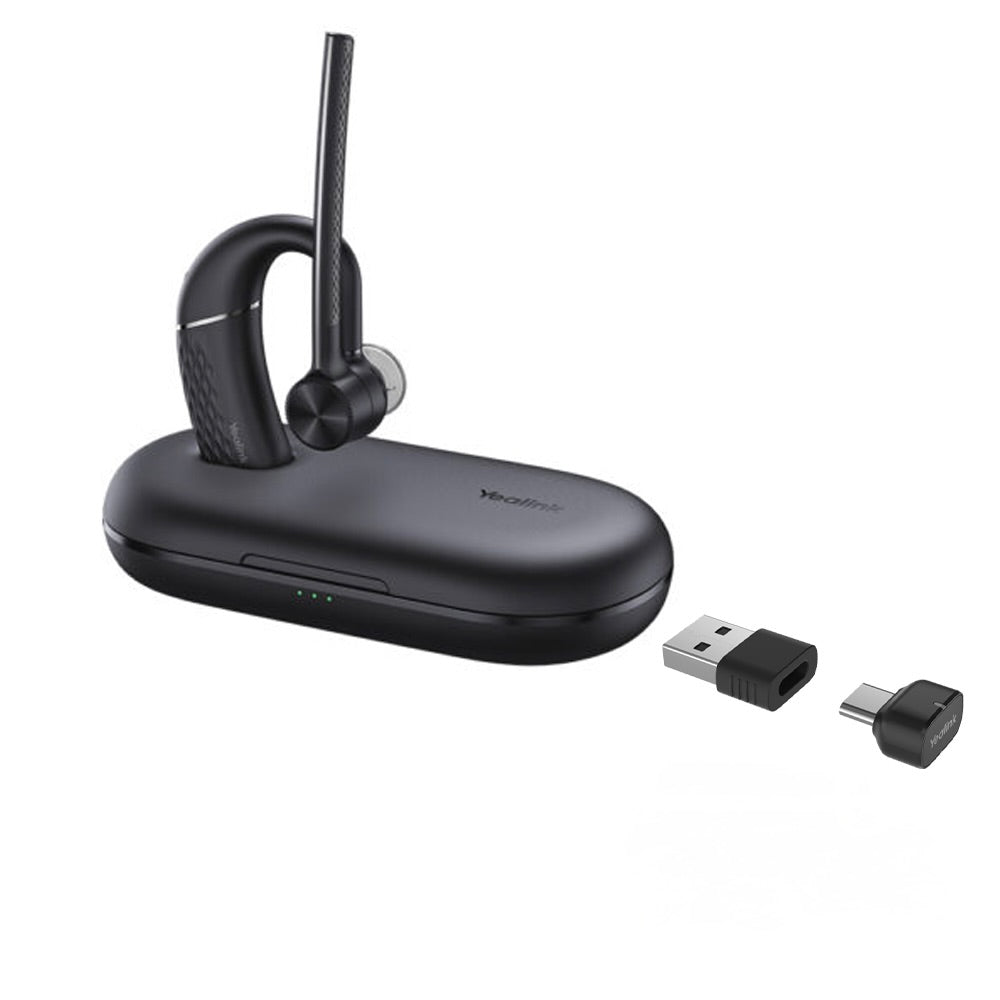
• Yealink UH35 is a professional USB-wired headset featuring excellent stereo sound and noise reduction technology, delivering clearer calls and improved passive noise cancellation. The headset is ultra-lightweight and extremely comfortable with skin-friendly materials for all-day wear. Key Features: • Plug-and-play- USB connectivity to Yealink IP phones • Dual Noise-Canceling Microphones • 35 mm Speaker • Brilliant Audio Quality • Lightweight Comfort • Busy light • Call and Music Mode • Teams Certified • UC Certified Additional Information: Weight: 0.44 lb Dimensions: 8.54 × 5.91 × 2.05 in Headset Type: Mono, UC Certified, USB Technical Specifications: General Info: Headset cable length: 1.2 m Supported operating systems: Microsoft Windows ®, Apple Mac OS Color: Black Weight: 96.5 g Operating temperature: -10°C to +50°C Box Contents: UH35 Mono Headset Carrying Case Quick Start Guide Main Features: HD Voice/Wideband speaker performance Noise-canceling microphones and passive noise cancellation Active Protection technology safeguards users from acoustic injury Music control Integrated LED indicator and warning tone 300° bendable boom arm for easy adjustment without breaking Microphone: • Microphone quantity: 2 • Microphone frequency response range: 100 Hz-10 kHz • Microphone type: ECM • Microphone bandwidth: Wideband • Microphone sensitivity: -44.0 dB re. 1 V/Pa Speaker: • Speaker size: 35mm • Speaker sensitivity: 109 dB SPL @ 1 kHz, 179 mW • Speaker frequency response range: 20 Hz-20 kHz • Speaker impedance: 32+/-4.8Ω, @ 1.0 kHz • Speaker input power: Normal 10 mW, Max. 30 mW • Speaker bandwidth: Wideband Easy Call Management: • Answer/End/Reject/Hold a call • Volume up/down • Microphone mute • Redial last outgoing call

About This Product

The Yealink UH35 Mono is a practical choice for professionals who spend long hours on calls and need a straightforward, reliable headset. Designed as a wired USB headset with UC and Microsoft Teams certification, it integrates cleanly with softphones, desk phones, and computers—making it a natural fit for contact centres, busy GTA offices, or home workspaces where clear communication and comfort matter. The mono form factor means you can stay aware of your surroundings while on a call, which is useful in open-plan environments or for users who need to hear colleagues and notifications alongside their conversation.

This headset pairs especially well with Yealink IP phones that have a USB port, but it also works plug-and-play on Windows and Mac computers (and with most leading UC platforms). Its main tradeoff is that it is wired and USB-only—so it doesn’t offer Bluetooth or wireless freedom. If your desk is already close to your device, the 1.2 m cable is plenty, but a roaming workspace might feel restrictive. Also, the single-ear mono design is ideal for voice calls, but it isn’t suited for stereo music listening or immersive media. For a quiet office where call clarity is the priority, the UH35 covers all the basics without overkill, while in a loud space you may still pick up some background noise despite the noise-cancelling microphones.
Services We Provide
  • Professional Installation & Configuration
  • Ongoing Maintenance & Support
  • Troubleshooting & Repairs
  • System Upgrades & Updates