Yealink UVC84 USB PTZ Camera-True 4K camera

Frequently Asked Questions

First, check that the USB cable is fully seated and try a different USB port, ideally a USB 3.0 port on the computer itself (not a hub). Make sure your operating system has the latest USB drivers installed. If the camera still isn't detected, reboot the computer with the camera connected. For ongoing issues, a Toronto-based VoIP support provider can usually resolve this remotely.
Clean the lens carefully with a microfiber cloth to remove dust or smudges. Ensure the camera is at a reasonable distance from subjects—the 12x optical zoom works best when the room is at least a few meters deep. Try adjusting the zoom or panning away and back to trigger autofocus. If the problem persists, check that the room lighting is sufficient and even.
Position the camera at about eye level and ensure it has an unobstructed view of faces. Auto-framing relies on good lighting and contrast; bright backlighting or very dark rooms can confuse it. You can adjust the framing sensitivity using the Yealink camera control plug-in. If that doesn't help, try a different room layout.
Replace the remote batteries with fresh ones and ensure you are pointing the remote directly at the camera's IR receiver (usually the front). Clear any obstacles between the remote and camera. If the remote still doesn't work, try pairing it again following the manual; some models require a pairing sequence. For software-based PTZ, confirm that the USB connection is stable and the plug-in is installed.
Open your conferencing app's audio settings and select 'Yealink UVC84' as both the microphone and speaker if you intend to use the camera's integrated audio (audio integration feature). Ensure the camera's USB audio driver is installed. If the app still doesn't see audio, try a different USB port and reboot the app.
Some warmth is normal due to the processor and motorized components, but the camera has a built-in fan to manage temperature. Make sure the vents are not blocked and that the camera is in a well-ventilated area. If it becomes too hot to touch or shuts down, power-cycle the camera and check for firmware updates. Contact support before performing any resets.
Plug the camera into a Windows PC running Microsoft Teams. In Teams settings, select 'Yealink UVC84' as the camera and microphone (if using audio integration). For best performance, install the latest driver from Yealink's support site. The camera is fully compatible with Teams Rooms on Windows and works seamlessly with Teams' default camera handling.
Yes, the UVC84 has a standard 1/4-20 tripod thread and supports mounting with optional brackets. Ensure the mount can safely support its 8 lb weight. For ceiling mounting, use a bracket that allows you to angle the camera downward. Avoid mounting it too high, as auto-framing may not function well if the camera is above eye level.
Download the latest firmware file from Yealink's website and save it to a USB drive formatted as FAT32. Insert the USB drive into the camera's USB port (or use the Windows-based USB tool). Alternatively, use Yealink Device Manager software to update over a network. Do not power off the camera during the update. If you are unsure, contact your IT department for assistance.
For reliable 4K at 30 fps, use a USB 3.0 (or higher) active cable up to 5 meters (16 feet). Passive cables longer than 3 meters may cause signal degradation. Avoid daisy-chaining USB hubs; connect the camera directly to the computer or an active extension cable. For longer distances, a USB-over-Ethernet extender may be needed.
Video Systems

Yealink UVC84 USB PTZ Camera-True 4K camera
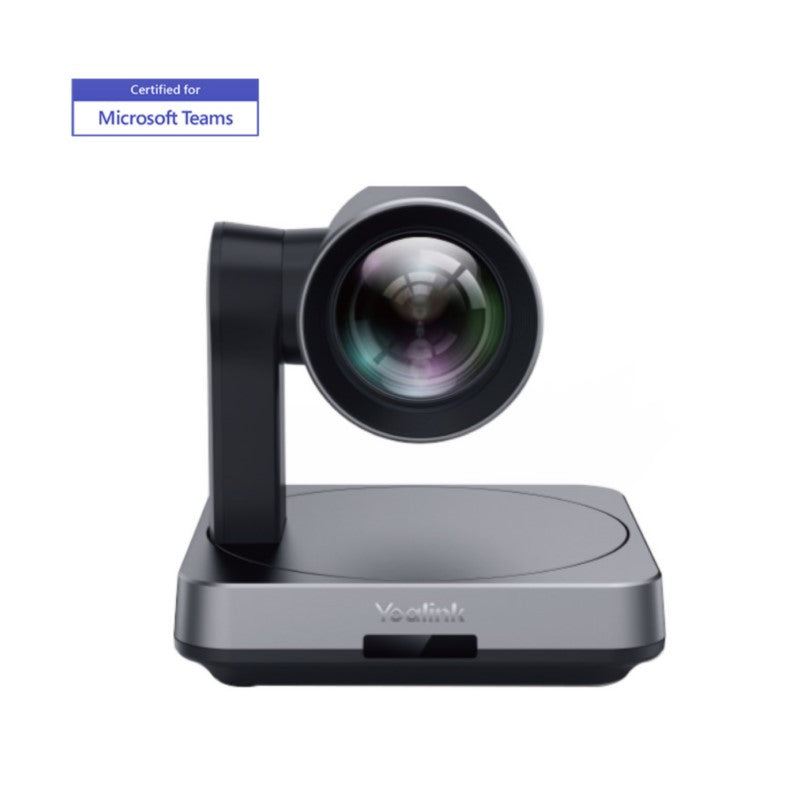
• Yealink UVC84 USB camera provides a best ever video experience for your meeting, featuring 4K resolution at 30 frames per second and 12x optical zoom, presenting crystal-clear video image. • The camera offers mechanical pan, tilt, and zoom capabilities, along with auto-framing feature, smooth PTZ control by remote control or Yealink camera control plug-in, and audio integration for a truly collaborative experience. • Key features include: • 4K video quality • 12x optical lossless zoom • Mechanical pan, tilt, and zoom • Auto framing feature • Smooth PTZ control by remote control or Yealink camera control plug-in • Audio integration • Additional specifications: • Weight: 8 lb • Dimensions: 15 × 11 × 10 in • Video Conferencing: BYOD, Camera • Video Room Size: Large • UVC Protocol: UVC 1.0 • Maximum Resolution: 4K • Maximum FPS: 30FPS • Video Output: 4K30, 1080p30, 720p30 • Lens Focus Length: f=3.9mm to 46.8mm

About This Product

The Yealink UVC84 is designed for large meeting rooms where video quality and camera control are critical. With true 4K resolution and 12x optical zoom, it delivers sharp, detailed images even from the far end of a boardroom table. Its mechanical pan, tilt, and zoom (PTZ) allow precise framing, while the auto-framing feature helps keep participants centered automatically. This works especially well in huddle rooms and medium-to-large conference spaces where a fixed webcam would be too limiting.

The camera pairs naturally with USB-based conferencing platforms such as Microsoft Teams Rooms, Zoom Rooms, or any BYOD setup that supports UVC 1.0. If you currently rely on a lower-resolution camera or a manual PTZ unit, the UVC84 provides a significant upgrade without requiring proprietary control hubs. However, its physical size (15 × 11 × 10 in) and weight (8 lb) mean you need a sturdy mount or table stand; it is not a portable webcam. It also requires external power via USB or an optional power adapter, so check your room's cabling.

For Canadian businesses, the UVC84 integrates seamlessly with major UC platforms used in GTA offices. It is ideal for rooms with six to fifteen participants, but it may be overkill for small huddle spaces (a 1080p camera would suffice) or underpowered for very large auditoriums where a high-end PTZ with longer zoom would be required. The 4K output at 30 fps demands a USB 3.0 connection for best results—older USB ports may limit resolution or introduce lag.
Services We Provide
  • Professional Installation & Configuration
  • Ongoing Maintenance & Support
  • Troubleshooting & Repairs
  • System Upgrades & Updates