Yealink WF50 Dual Band WiFi USB Dongle (V1)-1300061

Frequently Asked Questions

First, confirm that the phone model you are using actually supports USB Wi-Fi dongles through its accessory port. Yealink T5 and T6 series phones generally do, but some older models may not. Next, try unplugging the dongle, power cycling the phone, and then reinserting the dongle. If the phone still does not see networks, check that your Wi-Fi router is broadcasting its SSID and that the 2.4 GHz band is enabled, since some 5 GHz-only networks may not be visible to the dongle.
Audio break-up over Wi-Fi usually points to signal strength or interference. Check that the phone is within about 10 meters of the access point and not blocked by a metal filing cabinet or thick wall. In the phone's network settings, try forcing the dongle to connect to the 5 GHz band if your router supports it, because that band is typically less crowded. If the problem happens only during peak hours, the issue may be congestion on your office's 2.4 GHz network from other devices.
That message usually means the phone's firmware does not include the driver for the WF50. Check the phone's current firmware version and compare it against the release notes on Yealink's support page; the WF50 driver was added in a specific firmware update. If your phone is several versions behind, updating the firmware through the phone's web interface should resolve the issue. If you are not comfortable updating firmware yourself, contact your VoIP provider for guidance.
The WF50 is designed exclusively for Yealink IP phones that have a USB host port for accessories. It will not function as a general-purpose Wi-Fi adapter for a PC, laptop, or any other brand of VoIP phone. Attempting to plug it into a computer will likely be ignored or cause an error, because the dongle's driver and authentication handshake are specific to Yealink's phone operating system.
A recurring disconnection is often a sign of Wi-Fi channel interference or a weak DHCP lease. First, log into your router's admin panel and check whether the channel is set to 'Auto' or a fixed, non-overlapping channel like 1, 6, or 11 on 2.4 GHz. If the router is in a busy area with many neighboring networks, try switching to a 5 GHz channel. Also verify that the phone's power save mode is not set aggressively, because some Yealink phones can drop the Wi-Fi link to save power during idle periods.
The WF50 supports WPA2-PSK (AES) encryption, which is the current standard for securing Wi-Fi traffic. When you configure the Wi-Fi network on the phone, ensure you select WPA2-PSK and enter a strong passphrase. Avoid using WEP or open networks, as those provide no meaningful protection. For an extra layer of security in a Toronto office, you can also enable MAC address filtering on the router to only allow the phone's MAC to connect.
No, the phone's USB port can only host one Wi-Fi dongle at a time. Plugging in a second WF50 will not give you a second connection or any speed benefit; the phone will simply ignore the extra dongle. If you need to connect two phones to the same network, each phone needs its own WF50.
A blinking LED on the WF50 usually indicates it is powered but not yet associated with a network. It is not a sign of a hardware fault. Go into the phone's Wi-Fi settings and scan for networks. If none appear, try moving the phone closer to the access point. If the network does appear but the phone fails to connect, double-check that the SSID and password are entered correctly, including any capital letters or special characters.
VoIP Accessories

Yealink WF50 Dual Band WiFi USB Dongle (V1)-1300061
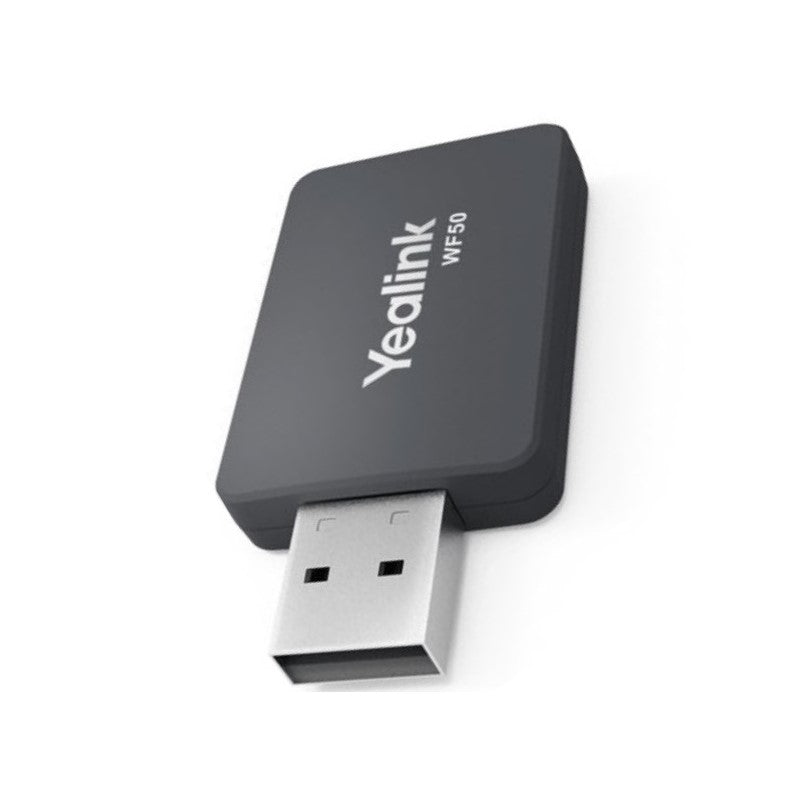
The Yealink WF50 is a next-generation Wi-Fi USB Dongle designed to provide high-speed, flexible wireless connectivity for Yealink IP phones. With dynamic Dual-Band support (2.4 GHz and 5 GHz), the WF50 allows users to easily establish calls, conduct meetings, and stream HD video without being tethered to a wired network drop. • High Transmission Rate: Achieve speeds up to 433 Mbps on the 5 GHz band • Interference Free: Eliminate interference from common office devices, guaranteeing high-quality, stable connections • Plug and Play Security: Easy setup with robust WPA/WPA2 encryptions, providing active defense against security threats • Standards Compliant: Fully compliant with IEEE 802.11a/b/g/n/ac standards The WF50 is built to maximize reliability and throughput, ensuring voice and video quality remain crystal-clear.

About This Product

The Yealink WF50 is a practical add-on for any Yealink SIP desk phone or conference unit that lacks built-in Wi-Fi, letting you cut the Ethernet cable without sacrificing call quality. It is best suited for a small office, a hot-desking environment, or a home workspace where running a permanent network drop is either costly or impractical. The dongle plugs directly into the phone's USB port and is recognized immediately, so there is no separate power supply or configuration app to manage. The main tradeoff is that it depends entirely on the quality of your existing wireless network: if your office uses a congested or older 2.4 GHz-only access point, the WF50 will still work, but you will not see the full 433 Mbps throughput it can reach on the cleaner 5 GHz band. For a GTA deployment with multiple phones on a single floor, pairing this dongle with a recent dual-band router or access point is the way to get reliable voice and video without interference from nearby printers or microwaves. It is overkill for a single desk phone that already has a wired jack, and it is underpowered for a large open-plan floor where dozens of phones would be better served by a dedicated Wi-Fi access point with built-in VoIP QoS.
Services We Provide
  • Professional Installation & Configuration
  • Ongoing Maintenance & Support
  • Troubleshooting & Repairs
  • System Upgrades & Updates