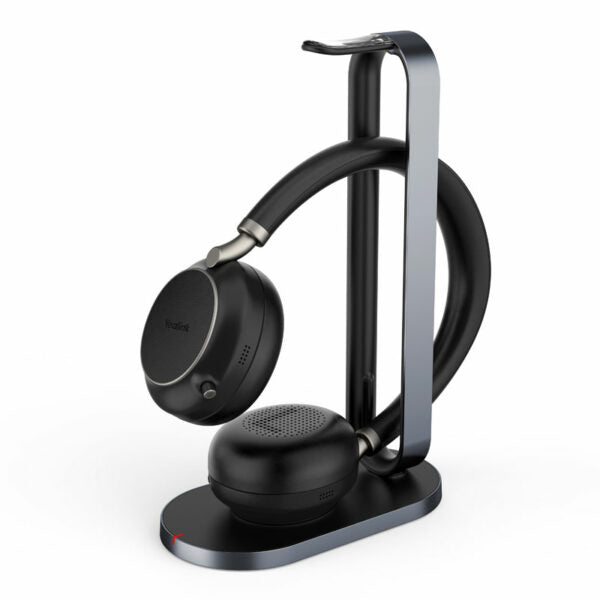
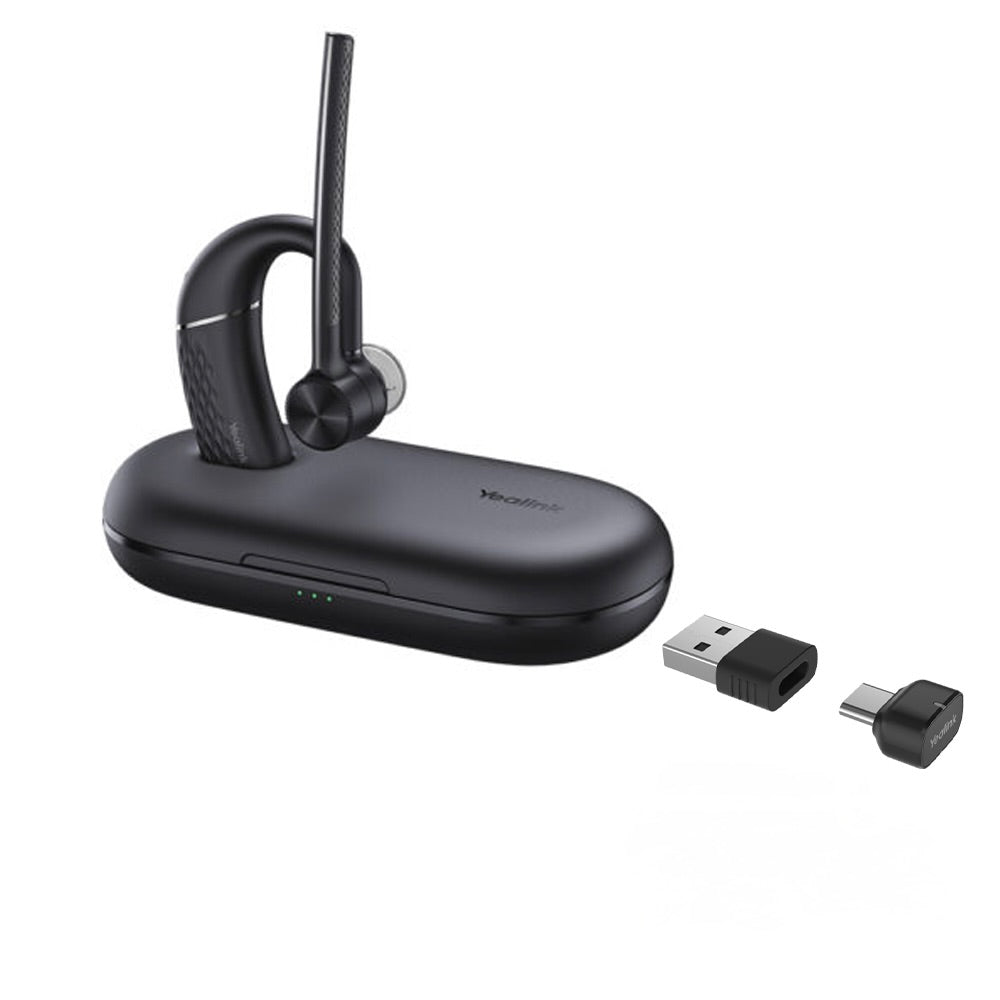
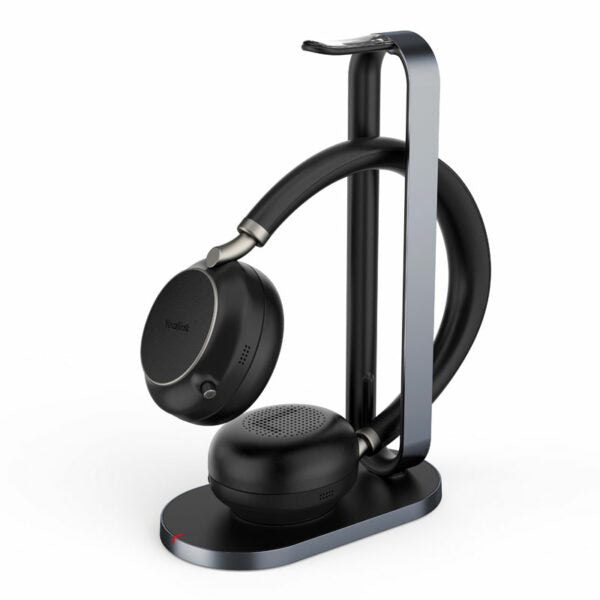
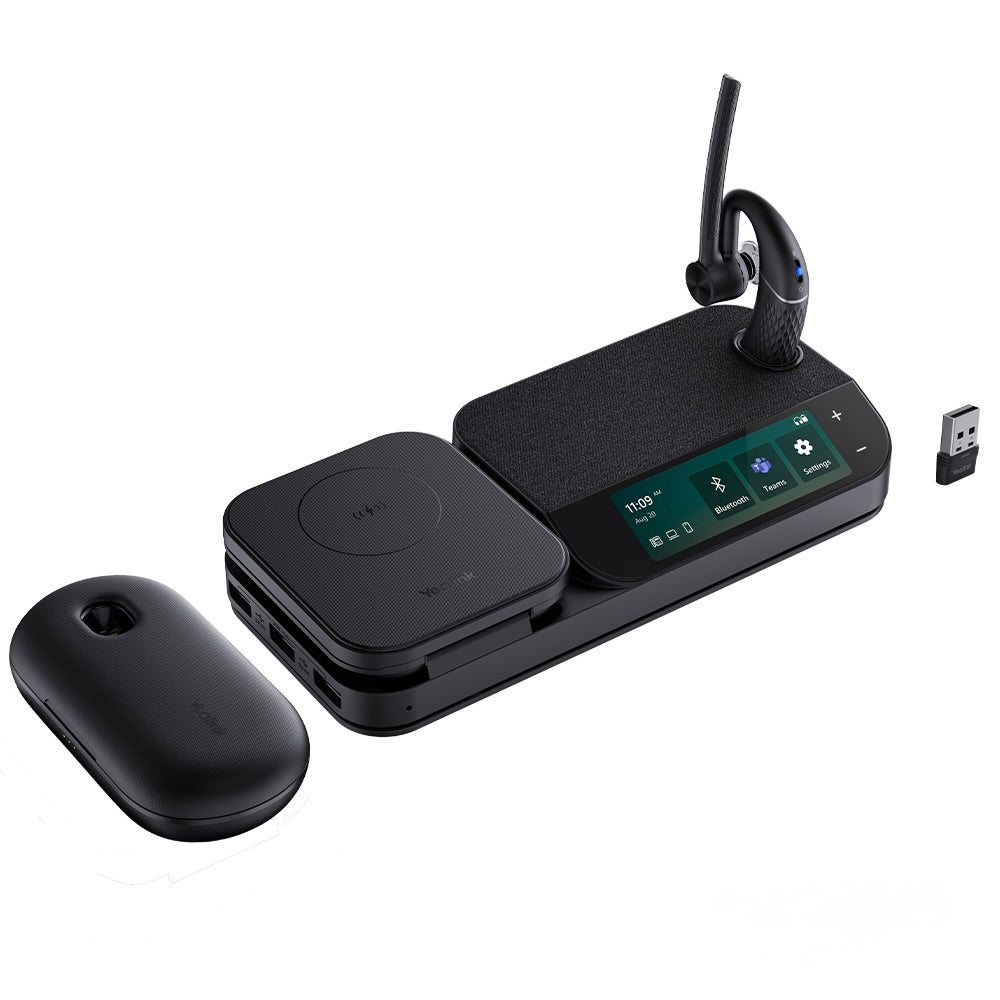
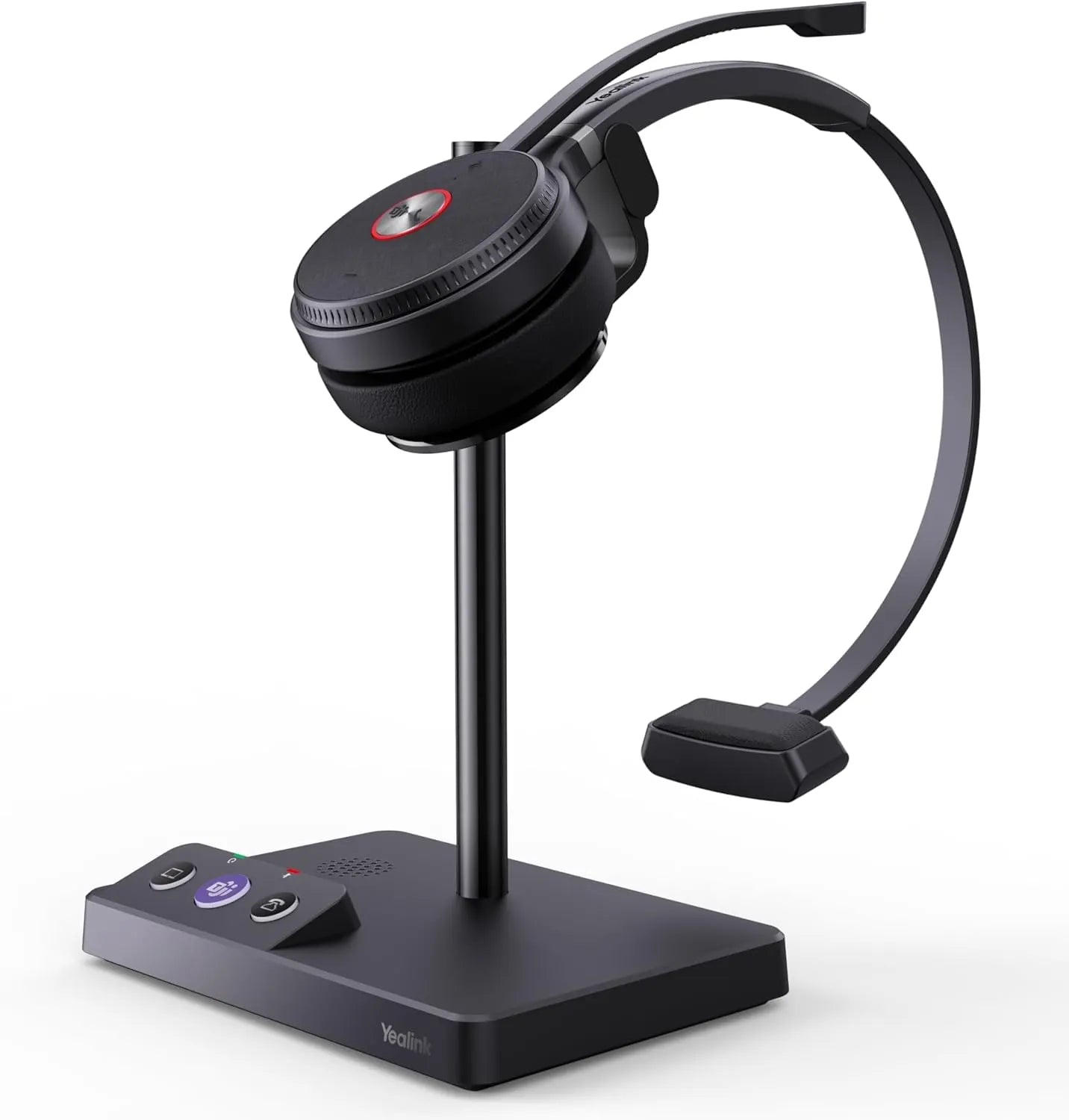
Yealink WH62 Mono Teams V3 Wireless DECT Headset - 1308000(C)
Frequently Asked Questions
Yealink WH62 Mono Teams V3 Wireless DECT Headset - 1308000(C)
This is a detailed product description of the Yealink WH62 Mono Teams V3 Wireless Headset, including its features, specifications, and what's included in the package. Here are the main points: **Key Features:** * DECT wireless technology for reliable and secure communication * Monaural sound quality with noise cancellation * Comfortable design with adjustable headband * Long battery life (up to 13 hours of talk time) * Smart call control features, including mute control and on-ear buttons * Compatible with Avaya/Poly/Snom/Grandstream/Fanvil/Yealink/Cisco IP Phones **Specifications:** * Talk Time: up to 13 hours * Standby Time: 90 hours * Charging Time: approximately 2.5 hours * Weight: 170g * Dimensions: 25 x 10 x 8 cm (9.84 x 3.94 x 3.15 in) * Frequency Range: 1900 MHz to 1990 MHz * Audio Signal Processing: Noise Cancellation **What's Included:** * Yealink WH62 Mono Teams V3 Base Station with Built-in Ringer * WH62 Mono Teams Headset * Power Adapter * Micro USB to USB-A Cable (0.8m) * Micro USB to USB-A Cable (1.2m) * Telephone Cable for IP Phone Connection (compatible with Avaya/Poly/Snom/Grandstream/Fanvil/Yealink/Cisco IP Phones) * Quick Start Guide (QSG) **Additional Information:** * For a full list of specifications, please refer to the WH62 Mono Teams V3 datasheet. Note that this is a long and detailed product description, which may be intended for sales or marketing purposes.
About This Product
This headset is purpose-built for the Microsoft Teams ecosystem, indicated by the dedicated Teams button, which provides a more integrated experience than a standard universal headset. It connects seamlessly to a wide range of popular IP desk phones, including Yealink, Poly, and Cisco models, making it a straightforward upgrade for an existing desk phone user who wants to add wireless mobility. The dual connectivity to a PC via USB and a desk phone is its core strength, allowing a user to switch contexts easily.
A buyer should understand the limits of the DECT range and the monaural audio. The sound quality is tuned for clear voice conversation, not for immersive music, and the single speaker means you'll rely on the noise-cancelling microphone to keep your side of the conversation professional. For a Canadian office deploying this in a dense downtown Toronto high-rise, the DECT frequency range is designed to avoid interference with common Wi-Fi signals, which is a practical benefit in a congested wireless environment.
This device is overkill for someone who only takes occasional calls and would be satisfied with a basic corded headset. Conversely, it is underpowered for a user who needs complete focus in a noisy environment; for them, a binaural, over-the-head model with active noise cancellation on the earpieces would be a more appropriate tool. It sits in a sweet spot for the mobile, multi-tasking professional tied to both a computer and a desk phone.
Services We Provide
- Professional Installation & Configuration
- Ongoing Maintenance & Support
- Troubleshooting & Repairs
- System Upgrades & Updates