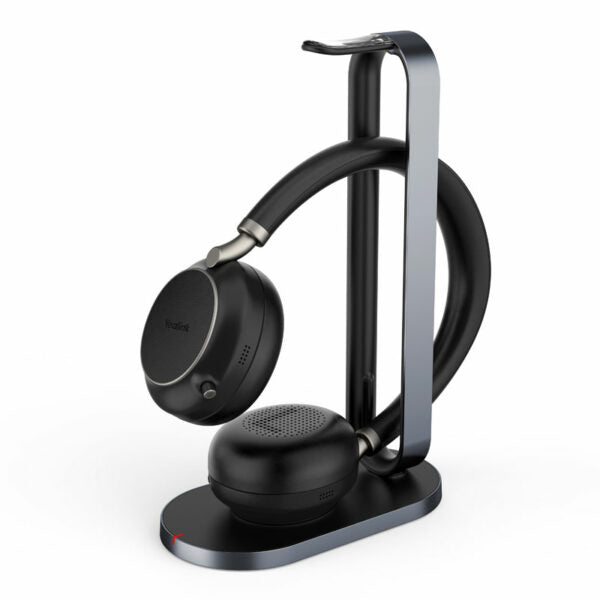
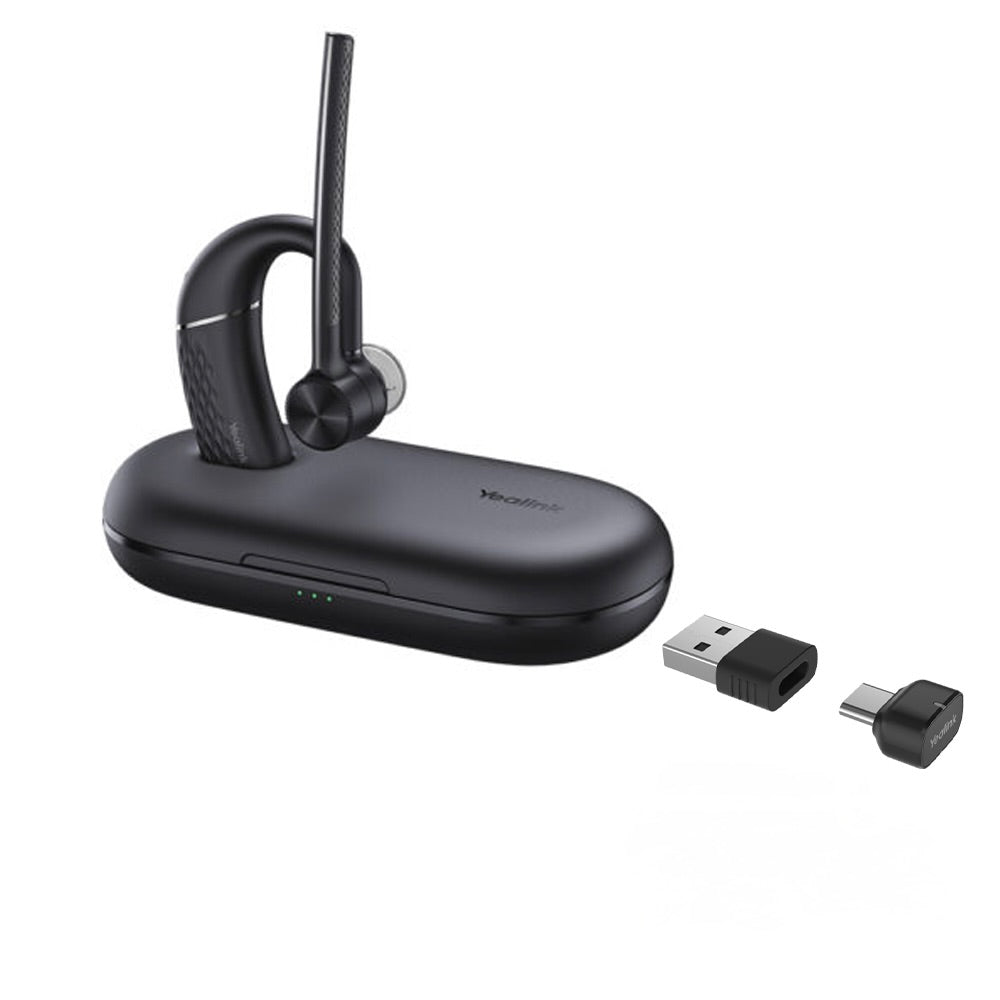
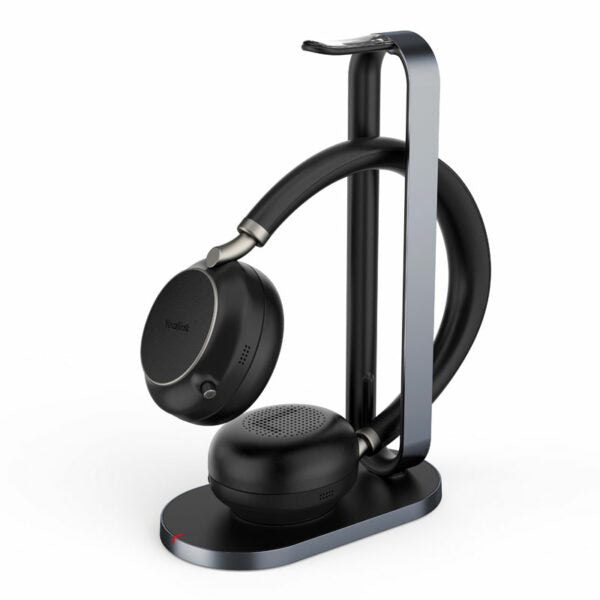
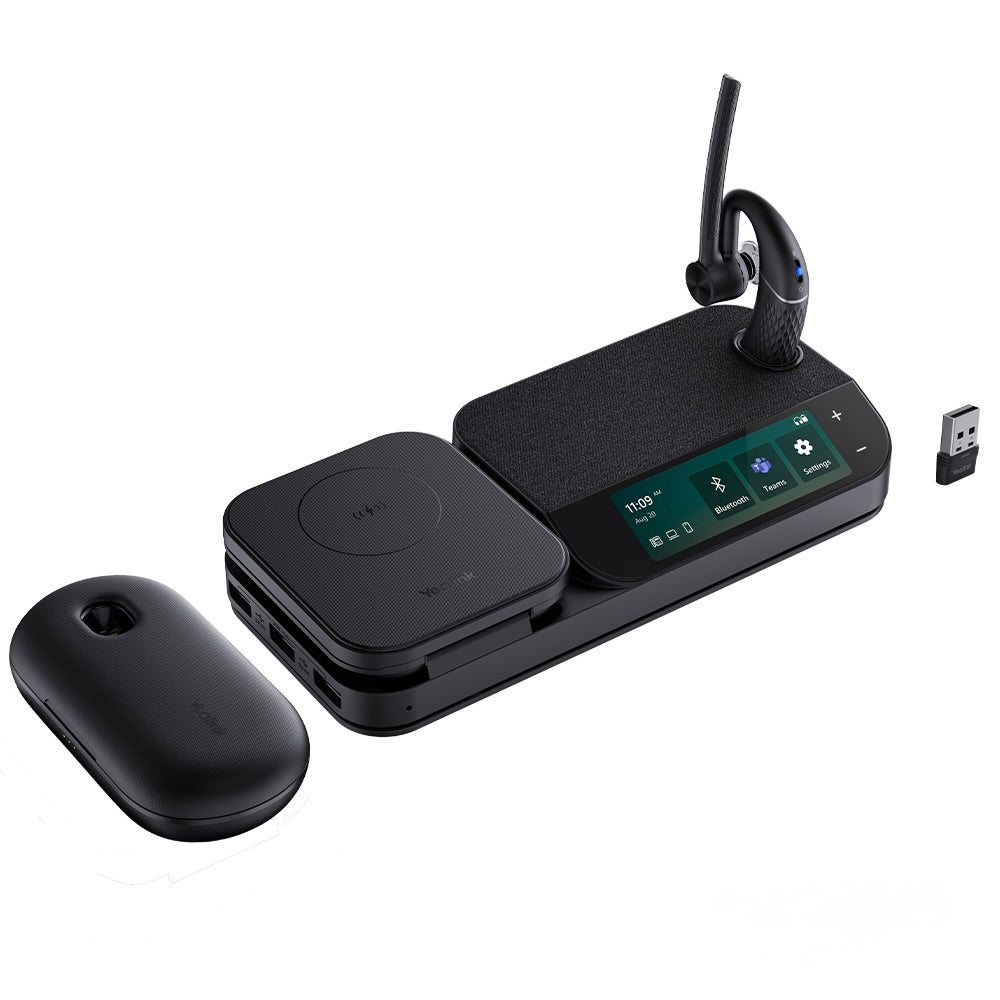
Yealink WH63 E2 Teams convertible DECT wireless headset-1208711
Frequently Asked Questions
Yealink WH63 E2 Teams convertible DECT wireless headset-1208711
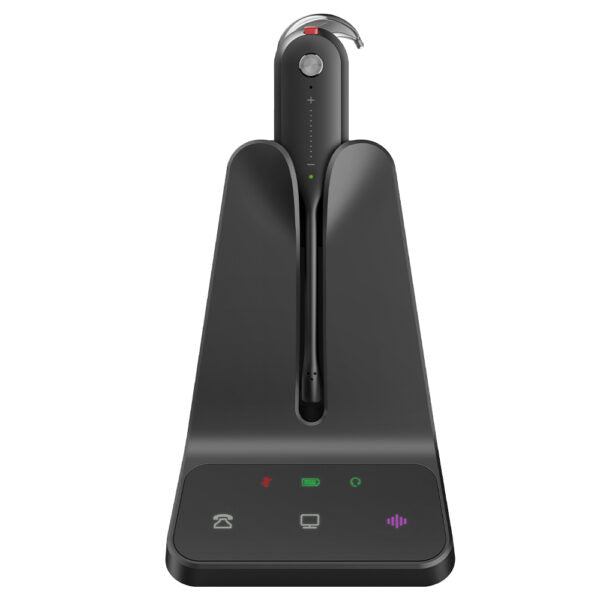
• Premium, convertible DECT wireless headset for unparalleled flexibility and crystal-clear communication in any work environment. • Certified for Microsoft Teams, supporting multi-device connection and control for seamless call management from both desk phone and PC using a single base station. • Key Features: • Acoustic Shield Technology with dual microphones for intelligent noise filtering • Wideband HD Audio and broad speaker frequency range for rich, natural-sounding conversations • Built-in Peak Block Protection (EN50332) and Daily Noise Exposure Protection for safe all-day use • Industry-leading DECT wireless performance up to 185m/606 feet with secure encryption • Lightweight, convertible design for multiple wearing styles (eartip, earhook, headband) • Multi-device connectivity via dual Type-C USB ports for instant device switching • Natively compatible with Microsoft Teams featuring a dedicated button for instant meeting join and call controls • Compatible with all mainstream UC platforms (Zoom, Cisco, Avaya, etc.) and over 100 IP phone models. • For a full list of specifications, please refer to the Yealink WH63 E2 Teams Headset datasheet.
About This Product
The native Teams certification is the real differentiator here. A dedicated button lets you join meetings and control calls without touching your computer, and the base stationâs dual USB-C ports let you connect to both a PC and a desk phone simultaneously. That dual-device capability means you can take a call on your desk phone and instantly switch to a Teams meeting without swapping headsetsâa genuine productivity win for hybrid workers. It also plays nicely with other UC platforms like Zoom or Cisco, so youâre not locked into a single ecosystem.
On the practical side, the acoustic shield and noise filtering are effective for typical office chatter, but donât expect it to silence a jackhammer. Itâs designed for controlled environments, not a factory floor. The convertible parts are lightweight and comfortable, though frequent switching between wearing styles may eventually loosen the fittings. Battery life is solid for a full workday, but heavy DECT usage will drain it faster than a Bluetooth headset. If your workspace has thick concrete walls or a lot of metal shelving, the 185-metre range will shrinkâplan your base station placement accordingly.
For a Canadian business, this headset fits naturally into GTA offices that have standardized on Teams and use Yealink or compatible IP phones. Itâs overkill for a receptionist who never leaves their desk or for a call centre agent tied to a single device, where a wired headset would cost less. Conversely, itâs underpowered for a user who needs active noise cancellation to block out loud ambient noise or for someone who roams across an entire building floor constantlyâthe DECT range is generous but not limitless.
Services We Provide
- Professional Installation & Configuration
- Ongoing Maintenance & Support
- Troubleshooting & Repairs
- System Upgrades & Updates