Yealink WH63 E2 UC convertible DECT wireless headset-1208712

Frequently Asked Questions

First, make sure the base is powered on—check that the LED on the base is lit. Then confirm the headset is seated properly in the charging cradle; you should feel it click into place. If it still won't charge, try a different USB power source (like the one on your PC or a different wall adapter) and rule out a bad cable. If the issue persists, a Toronto-based VoIP support provider can usually resolve this remotely.
Start by checking whether the microphone is muted—there's usually a physical mute button on the headset. If that's not the issue, verify that the headset is selected as the audio device in your softphone or computer sound settings. Also inspect the microphone opening for any debris or blockage. If none of these help, try re-docking the headset to re-establish the connection.
The base station has two USB ports. Plug one USB cable into the PC port on the base and connect it to your computer, and plug the other USB cable into the phone port and connect it to your desk phone (if it supports USB headsets). The headset can then switch between the two devices using the base's button or the headset itself—refer to the quick-start guide for the exact switching method.
DECT wireless can be affected by distance and obstacles. Try moving the base station to a more central location on your desk, away from metal objects or large electronics. Also make sure the headset is within the recommended range (usually around 150 feet open air) and that you're not passing through thick walls. If problems persist, power cycle the base by unplugging it for 30 seconds.
First, check the volume level on the headset itself—there should be dedicated volume buttons. Also verify the volume in your softphone or computer's sound mixer is turned up. The WH63 E2 has Wideband HD Audio, but if the far end is speaking quietly, you may need to adjust the headset's equalizer settings if available in the Yealink USB Connect software. If none of that helps, a call to your IT support team may be needed.
The headset and base should automatically re-pair when both are powered on. If they don't, try re-docking the headset for a few seconds. If that fails, you can manually re-pair by pressing and holding the pairing button on the base (usually on the bottom or side) until the LED flashes, then do the same on the headset. Do not perform a factory reset unless you've confirmed with support that it's necessary.
The WH63 E2 comes with multiple wearing styles: an eartip, an earhook, and a headband. The headband is included in the box—you can swap between styles by following the instructions in the quick-start guide. A neckband is available separately if you prefer that style. This flexibility makes it easy to match personal comfort preferences.
Check that the USB cable connecting the base to your desk phone is plugged securely and that your desk phone supports USB headset mode. Some older desk phones may need a specific setting enabled (often under 'Headset' or 'Audio' settings). Also make sure the base's phone port is the one connected to the desk phone. If your desk phone uses an RJ9/2.5mm jack instead of USB, this headset won't work with that port.
Buzzing can come from electrical interference. Try moving the base away from other electronic devices like monitors, routers, or power adapters. Also ensure the USB cable is not near any power cords. If you're using a third-party charger for the base, switch to the original Yealink power adapter. If the noise is only on softphone calls, check your computer's audio settings for any enhancements that could cause distortion.
On the base station, there is typically a button labeled 'PC' and 'Phone' or a single button that toggles between the two connected devices. Press it to switch the active audio path. Some models also let you switch via the headset itself—check the user manual for button combinations. The headset will give a tone or voice prompt to indicate which device is active.
VoIP Headsets

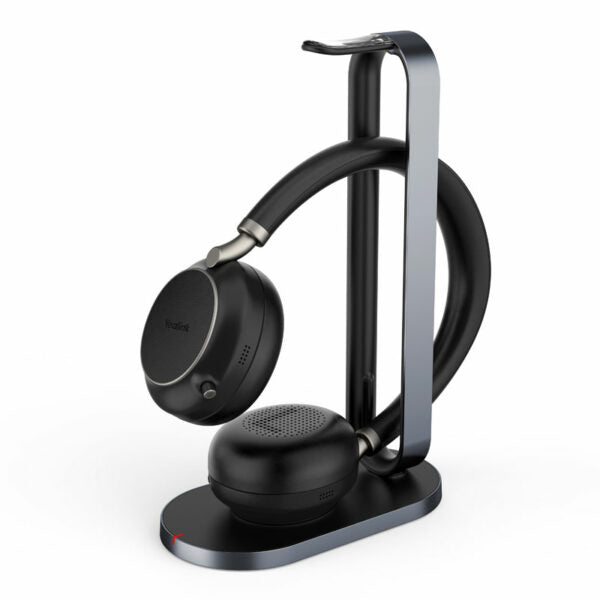
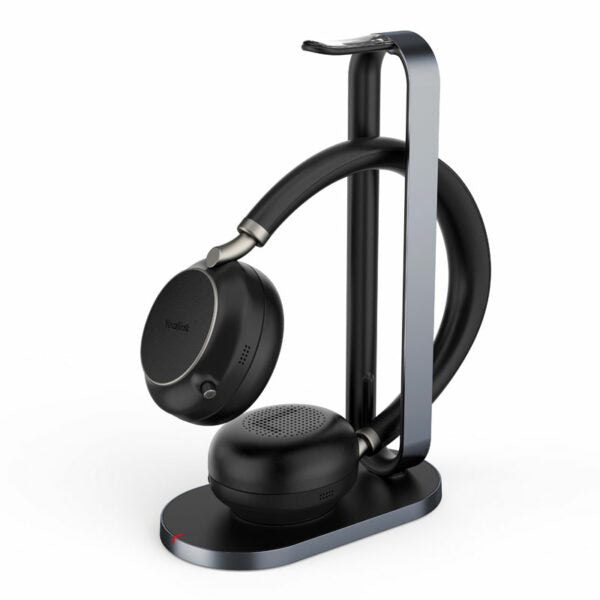
Yealink WH63 E2 UC convertible DECT wireless headset-1208712
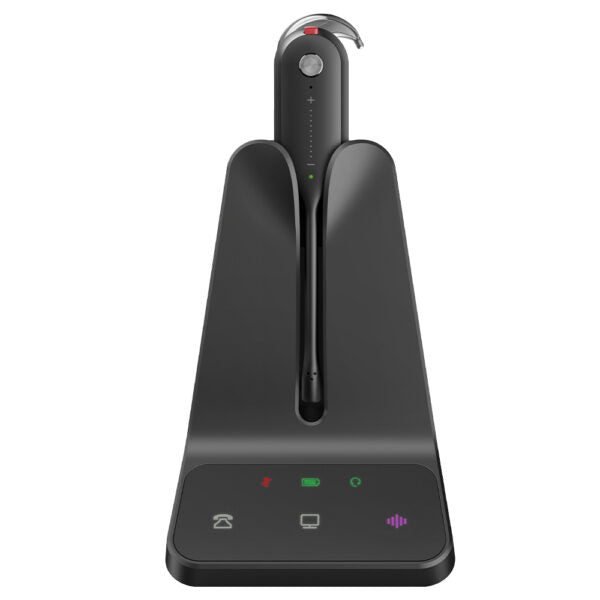
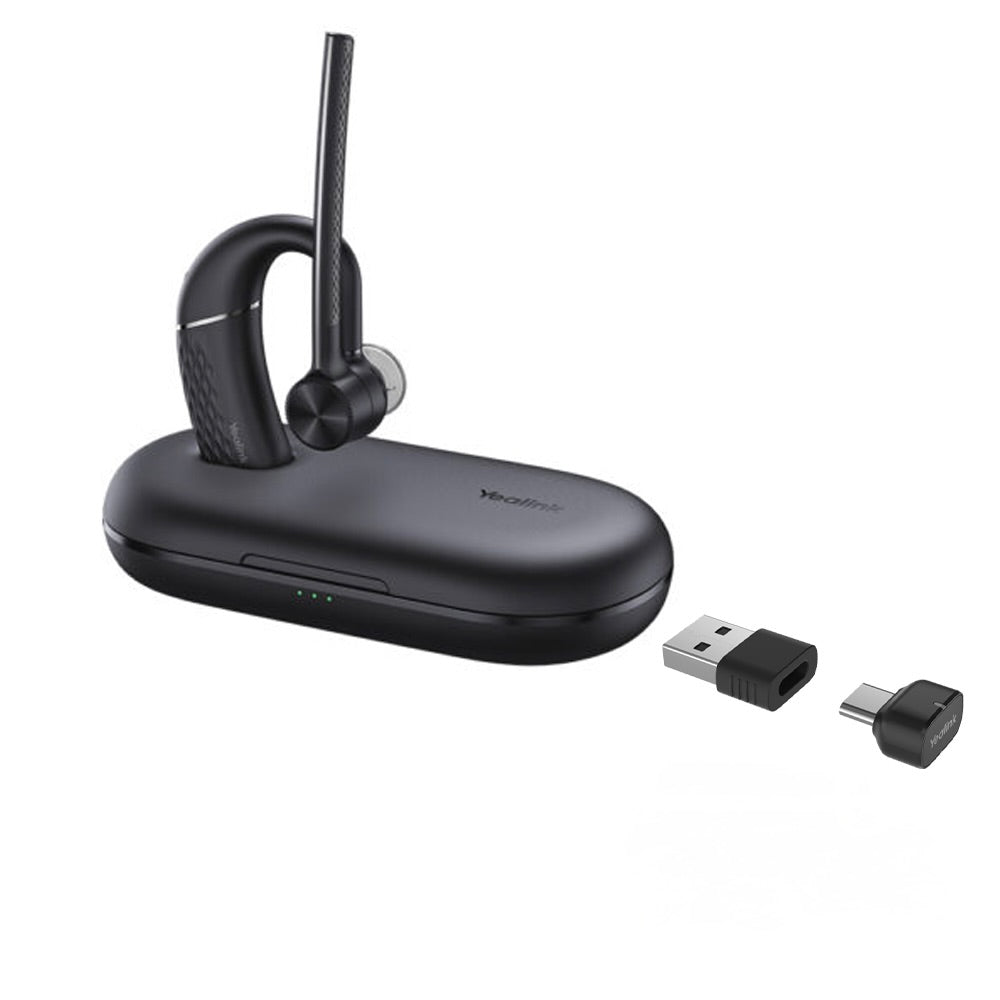
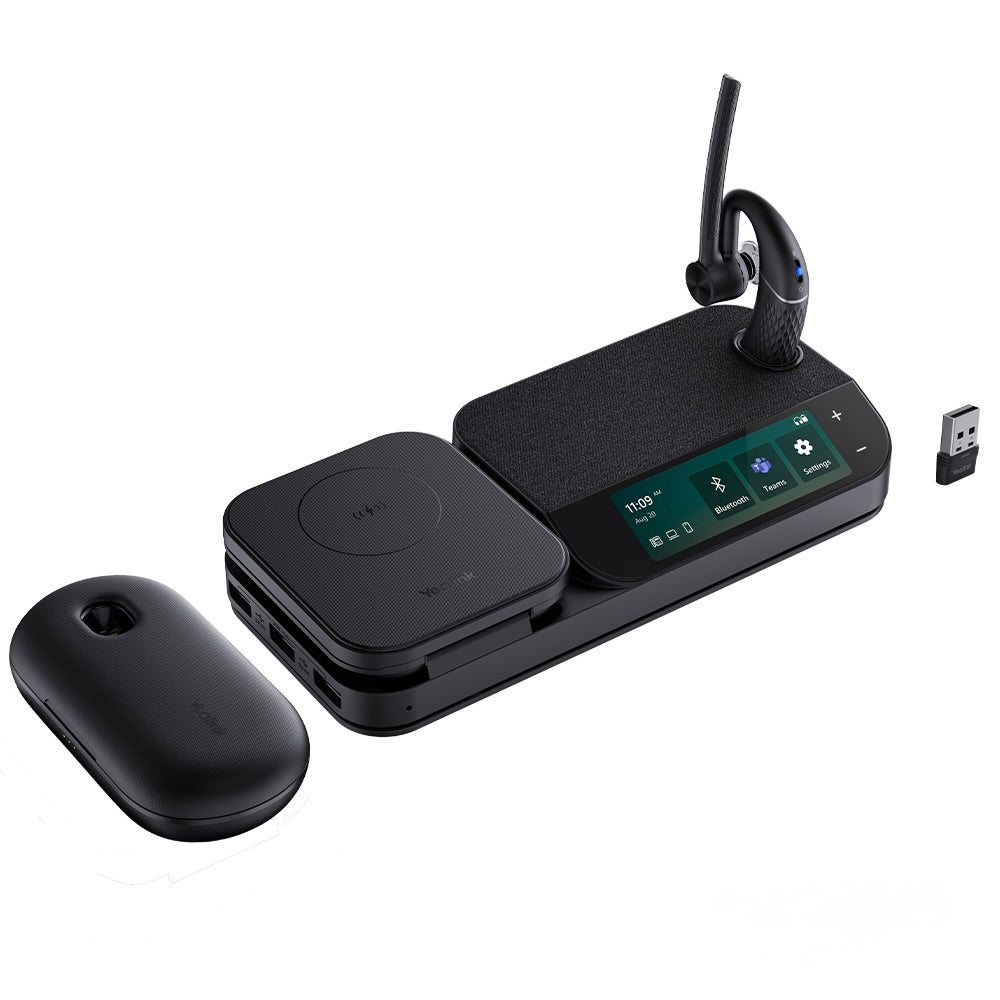
• The WH63 E2 features an enhanced, redesigned base station for a superior desktop experience, ensuring greater stability, easier docking, and a cleaner aesthetic. • Key features include: • Reliable, effortless docking with the new base • Multi-device connectivity via dual USB ports • Flexible wearing styles: eartip, earhook, or headband (neckband available separately) • Professional-grade audio with Acoustic Shield technology, including: • Dual microphones to filter out background noise and ensure clear conversations • Wideband HD Audio for rich, natural-sounding calls • Built-in Peak Block Protection (EN50332) and Daily Noise Exposure Protection for safe all-day use For a full list of specifications, please refer to the Yealink WH63 E2 UC Headset datasheet (PDF).

About This Product

The Yealink WH63 E2 UC is a DECT wireless headset designed for professionals who need reliable, hands-free communication throughout the workday. It fits naturally in a desk-based office environment—think busy call centres, open-plan offices, or anyone on a UC platform like Microsoft Teams or Zoom who wants to move around without being tethered. The redesigned base station offers two USB ports, so you can connect it to both a desk phone and a computer simultaneously, switching between devices without unplugging cables. This makes it a solid upgrade over a basic wired headset or a single-purpose Bluetooth model, though it's worth noting that DECT—not Bluetooth—means the connection stays dedicated to voice, which can reduce interference in crowded wireless environments.

For a GTA office deployment, the WH63 E2 is a practical choice: the range is ample for a typical cubicle or meeting room, and the wearing options (ear tip, earhook, or headband) let different users pick their preferred fit. The Acoustic Shield technology and dual microphones help cut background chatter, but this isn't a noise-cancelling headset you'd use in a loud coffee shop—it's tuned for typical office noise, not construction noise. If you need all-day comfort and safety, the built-in peak block and daily exposure protection are genuinely helpful, especially for staff logging long call hours. On the flip side, if your team mostly takes short calls or you already have a reliable Bluetooth headset with your phone, this might feel like more gear than you need—the base station does take up a bit of desk space. For anyone who juggles a desk phone and softphone, though, the dual USB ports alone make the WH63 E2 a tidy, upgrade-friendly option.
Services We Provide
  • Professional Installation & Configuration
  • Ongoing Maintenance & Support
  • Troubleshooting & Repairs
  • System Upgrades & Updates