Yealink WH66 Dual Headset UC

Frequently Asked Questions

First, make sure the headset is seated securely in the charging cradle and that the battery has some charge; a completely drained battery can prevent pairing. If the screen shows ‘searching,’ remove the headset from the base, wait ten seconds, then dock it again. Also check that the base itself is powered via the supplied USB cable and not through an underpowered port—try connecting directly to a wall adapter if available.
This is often a sign of DECT signal interference or the headset moving beyond its reliable range. Walk closer to the base while you speak and ensure there are no large metal objects or electronic clusters (like monitors and Wi‑Fi routers) situated between you and the base. If the issue happens only in one part of your office, moving the base to a more central, elevated position usually stabilizes the connection.
Confirm the microphone boom arm is lowered fully into speaking position; on some units, rotating the boom past a certain point activates the mute. Next, check the mute status on the touch screen base and on your softphone—the WH66 can mute at the headset itself or through the call platform, so both need to be unmuted. Verify that your UC platform’s audio settings have the WH66 selected as the input device, not a built-in laptop microphone.
The WH66 prioritizes the headset when it detects that the headset is undocked and in use. Lift the headset out of the cradle, then look for the audio routing icon on the base touch screen and tap to switch audio to the base speaker. If that icon is not visible, try docking the headset briefly so the base registers it as idle, then initiate or transfer the call using the speakerphone button on the touch screen.
Ringing behavior is partly controlled by your softphone or IP phone, so first verify that the platform is set to send ring audio to the Yealink device and that “Do Not Disturb” is not active on the headset base. On the WH66 touch screen, check the volume level and ring tone under settings; a ring volume set to zero or a silent tone selected will prevent audible ringing even though the call is received normally.
Simultaneous connectivity works best when the base connects to your computer via USB for Teams calls and to the Yealink IP phone via a cable or native DECT integration, depending on the phone model. Connect the base to the computer’s USB port and select the WH66 as the audio device inside Teams. For the desk phone, follow the simple on-screen prompts on the base to pair with a compatible Yealink handset; once paired, the touch screen will let you choose which audio source is active for the current call.
This usually means the base is not seeing an active call-control path from your computer or phone. Disconnect and reconnect the USB cable from the base to your computer, then restart your softphone application. If you are using the headset with an IP phone, confirm the phone is on the same DECT registration and is not on a screensaver or idle mode that disables accessory control.
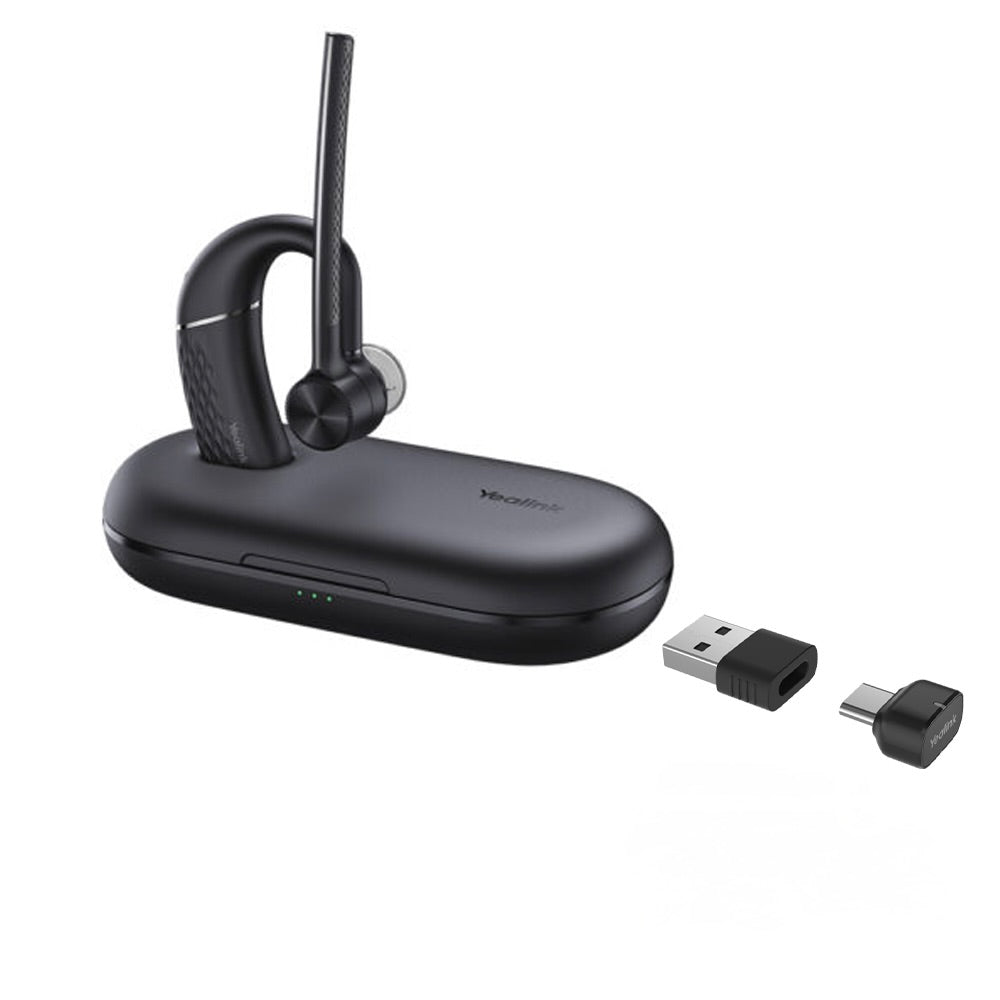
The base itself requires a USB-A connection for power and call control, so if your laptop only has USB-C ports, you will need a reliable USB-C to USB-A adapter. The optional BT50 Bluetooth dongle also uses USB-A and would require the same adapter. Connect the adapter to your laptop, then plug the WH66 base or dongle into the adapter; the headset should be recognized in your operating system’s sound settings. If you plan to use this setup regularly, a powered adapter or a docking station often delivers more stable performance than an unpowered inline converter.
VoIP Headsets

Yealink WH66 Dual Headset UC
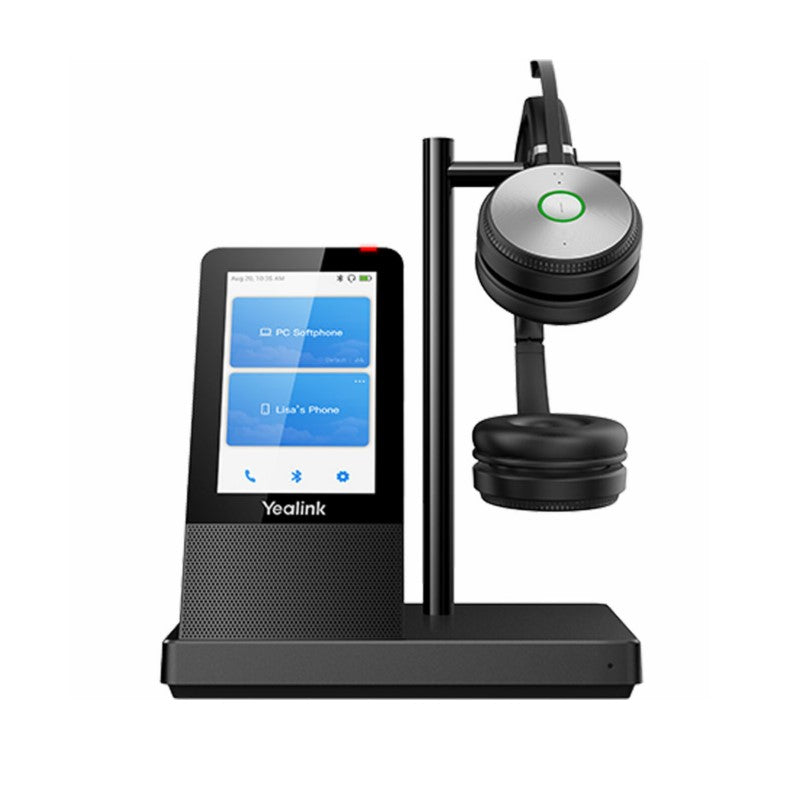
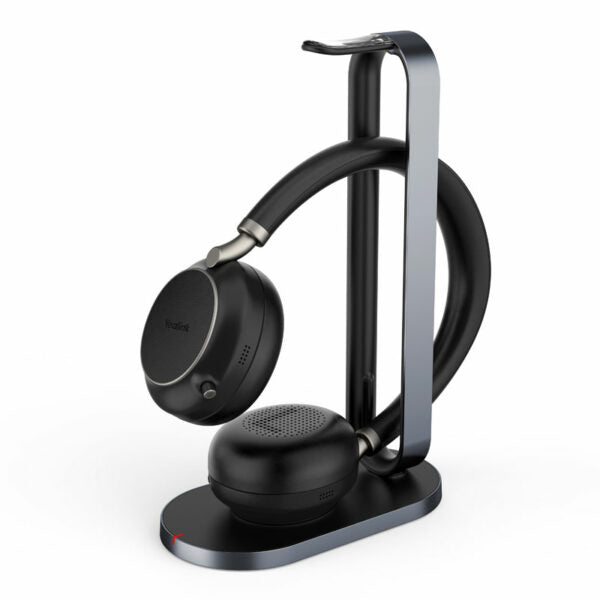
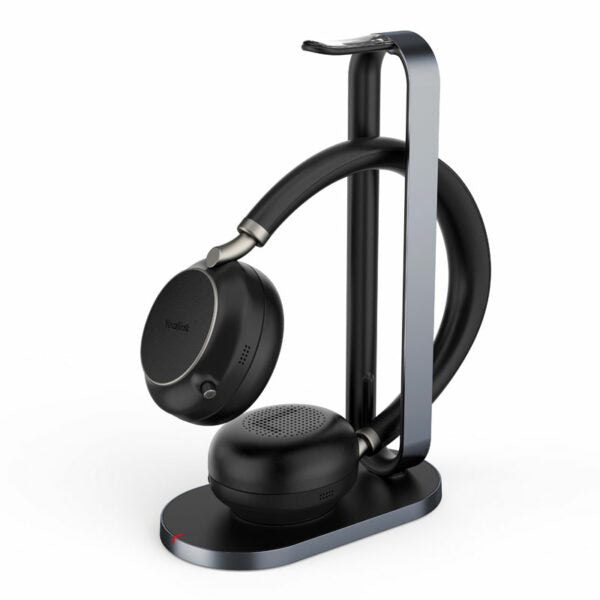
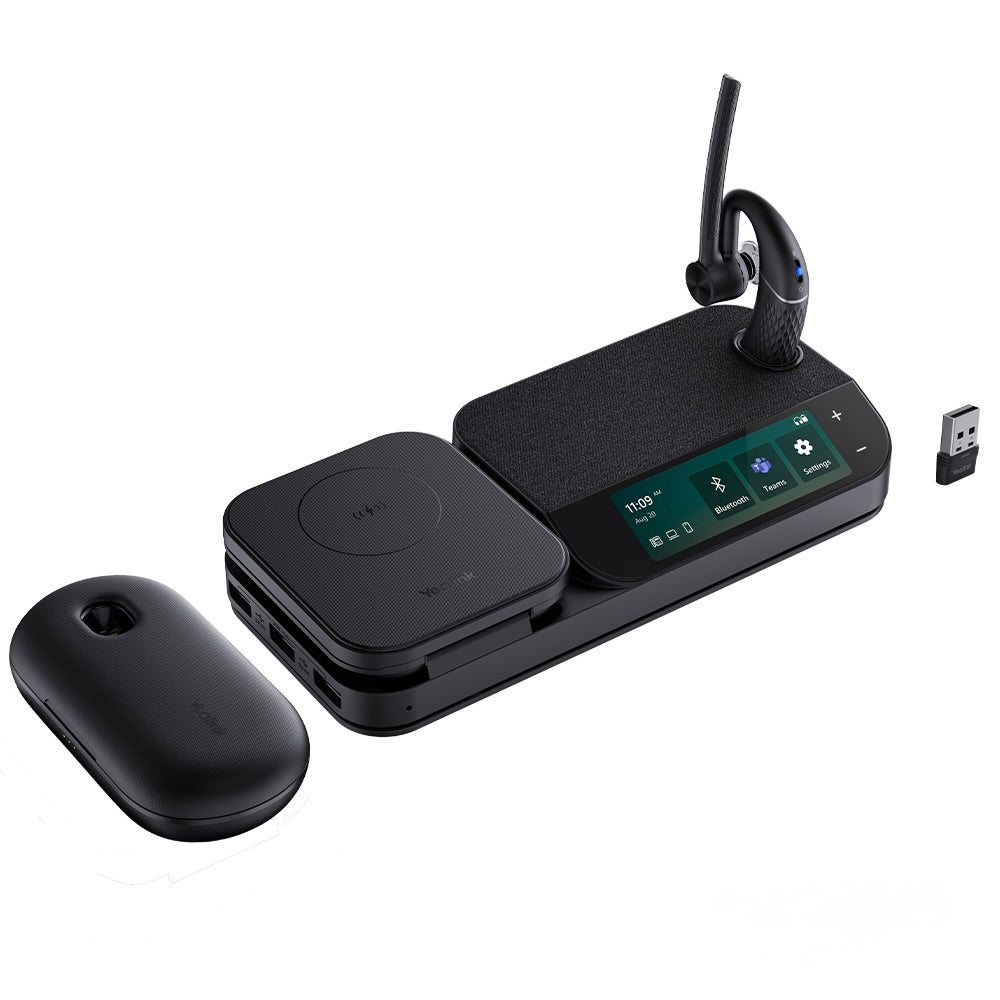
• The Yealink WH66 is the industry leading DECT wireless headset, offering a new form of desktop collaboration. • Seamlessly work with major UC platforms and integrate natively with Yealink IP Phones. • Features: • 4.0 inch (480 x 800) capacitive touch screen for easy control • Yealink Acoustic Shield Technology for clear audio quality • 2-ports USB 3.0 hub to connect multiple devices • Crystal speakerphone for high-quality voice calls • Optional accessories: Busylight BLT60, Wireless Charger, and Bluetooth Dongle BT50 • Additional Information: • Weight: 2.5 lbs • Dimensions: 10.5 × 8.5 × 5.5 in • Brand: Yealink • Headset Type: DECT, Stereo, UC Certified, USB • Technical Specifications: Model: WH66 Dual Part number: 1308008 Microphone type: dual microphone Microphone sensitivity: -44.0+/-3 dBV Microphone frequency range: 100 Hz-10 kHz Speaker size: Ф 28 Speaker sensitivity: 92.5+/-3 dB, 0.179 V Speaker impedance: 32+/-4.8 Ω Speaker max output power: 10 mW Speaker frequency range: 20 Hz-20 kHz

About This Product

The Yealink WH66 Dual sits in a unique spot between a traditional wireless DECT headset and a compact desktop communicator. For professionals who split their day between quiet focused work and hands-on call management, the integrated touch screen and speakerphone mean you can handle calls without constantly reaching for your computer or desk phone. It is well suited to open-plan offices, private workstations, and home offices where desktop space is at a premium and a single device can replace a separate headset, speakerphone, and USB hub.

This model is UC-certified and designed to integrate smoothly with major collaboration platforms like Microsoft Teams or Zoom, as well as natively with Yealink IP phones. The dual-microphone setup and Yealink’s acoustic shielding technology make it a practical choice for spaces with moderate background noise, though it is not a noise-cancelling solution built for call-center density or industrial environments. The built-in USB 3.0 hub is a genuine convenience, letting you keep a headset, webcam, or other peripheral connected through the base.

A key consideration is that the WH66 Dual includes a stereo headset and a charging base with the touchscreen console; the experience is centered on that physical desktop pod. If your work style is purely mobile, carrying just a dongle and a headset, a simpler DECT or Bluetooth-only headset may be a better fit. For a professional who manages a high volume of calls from a fixed workstation and values visual call control, however, this system is thoughtfully bundled. The optional wireless charger and Bluetooth dongle can extend its flexibility for hot-desking scenarios, though the base design naturally anchors it to one primary location.
Services We Provide
  • Professional Installation & Configuration
  • Ongoing Maintenance & Support
  • Troubleshooting & Repairs
  • System Upgrades & Updates