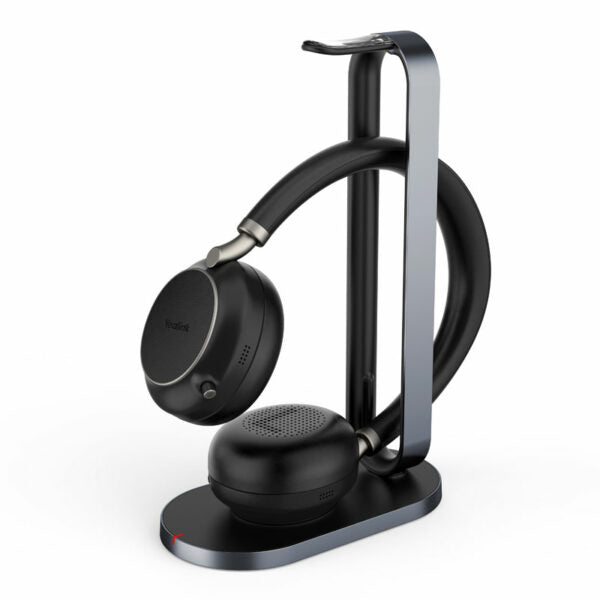
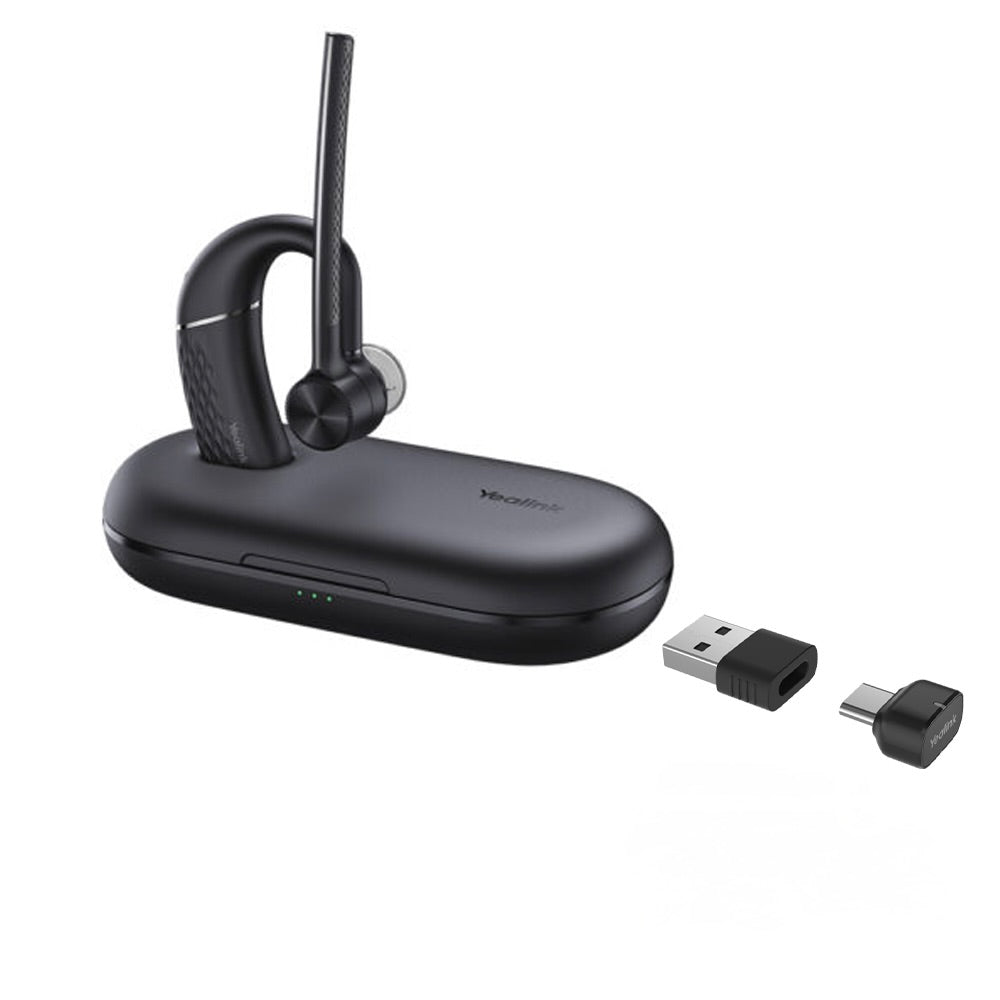
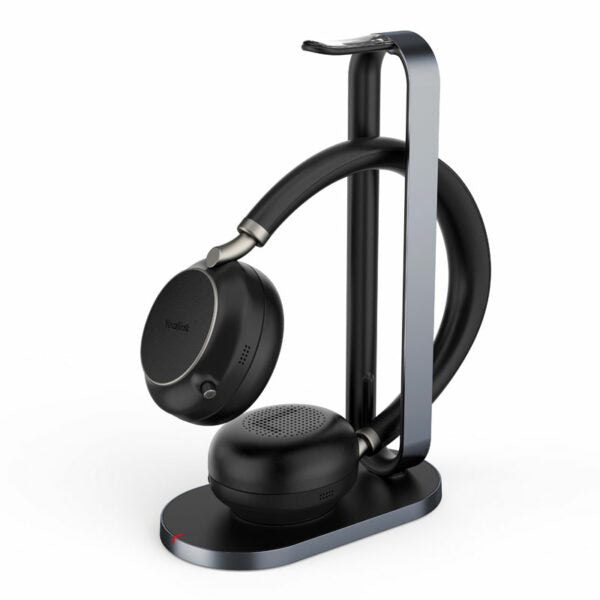
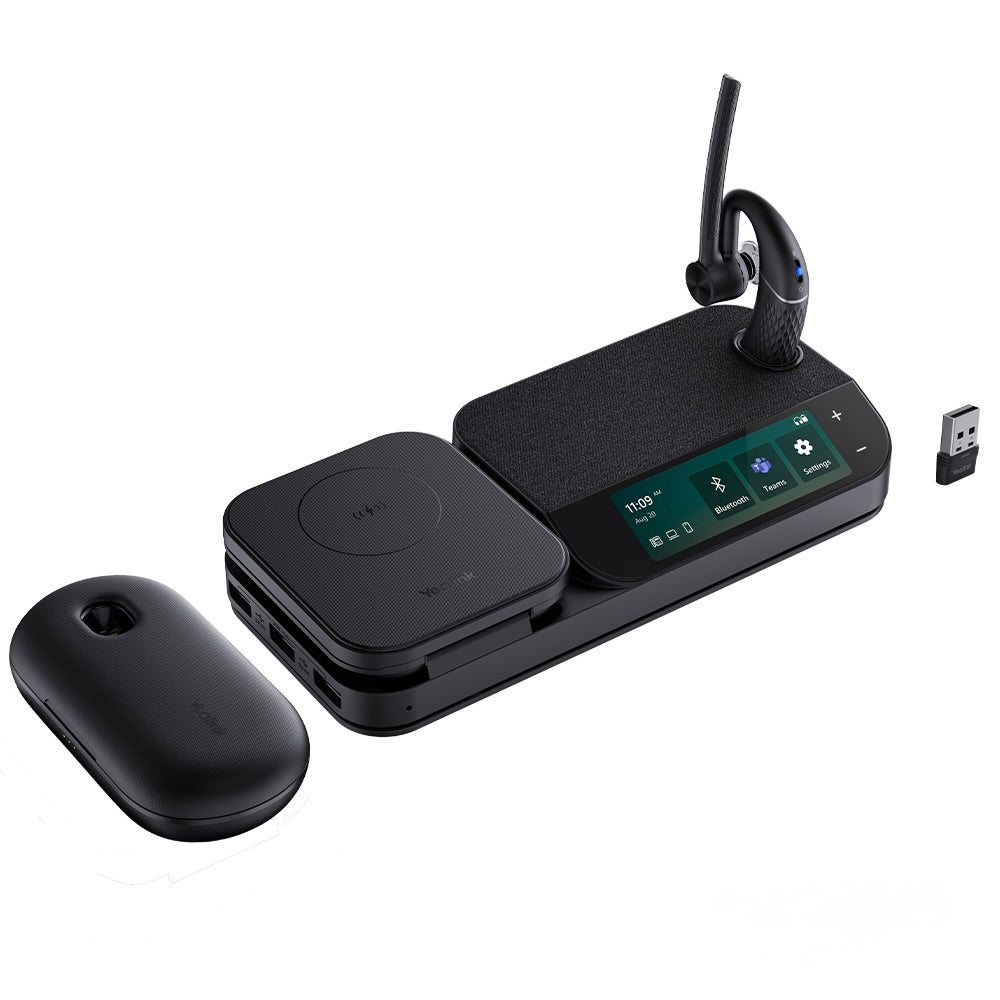
Yealink WH68 Hybrid Teams (charging station not included) – 1208714

Frequently Asked Questions

First, ensure the DECT dongle (WDD60) is securely plugged into the USB port of your desk phone. If the phone does not recognize the dongle, try a different USB port or check if the phone supports USB audio devices. Also, verify that the headset is paired with the dongle by following the pairing procedure in the user manual. If the issue persists, a Toronto-based VoIP support provider can usually resolve this remotely.
Start by moving the paired device closer to the headset, as Bluetooth range is typically around 10 meters and can be blocked by walls or metal objects. Also, check that no other Bluetooth devices are interfering by turning off nearby Bluetooth devices temporarily. If the disconnections continue, try unpairing and re-pairing the headset with your device.
The WH68 allows you to be connected to both a desk phone (via DECT) and a PC or mobile (via Bluetooth) simultaneously. To switch, simply answer a call on the desired device, or use the call control button on the headset to toggle between active calls. Refer to the user guide for specific button sequences for your model.
First, ensure the headset is fully charged, as low battery can affect audio quality. Next, check that the microphone boom is positioned correctly near your mouth. If you are using DECT, move closer to the dongle to rule out range issues. For Bluetooth, ensure no other devices are streaming audio nearby.
Yes, the WH68 works as a standard Bluetooth headset with any softphone that supports Bluetooth audio. However, the dedicated Teams button and some integration features will only function fully with Microsoft Teams. For other platforms, you can still answer calls and adjust volume using the headset controls.
First, try a different USB cable and power source, as the cable may be faulty. Ensure the charging port on the headset is clean and free of debris. If the headset still does not charge, the battery may need replacement, which should be handled by a qualified technician.
Place the headset in pairing mode (usually by holding the call button for several seconds until the LED flashes). Then, insert the DECT dongle into a powered USB port on your PC or phone. The dongle should automatically detect the headset. If not, consult the manual for the specific pairing sequence for your region.
The headset is designed for all-day wear, but comfort can vary. Try adjusting the headband and rotating the ear cups for a better fit. If you wear glasses, ensure the ear cups are not pressing too tightly. Taking short breaks every hour can also help reduce pressure points.
Echo is often caused by the other caller's audio being picked up by your microphone. Lower the volume on your headset slightly, or ask the other party to lower their speaker volume. Also, ensure the microphone boom is positioned correctly and not blocked. If the echo persists, try using the headset in a quieter environment.
Yes, the WH68 can connect to a mobile phone via Bluetooth without the DECT dongle. Simply put the headset in Bluetooth pairing mode and select it from your phone's Bluetooth settings. Note that you will not have DECT range or the ability to connect to a desk phone simultaneously in this mode.
VoIP Headsets

Yealink WH68 Hybrid Teams (charging station not included) – 1208714
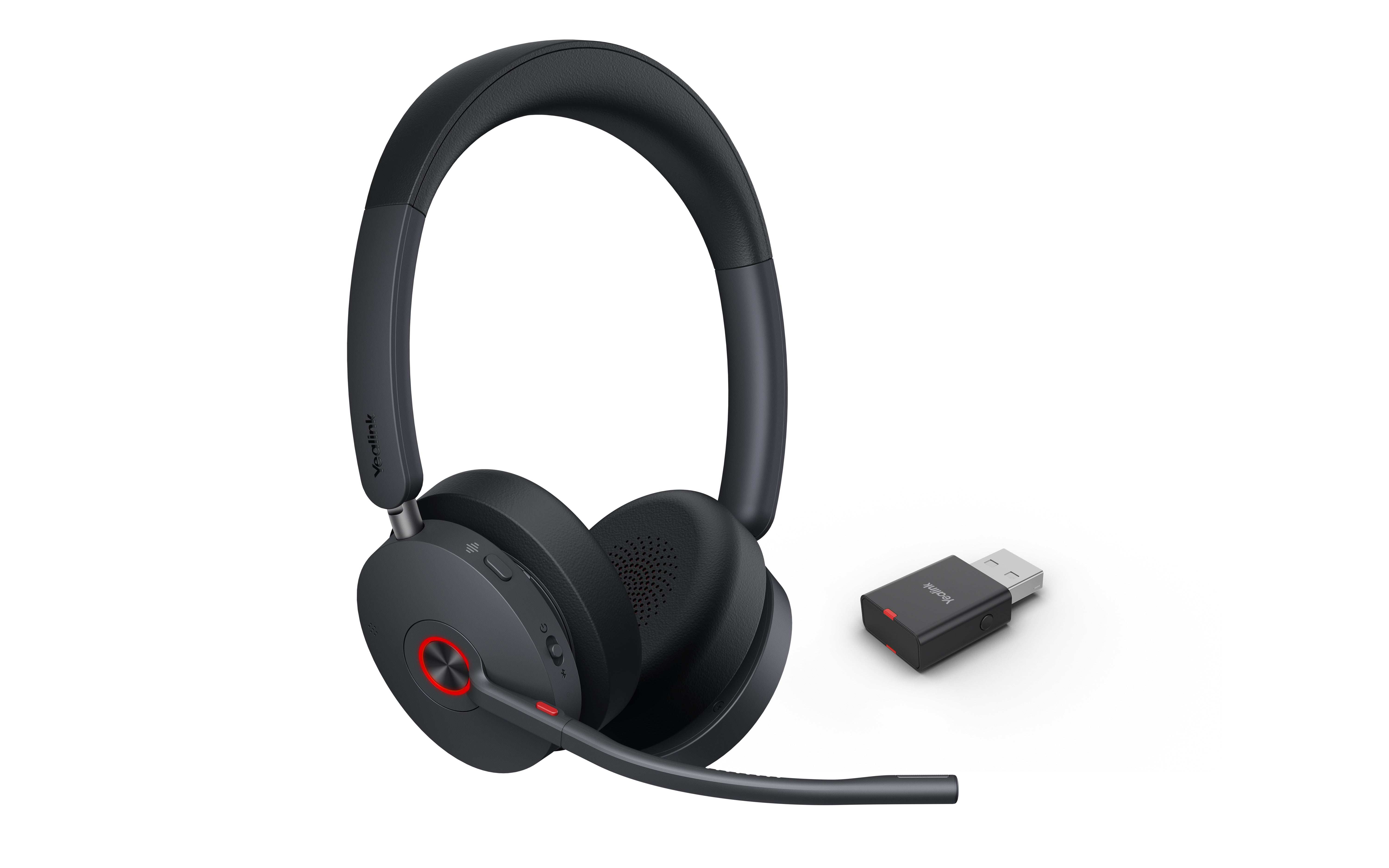
• Yealink WH68 Hybrid is a wireless headset equipped with a DECT dongle for hybrid work, offering flexible and efficient solutions for multi-connection mobile office scenarios. Key Features: • 4-Mic for Hybrid ANC • Acoustic Shield Technology 3.0 • DECT & Bluetooth Wireless Technology • All-day-wearing Comfort • Ultra-long-range Connectivity • Advanced Level of Call Security • Teams Certified Technical Specifications: • Connection: Bluetooth 5.3; DECT • Wireless Range: up to 150 m/492 feet • Secure DECT (level): Step C • USB connectivity to PC and IP phone • Frequency bands: • 1880 ‒ 1900 MHz (Europe), • 1920 ‒ 1930 MHz (US) • Connection: • WDD60 Dongle • USB-A to USB-C Adapter Audio: • Speaker size: 30 mm • Speaker frequency range: 20 Hz-20 kHz • Speaker bandwidth music mode: 20 Hz-20 kHz • Speaker bandwidths talk mode: 100 Hz~8 kHz • Microphone frequency range: 100Hz-10khz • Microphone type: 6 MEMS microphone • Hearing Protection: • Peak Block Protection (EN50332) • Australian G616 Protection (AU G616) • Daily Noise Exposure Protection ANC: ✔

About This Product

The Yealink WH68 Hybrid is a wireless headset designed for professionals who need to stay connected across multiple devices throughout the workday. It is particularly well-suited for hybrid office environments where users frequently switch between a desk phone, a PC softphone, and a mobile phone. The headset uses both DECT and Bluetooth 5.3, allowing it to maintain a stable connection to a desk phone via the included DECT dongle while simultaneously pairing with a smartphone or computer over Bluetooth. This dual-connectivity approach makes it a practical choice for a Toronto-based business where employees may take calls from a Cisco desk phone in the office and then continue the conversation on their mobile while walking to a meeting room or even outside. The headset offers a long wireless range of up to 150 meters, which is useful in open-plan offices or warehouses, but keep in mind that DECT range can be reduced by walls and interference in dense office buildings. It is Teams certified, so it integrates smoothly with Microsoft Teams on a PC, but it also works as a standard Bluetooth headset for other platforms. The WH68 does not include a charging station, so you will need to charge it via USB, which may be a minor inconvenience for users who prefer a dedicated cradle. For a small office or a single user who values flexibility and call security, this headset is a strong fit, but it may be overkill for someone who only needs a simple wired headset for occasional calls.
Services We Provide
  • Professional Installation & Configuration
  • Ongoing Maintenance & Support
  • Troubleshooting & Repairs
  • System Upgrades & Updates