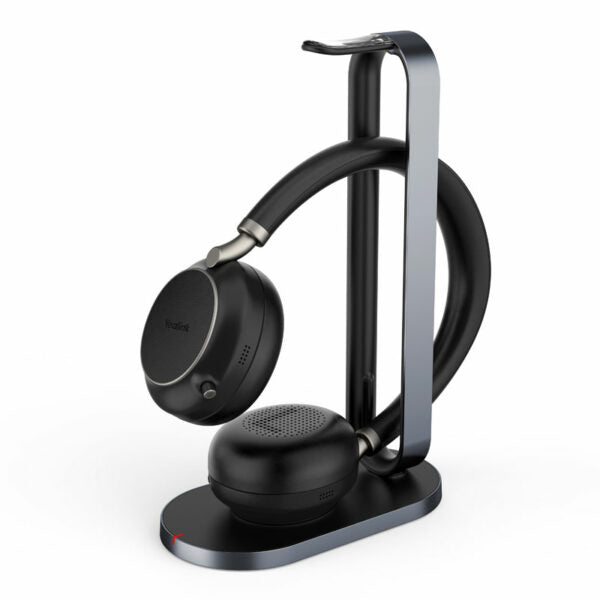
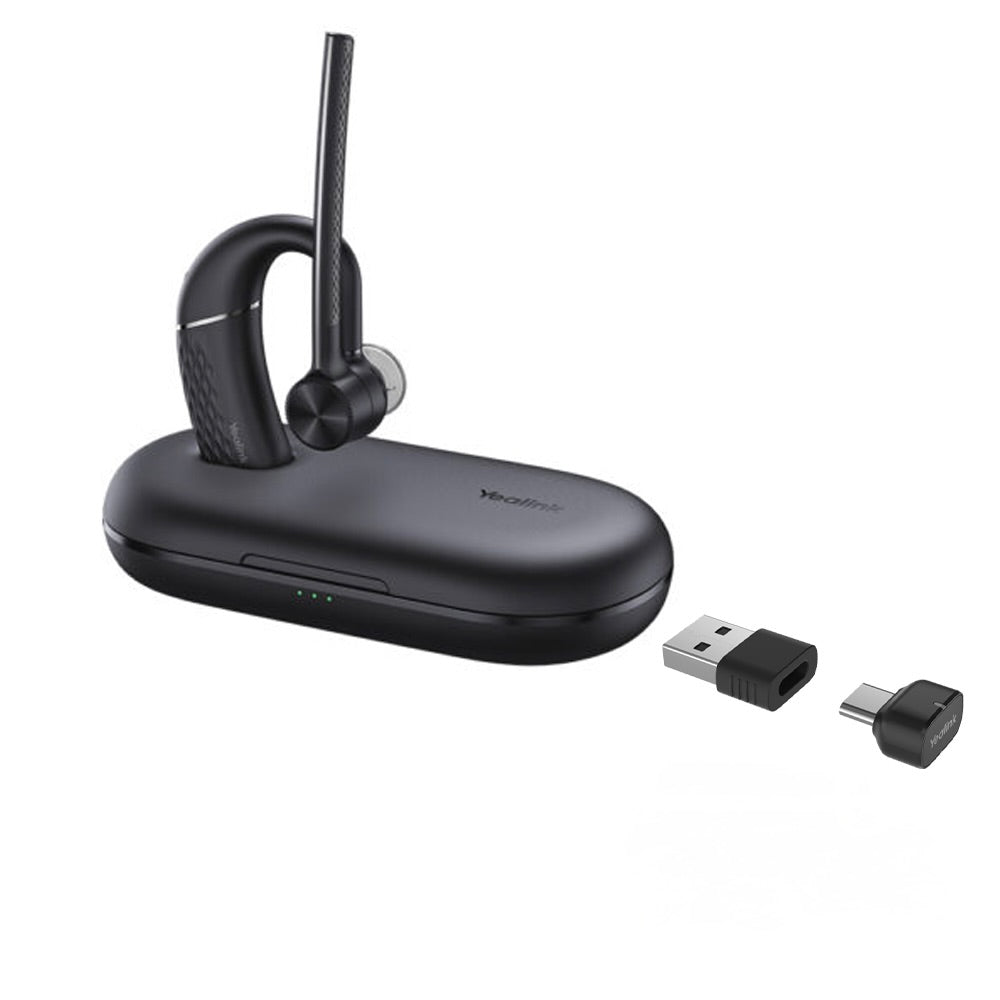
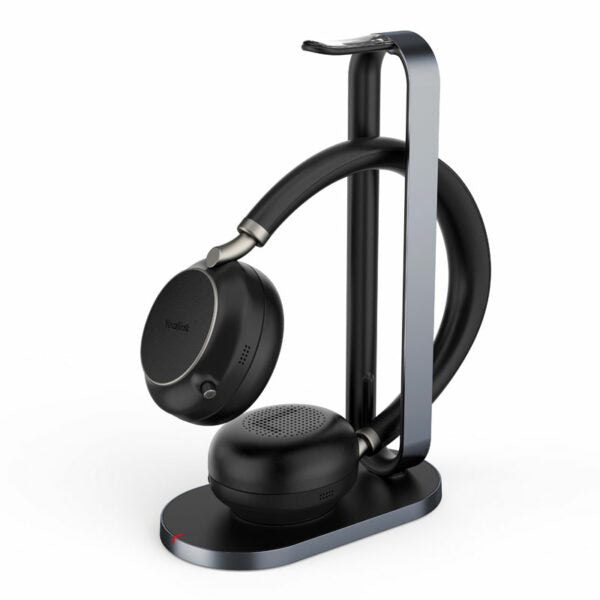
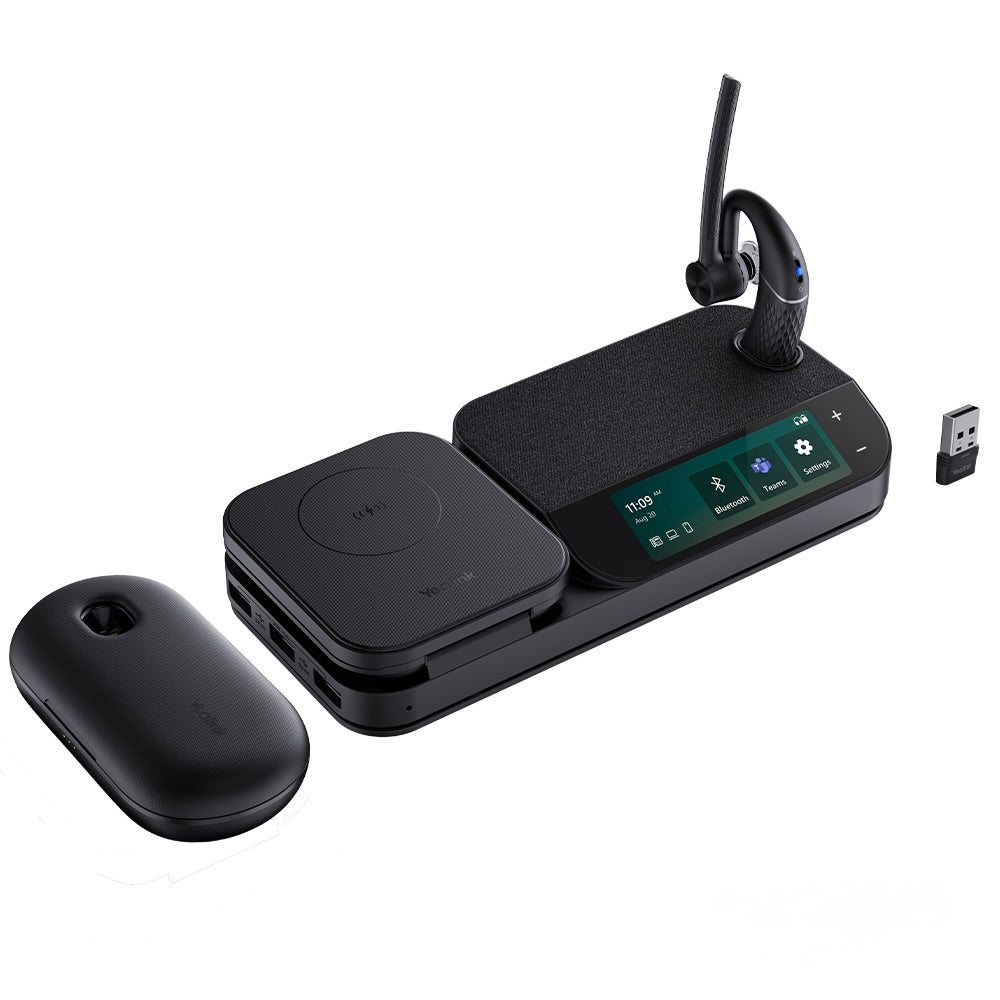
Yealink WH68 Teams – 1208655

Frequently Asked Questions

First, ensure the base station is plugged into power and your computer or phone. Then, check that the headset is within range (about 30 meters for DECT). If it still doesn't connect, try reseating the headset in the charging cradle for a few seconds. If the issue persists, a Toronto-based VoIP support provider can usually resolve this remotely.
Audio dropouts are often caused by interference or distance. Make sure the base station is placed away from other electronics like Wi-Fi routers or microwaves. Also, stay within the recommended DECT range—if you move too far from the base, the signal weakens. Restarting the headset and base can also help re-establish a stable connection.
The busylight may need to be enabled in the Yealink software or your Teams settings. Open the Yealink USB Connect app (or the headset settings in Teams) and check the busylight configuration. If it's enabled but still not working, try updating the headset firmware through the app.
First, check that the microphone boom is positioned correctly—it should be close to your mouth. Then, ensure the headset isn't muted (look for a mute indicator on the headset or in your softphone). Also, verify that the WH68 is selected as the default audio device in your computer's sound settings.
Start by turning up the volume using the headset's volume controls. Then, confirm that the headset is set as the default playback device in your operating system or softphone. If you're using Teams, go to audio settings and ensure the WH68 is selected for both speaker and microphone.
Check that the charging contacts on both the headset and cradle are clean and free of debris. Also, ensure the cradle is plugged into a working USB port or power adapter. If it still won't charge, try a different USB port or cable. The headset can be used while charging via the cradle, so you can continue working.
Put the headset into Bluetooth pairing mode by pressing and holding the Bluetooth button (usually the one with a Bluetooth icon) until the LED flashes red and blue. Then, search for the headset on your phone's Bluetooth settings and select it. Note that the DECT base station must be connected to your PC for Teams functionality.
Yes, the WH68 works as a standard USB audio device, so it can be used with any softphone like Zoom, RingCentral, or Cisco Jabber. However, some Teams-specific features (like the dedicated Teams button) may not function outside of Teams. For basic call audio, it's fully compatible.
You can adjust Acoustic Shield settings using the Yealink USB Connect software, available for Windows and Mac. Open the app, select your headset, and look for the Acoustic Shield tab. You can choose between different levels of noise reduction or turn it off entirely. This software also allows you to customize other audio profiles.
Yes, you can use the WH68 while it's sitting in the charging cradle—just make sure the cradle is connected to power. This is useful if the battery is low and you need to take a call. However, if you need to move around, you'll need to rely on battery power. The battery typically lasts a full workday on a single charge.
VoIP Headsets

Yealink WH68 Teams – 1208655
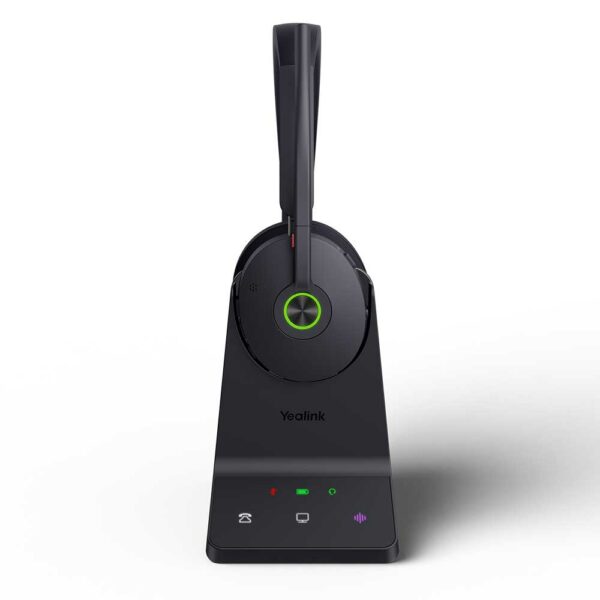
The WH68 is a wireless headset for business communication, offering efficiency and flexibility with its DECT and Bluetooth modes. Advanced acoustic shield technology 2.0 filters out background noise for clear sound transmission, while the busylight signals your call status to avoid interruptions. The ergonomic design ensures an all-day comfortable wearing experience. Key features: • DECT & Bluetooth wireless technology • Multiple devices plug-and-play compatibility • Acoustic Shield 2.0 Technology for clear sound transmission • All-day comfort with high-quality materials and lightweight build • Visual busylight to indicate call status • Teams certified Technical specifications: Audio: Speaker size: 30mm Speaker frequency range: 20 Hz-20 kHz Microphone sensitivity: -38±1dBV/Pa Microphone frequency range: 100HZ-10khz Talk mode: wideband, 100 Hz~8 kHz, 16 kHz sample rate Music mode: full-band, 20 Hz~20 kHz, 48 kHz sample rate, Stereo Hearing Protection: Peak Block Protection (EN50332) Australian G616 Protection (AU G616) Daily Noise Exposure Protection For a full list of specifications, please refer to the product datasheet.

About This Product

The Yealink WH68 Teams is a wireless headset designed for professionals who need reliable, hands-free communication in an office environment. It is particularly well-suited for open-plan workspaces or busy offices where background noise can be a distraction, thanks to its Acoustic Shield 2.0 technology that filters out ambient sounds. The headset supports both DECT and Bluetooth connections, giving you the flexibility to pair it with your desk phone, computer, or mobile device, and it is certified for Microsoft Teams, making it a natural fit for organizations already using that platform. For Canadian businesses, especially in the GTA, this headset pairs well with common VoIP providers and can replace a traditional wired headset or handset, offering freedom of movement within a typical office range.

A practical tradeoff to consider is that DECT provides better range and stability than Bluetooth, but requires a base station plugged into your device, which adds a small footprint on your desk. The battery life is sufficient for a full workday, but if you forget to charge it overnight, you may need to use it while charging (which is possible) or switch to a wired backup. This headset is ideal for individual contributors or managers who spend a lot of time on calls and value comfort and audio clarity. It may be overkill for someone who only takes a few short calls per day, as a simpler headset would suffice. Conversely, it could be underpowered for a large call center where dozens of headsets need centralized management and charging—the WH68 is built for personal use, not fleet deployment.

The ergonomic design with lightweight materials ensures all-day comfort, and the visual busylight helps colleagues know when you are on a call, reducing interruptions. While the headset is Teams-certified, it also works with other softphones, though some advanced features like call control may vary. For a Canadian office deployment, the WH68 is a solid choice if you want a reliable, noise-canceling wireless headset that integrates smoothly with your existing Teams setup and offers the flexibility of both DECT and Bluetooth connectivity.
Services We Provide
  • Professional Installation & Configuration
  • Ongoing Maintenance & Support
  • Troubleshooting & Repairs
  • System Upgrades & Updates