Yealink WPP30 - Wireless Video/Audio Extender

Frequently Asked Questions

First, ensure your laptop's Wi-Fi is enabled and it is connected to the WPP30's self-built Wi-Fi network (the network name is usually printed on the pod or its packaging). If the connection still fails, try plugging the WPP30 into a different USB port on your laptop, as some ports may not supply enough power. If the issue persists, a Toronto-based VoIP support provider can usually resolve this remotely.
Start by reducing the distance between the WPP30 and your laptop, as Wi-Fi signal strength directly affects performance. Also, close any bandwidth-heavy applications on your laptop, such as large file downloads or video streaming. If the problem continues, verify that your laptop's Wi-Fi adapter supports 5 GHz, as the 2.4 GHz band can be congested in office environments.
For an iPhone, ensure your phone is connected to the WPP30's Wi-Fi network, then open the Yealink RoomCast app (available on the App Store). For Android, connect to the same Wi-Fi network and open the Yealink RoomCast app from Google Play. The app will guide you through casting your screen. No additional software is needed on your laptop.
First, check that the USB cable is firmly connected to both the WPP30 and your laptop or a USB power adapter. If using a laptop, try a different USB port, as some ports may not provide enough power. If the device still does not power on, try a different USB cable or a wall charger, as the cable may be faulty.
Yes, the WPP30 has a full-featured USB-C port, so you can plug it directly into a MacBook's USB-C port. No adapter is needed. If your MacBook does not detect the WPP30, try a different USB-C port or cable, and ensure your MacBook's Wi-Fi is connected to the WPP30's network.
First, ensure that the Yealink RoomCast app is installed and up to date on the device you are using to annotate. Also, check that the WPP30 is connected to a display that supports touch input (if using a touchscreen). If annotation still fails, try disconnecting and reconnecting the WPP30, as this can reset the software connection.
The WPP30 supports 4-screen casting, but this requires that all four displays are connected to the same WPP30 unit (via HDMI or other inputs) and that your laptop or mobile device is connected to the WPP30's Wi-Fi network. In the Yealink RoomCast app, select the option to share to multiple screens. Note that each display will show the same content; the WPP30 does not support independent content on each screen.
First, confirm that your source device is outputting at least 1080p, as the WPP30 can handle up to 4K at 30 fps. If the source is set to a lower resolution, adjust it in your device's display settings. Also, ensure the WPP30 is connected to a display that supports 4K input. If the issue persists, try moving the WPP30 closer to the display to reduce signal interference.
Yes, the WPP30 creates its own Wi-Fi network, so it does not require an internet connection to function. Your laptop or mobile device only needs to connect to the WPP30's network to share content. This makes it a great option for meeting rooms with limited or no internet access.
This is often caused by your laptop's power-saving settings, which may turn off the Wi-Fi adapter after a period of inactivity. Go to your laptop's power management settings and disable any options that allow the system to turn off the Wi-Fi adapter to save power. Also, check that the WPP30's USB connection is secure, as a loose connection can cause intermittent disconnects.
Video Conferencing

Yealink WPP30 - Wireless Video/Audio Extender
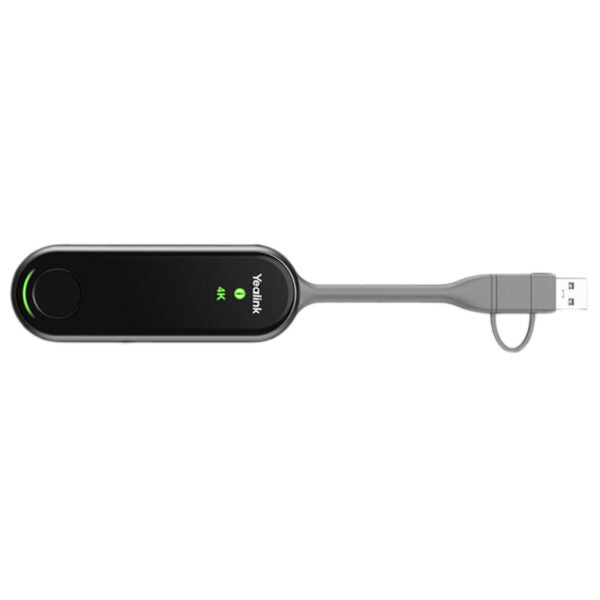
• The Yealink WPP30 is a 4K Ultra HD wireless presentation pod that eliminates the need for software or driver installation, saving time and effort. Its embedded meeting assistant software and Wi-Fi 6 chip enable quick setup and seamless connectivity to existing conference room equipment. Key Features: • Self-built Wi-Fi network • 4K/30fps full HD content sharing • Adaptive software/hardware encoding • Supports dual-band 2.4GHz/5GHz wireless networks • Plug and play, with no extra software or driver required • Full-featured USB Type-C and USB Type-A ports • AES & WPA data encryption • Adapts to computers and mobile phones with different ports • 4-screen casting • Supports annotation/whiteboard/reverse control • Supports wireless BYOD Additional Information: • Weight: 0.165 lbs • Dimensions: 8.66 × 1.5 × 0.63 in Technical Specifications: • Model: WPP30 • Standard: Wi-Fi 6, 802.11 a/b/g/n/ac/ax • Frequency: 2.4 GHz/5 GHz • Encryption: WPA-PSK/WPA2-PSK • Bluetooth 5.0 • Desktop Sharing: • Duplicated display • Extended display • Collaboration: • Annotation • Virtual whiteboard • Intuitive remote control • Multiple screens share • Wireless BYOM

About This Product

The Yealink WPP30 is designed for meeting rooms where presenters want to share content wirelessly without the friction of installing software or plugging in a dedicated cable. It is ideal for huddle rooms, small-to-medium conference spaces, and offices that support BYOD (bring your own device) policies. The WPP30 creates its own Wi-Fi network, so it works independently of your office LAN, which simplifies setup but also means it will not extend your existing network coverage. It pairs well with any display or projector that accepts HDMI input, making it a straightforward upgrade for rooms that currently rely on wired presentation setups. In a GTA office deployment, this device can streamline meetings by letting anyone with a laptop or mobile phone share their screen in seconds, though teams that require 4K content at higher than 30 fps or need to share from devices without USB-C or USB-A ports may find it limiting. For rooms with dedicated room PCs or advanced AV control systems, the WPP30 may be redundant, but for spaces where ad-hoc wireless sharing is the priority, it is a clean, low-friction solution.
Services We Provide
  • Professional Installation & Configuration
  • Ongoing Maintenance & Support
  • Troubleshooting & Repairs
  • System Upgrades & Updates