
Yealink CP965 Touchscreen HD Voice Conference Phone-1304014
AIM Telecom provides troubleshooting and configuration support for this product to businesses across Toronto and the GTA. Contact us to confirm whether the issue can be handled by phone or requires on-site service.
Get Support Call 416-312-4819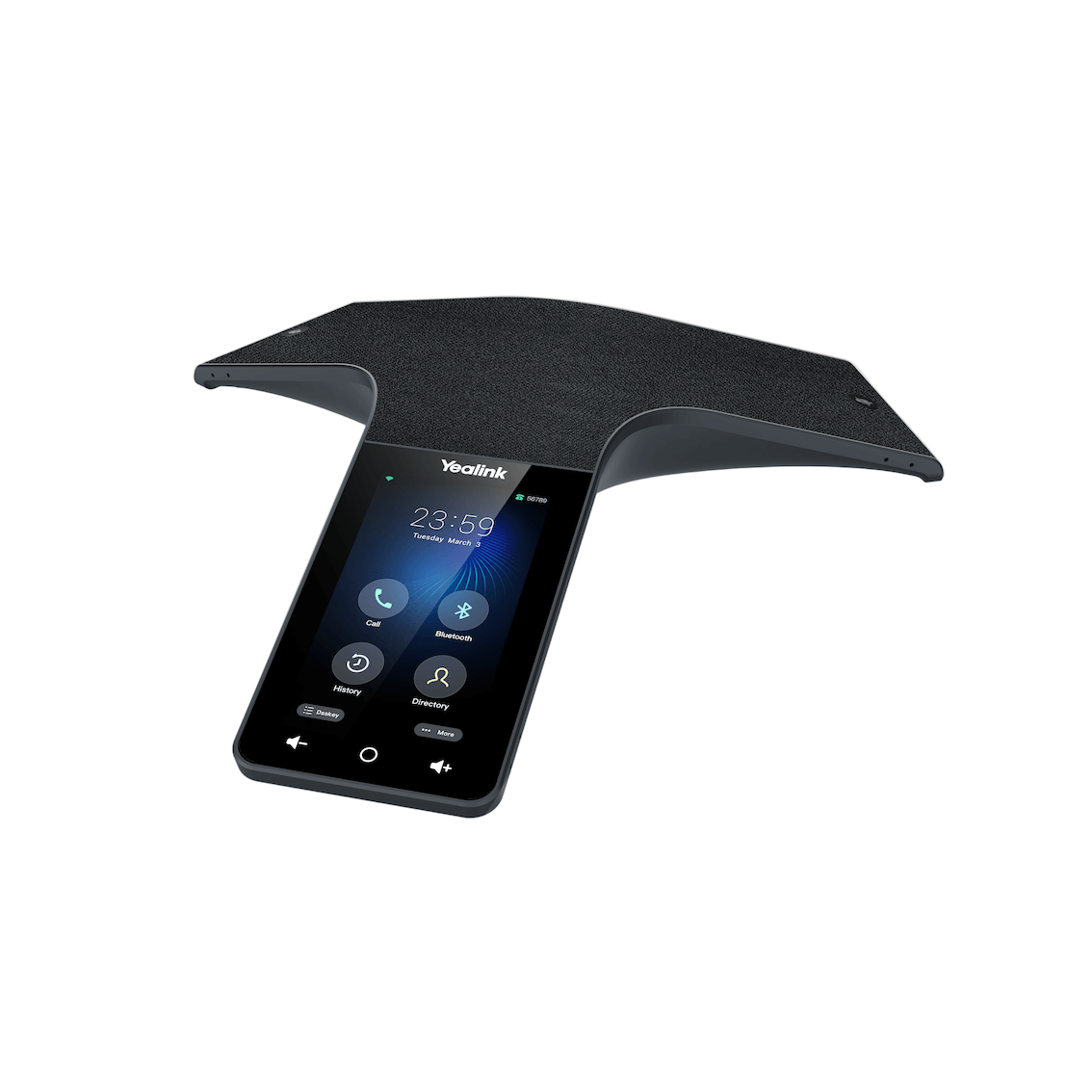
Common issues and fixes
Reviewed troubleshooting steps are not yet available for this model.
Ask AIM Telecom about this productAbout this product
• The Yealink Teams enterprise-grade conference phone CP965 is designed for medium to large-sized conference rooms, bringing the Teams experience and functionality from the desktop to the conference room. Based on Android 11, it offers a user interface that balances simplicity and sophistication.
• Key features:
• 5” 720×1280 multi-touch screen
• Android 11 operating system
• Optimal HD audio with full duplex technology
• 20-foot (6-meter), 360-degree microphone pickup range
• Microsoft Teams-tailored user interface
• Support for Microsoft 365 and upgradability of device applications to Teams
• Built-in Bluetooth 4.2 and dual band 2.4G/5G Wi-Fi
• Supports Microsoft/Yealink/Unify Square Device Management Platform
• Technical Specifications:
• Audio Features:
• Optimal HD audio
• Supported audio codecs: G722, G722.1C, G726, G.729, G.729A, G723, iLBC, Opus, PCMU (G.711A), PCMA (G.711μ), SILK
• 20-foot (6-meter) microphone pickup range
• Built-in 12-microphone array for 360-degree voice pickup
• 1-microphone array for noise reduction
• 56mm diameter and 5w speaker
• Full-duplex speakerphone with AEC and echo cancellation tail length up to 320ms
• Display and Indicator:
• 5” 720×1280 capacitive touch screen
• Volume key, home button, and multilingual user interface
• Modern Teams interface with full keyboard support
• Presence status control: available, busy, DND, be right back, off work, away
• Interface:
• RJ45 10/100M Ethernet port
• Power over Ethernet (IEEE 802.3af) class 4
• Built-in dual band Wi-Fi and Bluetooth 4.2
• USB 2.0 Type-A and Type-C device ports
• Security slot
• Key features:
• 5” 720×1280 multi-touch screen
• Android 11 operating system
• Optimal HD audio with full duplex technology
• 20-foot (6-meter), 360-degree microphone pickup range
• Microsoft Teams-tailored user interface
• Support for Microsoft 365 and upgradability of device applications to Teams
• Built-in Bluetooth 4.2 and dual band 2.4G/5G Wi-Fi
• Supports Microsoft/Yealink/Unify Square Device Management Platform
• Technical Specifications:
• Audio Features:
• Optimal HD audio
• Supported audio codecs: G722, G722.1C, G726, G.729, G.729A, G723, iLBC, Opus, PCMU (G.711A), PCMA (G.711μ), SILK
• 20-foot (6-meter) microphone pickup range
• Built-in 12-microphone array for 360-degree voice pickup
• 1-microphone array for noise reduction
• 56mm diameter and 5w speaker
• Full-duplex speakerphone with AEC and echo cancellation tail length up to 320ms
• Display and Indicator:
• 5” 720×1280 capacitive touch screen
• Volume key, home button, and multilingual user interface
• Modern Teams interface with full keyboard support
• Presence status control: available, busy, DND, be right back, off work, away
• Interface:
• RJ45 10/100M Ethernet port
• Power over Ethernet (IEEE 802.3af) class 4
• Built-in dual band Wi-Fi and Bluetooth 4.2
• USB 2.0 Type-A and Type-C device ports
• Security slot
More product details
The Yealink CP965 is built for medium to large conference rooms where Microsoft Teams is the primary collaboration platform. It brings the full Teams experience to the conference table, making it a natural fit for organizations already invested in Microsoft 365 and Teams. This device pairs well with existing Teams deployments and can be centrally managed through supported device management platforms. It is overkill for small huddle rooms or spaces where a simple speakerphone would suffice, and it may be underpowered if your organization relies on a different unified communications platform, as the interface is deeply tailored to Teams. A key tradeoff is its reliance on a stable network connection; while it supports Wi-Fi, for best audio reliability in a busy office environment a wired Ethernet connection with Power over Ethernet is recommended. For Canadian businesses, particularly in the GTA, the CP965 integrates seamlessly with Teams tenants hosted in Canadian data centers and supports standard SIP-based call flows when needed, though its strengths are fully realized in a Teams-native environment.