
Yealink MB-Camera-6X Video Conferencing Camera
AIM Telecom provides troubleshooting and configuration support for this product to businesses across Toronto and the GTA. Contact us to confirm whether the issue can be handled by phone or requires on-site service.
Get Support Call 416-312-4819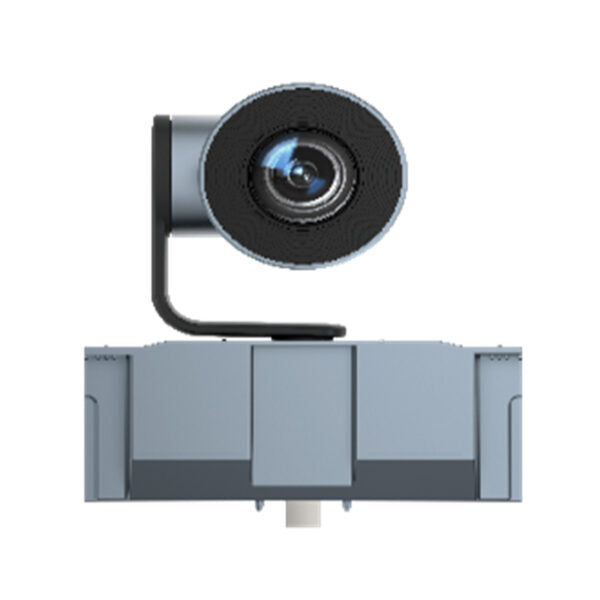
Common issues and fixes
Reviewed troubleshooting steps are not yet available for this model.
Ask AIM Telecom about this productAbout this product
The Yealink MeetingBoard medium and large room optical zoom camera, MB-Camera-6X, features a customized slot port design for easy installation on the top of the Meetingboard. This smart dual 4K camera solution utilizes Yealink's self-developed intelligent AI voice positioning and image algorithms.
Key Features:
• 1x 6X Optical PTZ Camera Module
• Including 2-year hardware warranty
• Weight: 1.85 lbs
• Dimensions: 12 × 12 × 6 in
• Brand: Yealink
• Video Conferencing: Camera
Technical Specifications:
Model: MB-Camera-6X
Part number: 1303074
Pixel: 8 MP
Video Output: 4K/30FPS
Zoom Ratio: 6x optical zoom
Automatic Exposure: Yes
Automatic White Balance: Yes
Pan Range: ±100°
Tilt Range: 0° /-90°
Auto Framing: Yes
Speaker Tracking: Yes
PiP Mode: Yes
Presets: Yes
Electric Privacy Shutter: Yes
Physical Port: Yealink Custom Port
Installation Method: MeetingBoard Custom Slot
Key Features:
• 1x 6X Optical PTZ Camera Module
• Including 2-year hardware warranty
• Weight: 1.85 lbs
• Dimensions: 12 × 12 × 6 in
• Brand: Yealink
• Video Conferencing: Camera
Technical Specifications:
Model: MB-Camera-6X
Part number: 1303074
Pixel: 8 MP
Video Output: 4K/30FPS
Zoom Ratio: 6x optical zoom
Automatic Exposure: Yes
Automatic White Balance: Yes
Pan Range: ±100°
Tilt Range: 0° /-90°
Auto Framing: Yes
Speaker Tracking: Yes
PiP Mode: Yes
Presets: Yes
Electric Privacy Shutter: Yes
Physical Port: Yealink Custom Port
Installation Method: MeetingBoard Custom Slot
More product details
The Yealink MB-Camera-6X is a dedicated optical zoom camera designed exclusively for use with Yealink's MeetingBoard large-format interactive displays. It is not a standalone webcam or a general-purpose conference camera; it mounts into a custom slot on the top of a MeetingBoard, making it a natural upgrade path for organizations that already own or are planning to deploy a MeetingBoard in a medium-to-large meeting room. The 6x optical PTZ lens and dual 4K sensor array, combined with Yealink's AI-driven speaker tracking and auto-framing, make this camera well-suited for boardrooms and training spaces where presenters move around and need to stay in frame without manual adjustment.
For a Canadian business setting, particularly in the GTA where many offices use Yealink ecosystem devices, this camera pairs seamlessly with the MeetingBoard to create a unified video conferencing appliance. It replaces the need for separate camera, speaker, and microphone arrays in rooms that already have a MeetingBoard, simplifying cabling and reducing AV complexity. However, the MB-Camera-6X is not compatible with any other display or mounting system; it is locked to the MeetingBoard's proprietary slot, so it cannot be repurposed for a different room setup or used as a standalone PTZ camera.
The practical tradeoff is that this camera is overkill for small huddle rooms or spaces where participants sit close to the display, as the optical zoom and wide pan/tilt range are designed for larger rooms where the camera needs to capture a wide area and zoom in on speakers. Conversely, it may be underpowered for very large auditoriums or spaces with extreme lighting conditions, as the 6x optical zoom and fixed sensor size have limits. Buyers should confirm their MeetingBoard model supports this camera and that their room size justifies the optical zoom capability before purchasing.
For a Canadian business setting, particularly in the GTA where many offices use Yealink ecosystem devices, this camera pairs seamlessly with the MeetingBoard to create a unified video conferencing appliance. It replaces the need for separate camera, speaker, and microphone arrays in rooms that already have a MeetingBoard, simplifying cabling and reducing AV complexity. However, the MB-Camera-6X is not compatible with any other display or mounting system; it is locked to the MeetingBoard's proprietary slot, so it cannot be repurposed for a different room setup or used as a standalone PTZ camera.
The practical tradeoff is that this camera is overkill for small huddle rooms or spaces where participants sit close to the display, as the optical zoom and wide pan/tilt range are designed for larger rooms where the camera needs to capture a wide area and zoom in on speakers. Conversely, it may be underpowered for very large auditoriums or spaces with extreme lighting conditions, as the 6x optical zoom and fixed sensor size have limits. Buyers should confirm their MeetingBoard model supports this camera and that their room size justifies the optical zoom capability before purchasing.